

Exercise library
The Exercise library is where you gather everything that feeds your sessions: a tactical drawing sketched in the app, a TikTok or X video spotted online, a photo taken on the pitch, or a plain text note. You’ll find it under Planning › Exercise library.
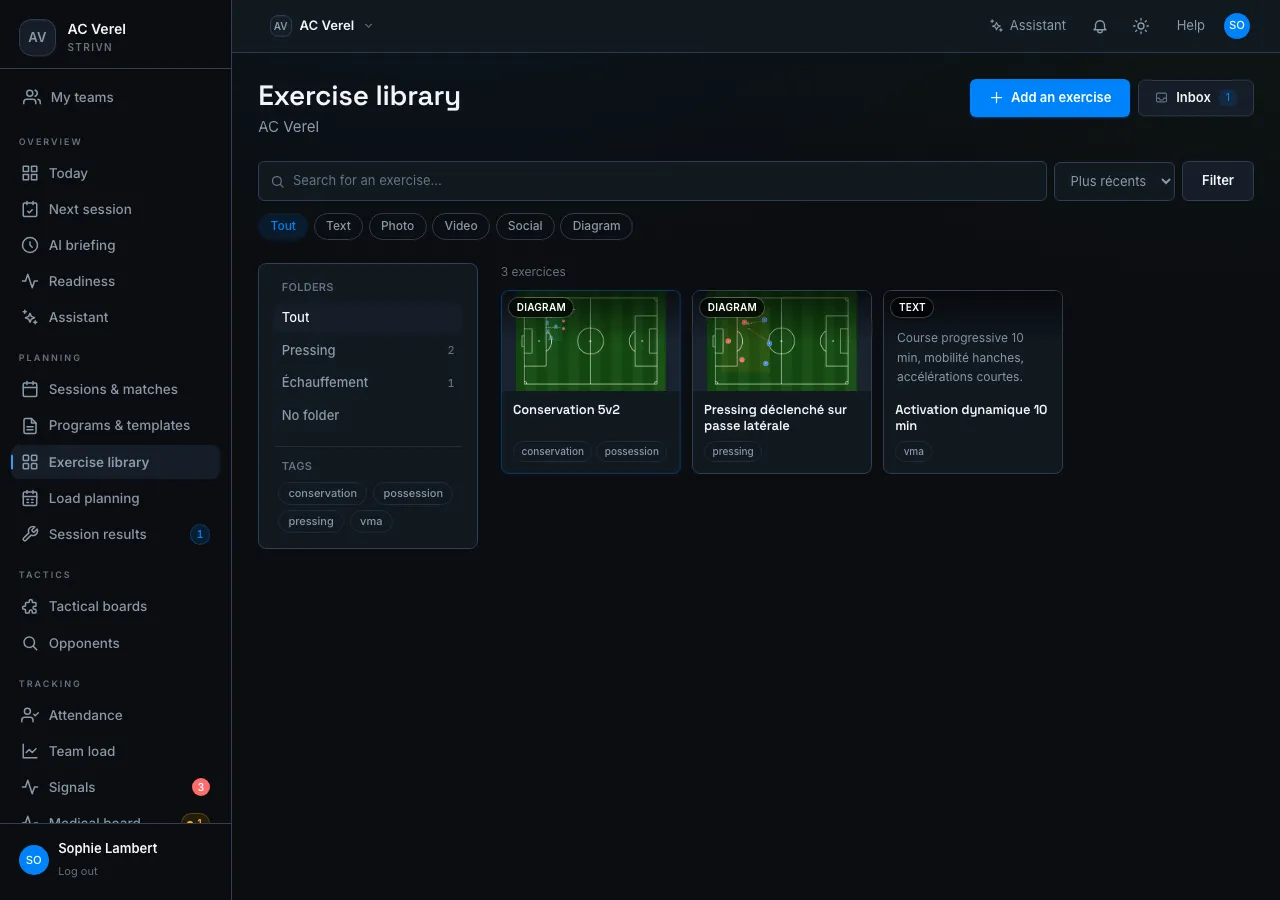
Capture an exercise
Section titled “Capture an exercise”The + Add an exercise button opens a window with four tabs:
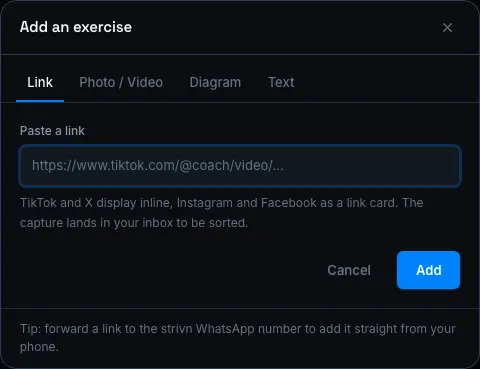
| Tab | What you capture |
|---|---|
| Link | Paste a URL. TikTok and X display directly in the library; Instagram and Facebook show as a link card. |
| Photo / Video | Upload a file from your device. |
| Diagram | Draw a new diagram on the tactical board, or reuse an existing board. |
| Text | Write a description directly (instructions, variations, coaching points). |
Sort the inbox
Section titled “Sort the inbox”Every capture (link, photo, video…) first lands in the inbox, reachable from the Inbox button above the library grid. Nothing there is visible to the team until you’ve sorted it.
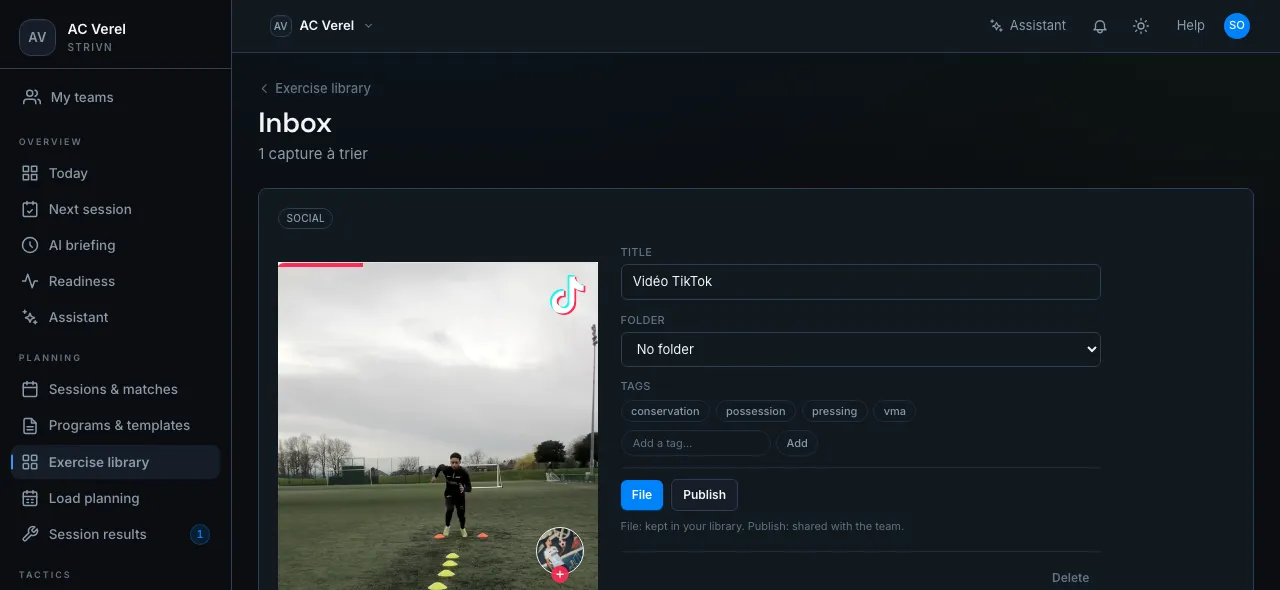
For each capture:
- Adjust the title, file it into an existing folder or create one on the fly, and add tags (existing or new).
- File keeps the exercise in your library, visible to you only. Publish shares it with the whole team.
- Delete discards the capture if it’s not useful.
Browse and organize
Section titled “Browse and organize”The grid shows your published exercises media-first: a diagram screenshot, a video thumbnail, or a text excerpt. The All / Text / Photo / Video / Social / Diagram filters and the search box narrow the list; sorting (most recent, alphabetical…) and pagination kick in as the library grows.
The left panel lists your folders and tags with their exercise count — click one to filter the grid.
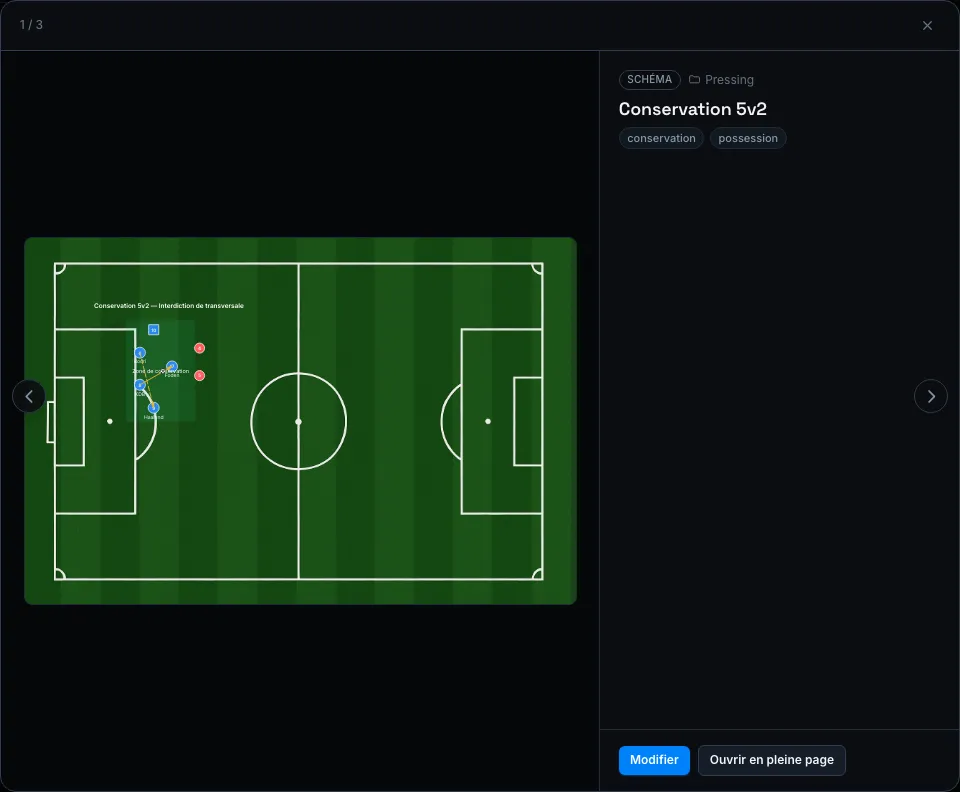
Clicking a card opens a full-screen quick view: the media fills the main pane, the metadata (folder, tags) sits in the side rail, with keyboard or mouse previous / next navigation to browse the whole selection without going back to the grid.
Share an exercise via a public link
Section titled “Share an exercise via a public link”To show an exercise to someone who doesn’t use strivn — your staff in a WhatsApp thread, a coach from another club, an intern — the Share button generates a public link anyone can open.
You’ll find it in two places: on an exercise’s detail page, next to Edit, and in the action bar of the quick view — because the urge to send an exercise strikes while you’re browsing the grid, not after opening its page.
The Share this exercise window gives you the public link and three ways to use it:
| Action | What it does |
|---|---|
| Copy link | Puts the address on your clipboard, to paste wherever you like. |
| Send on WhatsApp | Opens WhatsApp with the exercise title and the link already written — you just pick the conversation. |
| Open the page | Shows the page exactly as the recipient will see it. |
On a phone, an extra Share… button goes through the system share sheet (Messages, Mail, AirDrop…).
What the recipient sees
Section titled “What the recipient sees”The page opens with no account and no sign-in — the link itself is the key. It gathers the whole exercise on one page: the social video plays right there, the tactical diagram renders, uploaded photos and videos too, along with the key metrics you filled in and their reference duration, the description, the tags and, in strength training, the muscle group. Your team’s name sits in the header.
Paste the link into WhatsApp and a preview card unfurls with the title, a summary and a thumbnail, instead of a bare address.
Killing a link you’ve already sent
Section titled “Killing a link you’ve already sent”Disable the link immediately breaks every copy already sent — including the one pasted into a thread weeks ago. Sharing again then creates a different address; the old one stays dead.
As long as you don’t disable it, reopening Share hands back the same link. Pressing the button twice therefore never breaks what you’ve already sent. A green dot on the Share button marks exercises that are already shared.
Sharing requires program management rights: a read-only staff member sees the exercise but not the button. A private (unpublished) exercise can be shared, but only by its author.
Attach an exercise to a session
Section titled “Attach an exercise to a session”A published exercise can be attached to any session on the calendar, from two places:
- The Exercises tab of an event’s detail panel, in the calendar.
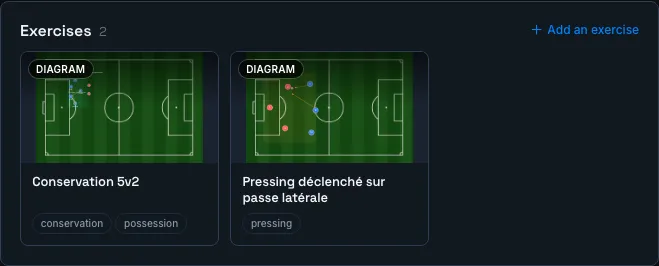
- The Exercises block on the Next session page, via the + Add an exercise button.
Both open the same picker (search + type filter, multi-add) and show already-attached exercises as clickable tiles — clicking one reopens the quick view, Remove detaches the exercise from the session without deleting it from the library.
What’s next?
Section titled “What’s next?”- Describe your exercises in distance, sprints or RPE with exercise metrics, to get your sessions’ estimated external load.
- Schedule the session and send convocations from the calendar.
- Build a reusable session sequence in training programs.
- A diagram sketched from a tactical board joins your library automatically once published.
- An exercise can leave the app through a read-only public link, to send to your staff or a colleague without a strivn account.