

Load planning
Load planning is the strength & conditioning coach’s tool: you sketch the coming week’s load before it is run. It is a load layer sitting on top of your calendar — you don’t create sessions here, you attach load to the real sessions the head coach has already scheduled.
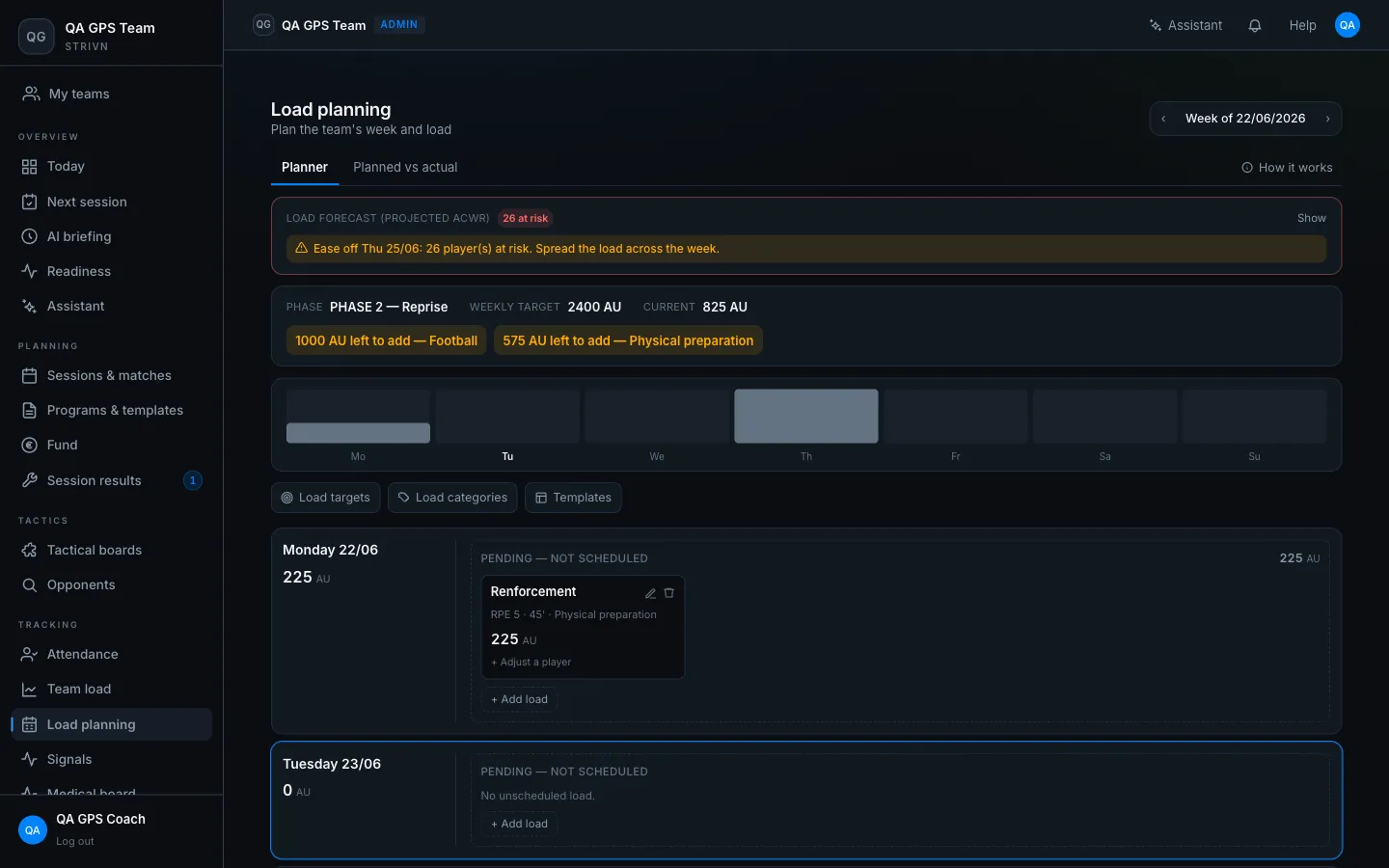
The week at a glance
Section titled “The week at a glance”At the top of the Planner tab:
- Load forecast (projected ACWR) — projects, for each player, the ratio of acute load (7 days) to chronic load (28 days). Players projected to overload show red, those to watch show yellow, with a hint to spread the load.
- Weekly target — the training phase, the total load target and what’s already planned, with “N left to add” chips per category.
- The week shape — a small day-by-day load sparkline.
Calendar sessions and “pending” load
Section titled “Calendar sessions and “pending” load”Each day groups load under the real sessions from your calendar — training sessions and matches, the latter marked with a Match pill. Under each session sit its load components and its total; a “Pending — not scheduled” area collects load not yet attached to any session.
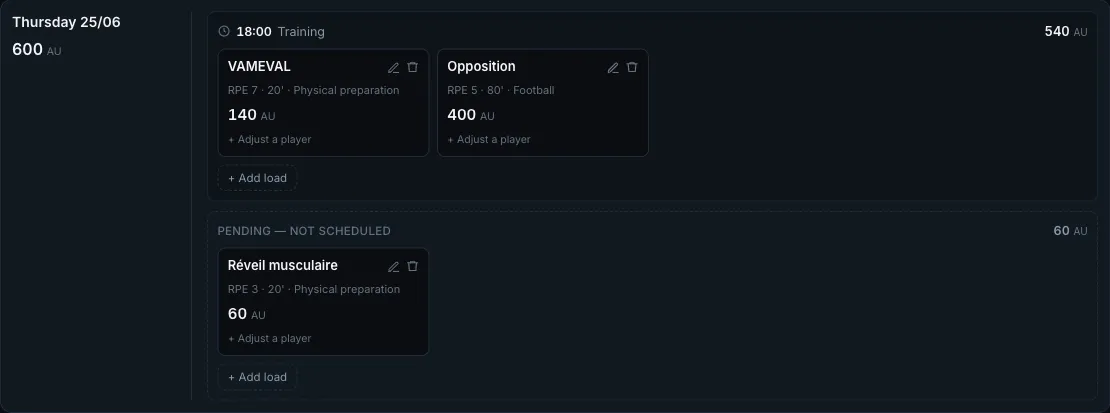
- Load attached to a session appears under that session’s time and name, and feeds its total.
- Pending load counts toward the target and the forecast, but appears on no agenda and triggers no call-up. It publishes itself as soon as you attach it to a session.
Adding load
Section titled “Adding load”The + Add load button opens a dialog to describe a component: a label, the calendar session to attach it to (or “pending”), a category, an estimated RPE and a duration.
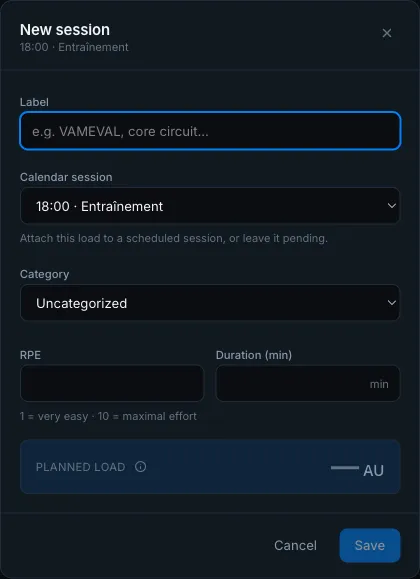
The planned load is computed live: RPE × duration × category multiplier, expressed in AU (arbitrary units) — or in your team’s load unit if you defined one. The i icon recalls the formula.
Load on a match
Section titled “Load on a match”A match takes load exactly like a training session: its card carries the same + Add load button, which opens the component dialog directly. You describe what the day actually costs — usually a warm-up block, then a match block.
Two things behave differently there:
- The duration starts from the match time as it stands in the calendar. Correct it if the real playing time differs.
- No intensity is suggested. A match RPE is a coach’s read, not a constant: the ACFF reference counts 6 (a match is worth 5 ROB, i.e. 90 min × 6 = 540 AU), another club will count differently, and a friendly is not a final. The field starts from a block’s ordinary default and you set it.
Targets, categories and models
Section titled “Targets, categories and models”Three buttons open the week’s configuration:
| Button | Role |
|---|---|
| Load targets | Name the phase, set the weekly target and a budget per category. A live read-out shows what’s left to allocate. |
| Load categories | Rename, add or re-weight categories (the multiplier weights the load). A “60 min @ RPE 7 ≈ N AU” preview illustrates the effect. |
| Templates | Save a week’s structure as a reusable model, duplicate the week to the next one, or apply an existing model. |
Per-player adjustments
Section titled “Per-player adjustments”Under each component, + Adjust a player tunes the load for a single player: scale it by a percentage (e.g. 50% on return to play), exclude them, or switch to individual work.
Planned vs actual
Section titled “Planned vs actual”The Planned vs actual tab puts the load you planned next to the load players actually did (RPE check-ins, GPS, wearables), per player and per day.
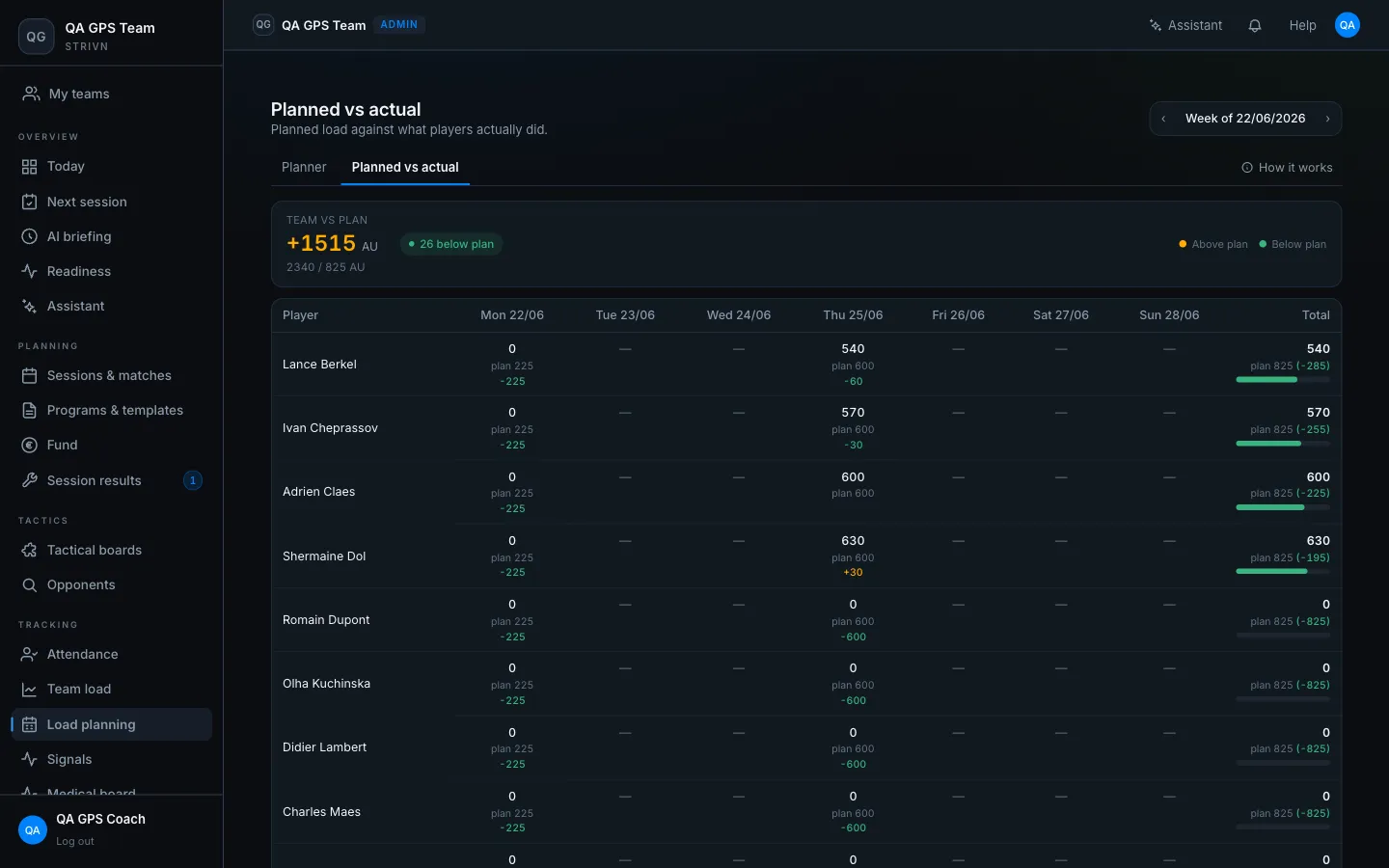
- The header gives the team variance vs plan and how many players ended above / below.
- Each cell shows the actual (large), the planned as a reference, and the variance: amber above plan, green below.
What’s next?
Section titled “What’s next?”- Zoom out with periodization cycles and the Season view — the Cycles and Season tabs lay your blocks (pre-season, competition…) above the week.
- Schedule sessions and send call-ups from the calendar.
- Track real cumulative load on the Team load page.
- Load peaks surface in signals & alerts and readiness.