

Presentations
A presentation is a document of 16:9 pages in your club’s colours: figures and tables computed on your data, charts, photos, tactical boards, videos, your texts and a decor (banners, shapes, pictograms). You compose it once, then you project it in a meeting, export it as PDF or send it by link.
Typical uses: a player’s individual review for a one-to-one, the group’s training week, the match report you show on Monday.
You’ll find it in Analytics › Presentations (the tab next to Dashboards), and the match report also from the match page.
The presentation list
Section titled “The presentation list”Analytics › Presentations lists your presentations and the ones the staff shares with you.
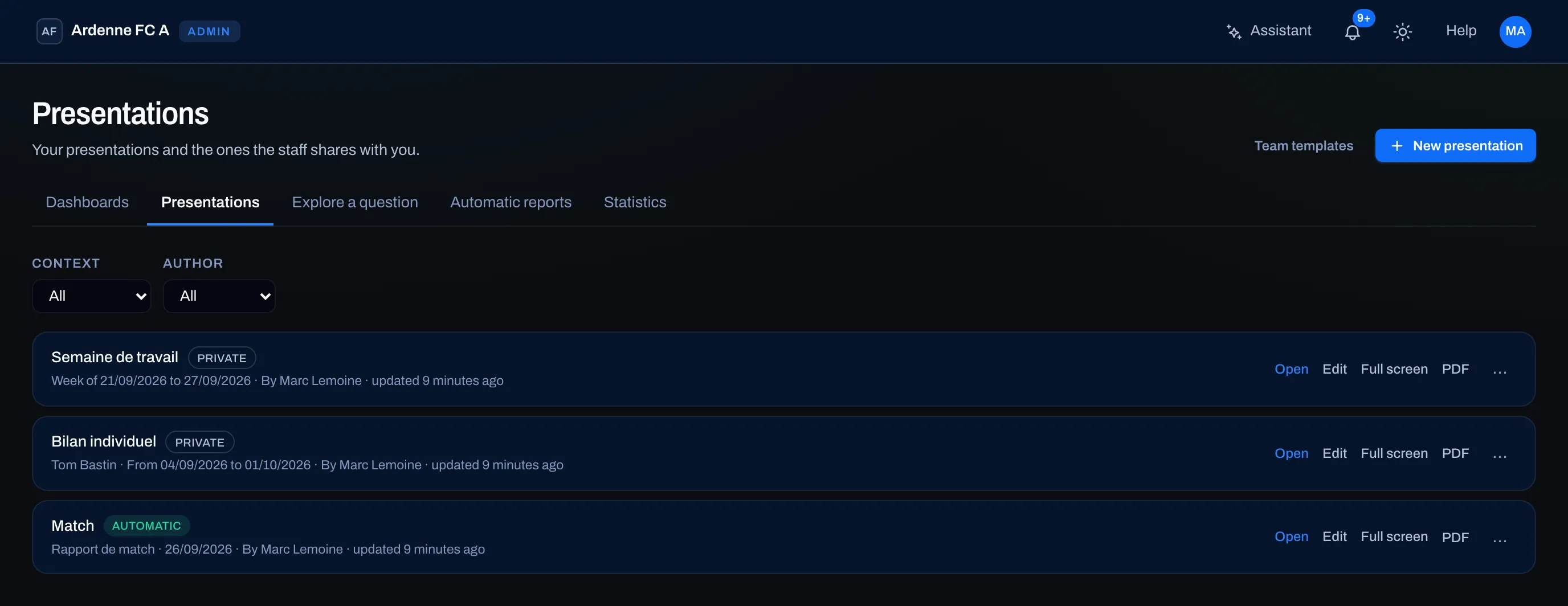
- Each row shows the name and a badge — Private, Shared or Automatic —, then the context (the player, the period or the match), the author and the date of the last change.
- Open shows the presentation read-only, Edit opens the editor, Full screen projects it, PDF exports it.
- The … menu (More actions) groups Share with the staff or Make private, Duplicate, Save as template and Delete.
Two filters narrow the list:
| Filter | Choices |
|---|---|
| Context | All, Match, Period, Player or No context |
| Author | All, Me, a staff member, or No author (a presentation whose author has left the team) |
Create a presentation
Section titled “Create a presentation”Click New presentation. The window offers three starting points:
| Starting point | What you get |
|---|---|
| Blank page | A cover, then your own pages. |
| Team template | The pages of a template saved by the staff (see Presentation templates). |
| strivn example template | A ready-to-use starting point: Individual review, Training week or Match report. |
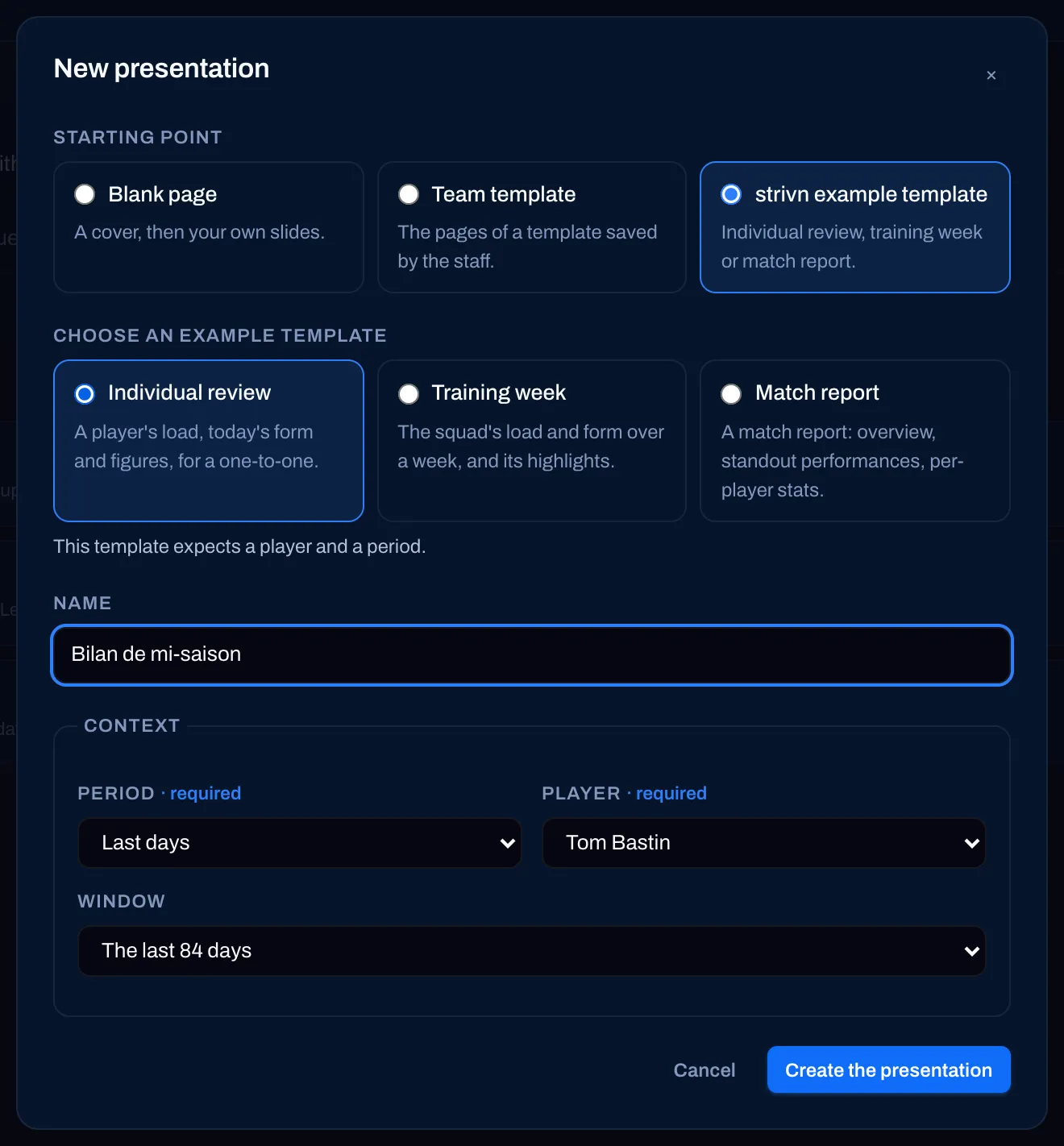
The three strivn example templates:
| Template | Pages | Expected context |
|---|---|---|
| Individual review | Cover, Training load, Today’s form, Standout stats, Talking points | A player and a period |
| Training week | Cover, Load of the week, Squad form, Highlights | A period |
| Match report | Cover, Match overview, Standout performances, Player statistics, Conclusion | A match |
To create a presentation:
- Choose the starting point (and the template).
- Give it a Name — for example “Mid-season review”. Without a name, it takes the template’s.
- Set the Context: the Period and/or the Player. Under the templates, a sentence says what they expect (“This template expects a player and a period.”) and the fields needed are marked required.
- Click Create the presentation. The editor opens.
A new presentation is always private: “Presentation created. It stays private until you share it.”
The context: what the presentation is about
Section titled “The context: what the presentation is about”The context says what the presentation is about: a match, a period, a player, or a player over a period. Data blocks — key figures, tables, charts, inserted views — are computed on this context. Change the player, and the whole review is about the new player.
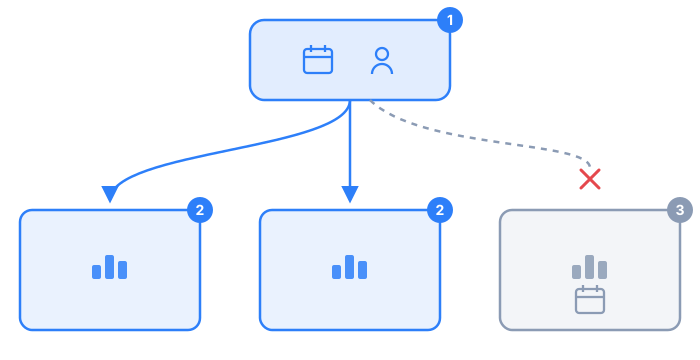
- The presentation’s context (period, player or match).
- Blocks that follow the context are recomputed when it changes.
- A block where you unticked Follows the context keeps its own period and its own players (see The editor).
The possible periods: A match, A week (next week, this week, last week, two weeks ago), Last days (7, 28 or 84), Last matches (1, 3, 5 or 10), The season or Dates.
Dates are frozen
Section titled “Dates are frozen”A relative period (“the last 28 days”, “last week”) is frozen into dates when the presentation is created. A review created today over the last 28 days always talks about those 28 days, even if you open it next month: the presentation doesn’t shift under your eyes.
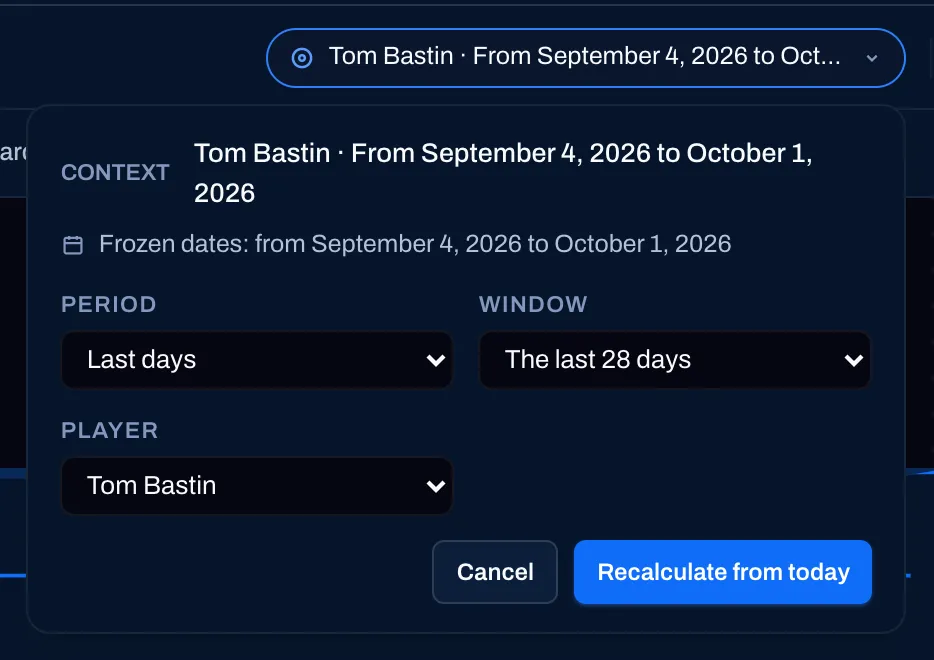
In the editor, the context chip at the top of the screen shows it: Frozen dates: from … to …. To bring it up to date, click Recalculate from today.
Change the context
Section titled “Change the context”In the editor, click the context chip, change the period, the player or the match, then Apply. Blocks that follow the context are recomputed.
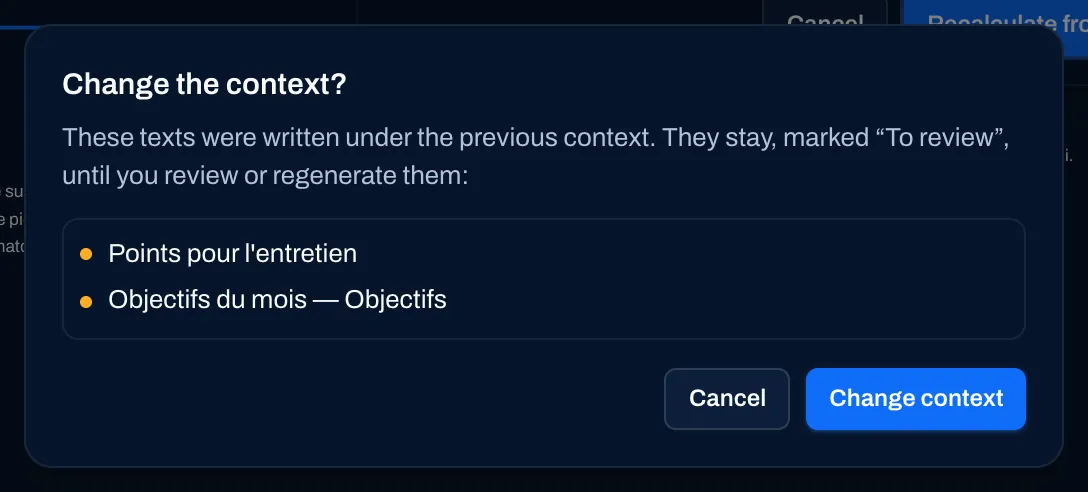
Your texts are not rewritten. If texts were written under the old context, a Change the context? confirmation names them: they stay, marked To review, until you review, correct or regenerate them.
Private, shared with the staff
Section titled “Private, shared with the staff”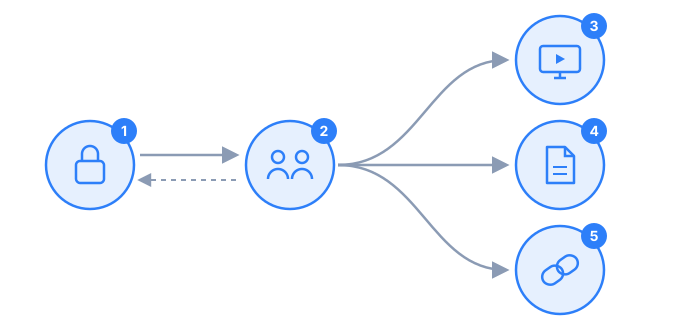
- Private — when created. Only its author sees it; for other staff members, it doesn’t exist.
- Shared — after Share with the staff (in the list’s … menu, at the top of the read page or in the editor). The whole staff sees it in their list. Make private takes it back (only the author can do this) — that’s the dotted arrow.
- Full screen, 4. PDF and 5. public link: the outputs, detailed below.
Who can edit a shared presentation? Its author, and staff members with the Manage match reports permission. The others read it; if they want to rework it, Duplicate to edit gives them a private copy.
Read, project, export
Section titled “Read, project, export”Open shows the presentation page after page. At the top: Share with the staff, Duplicate, Delete and Edit presentation; just below, the outputs bar.
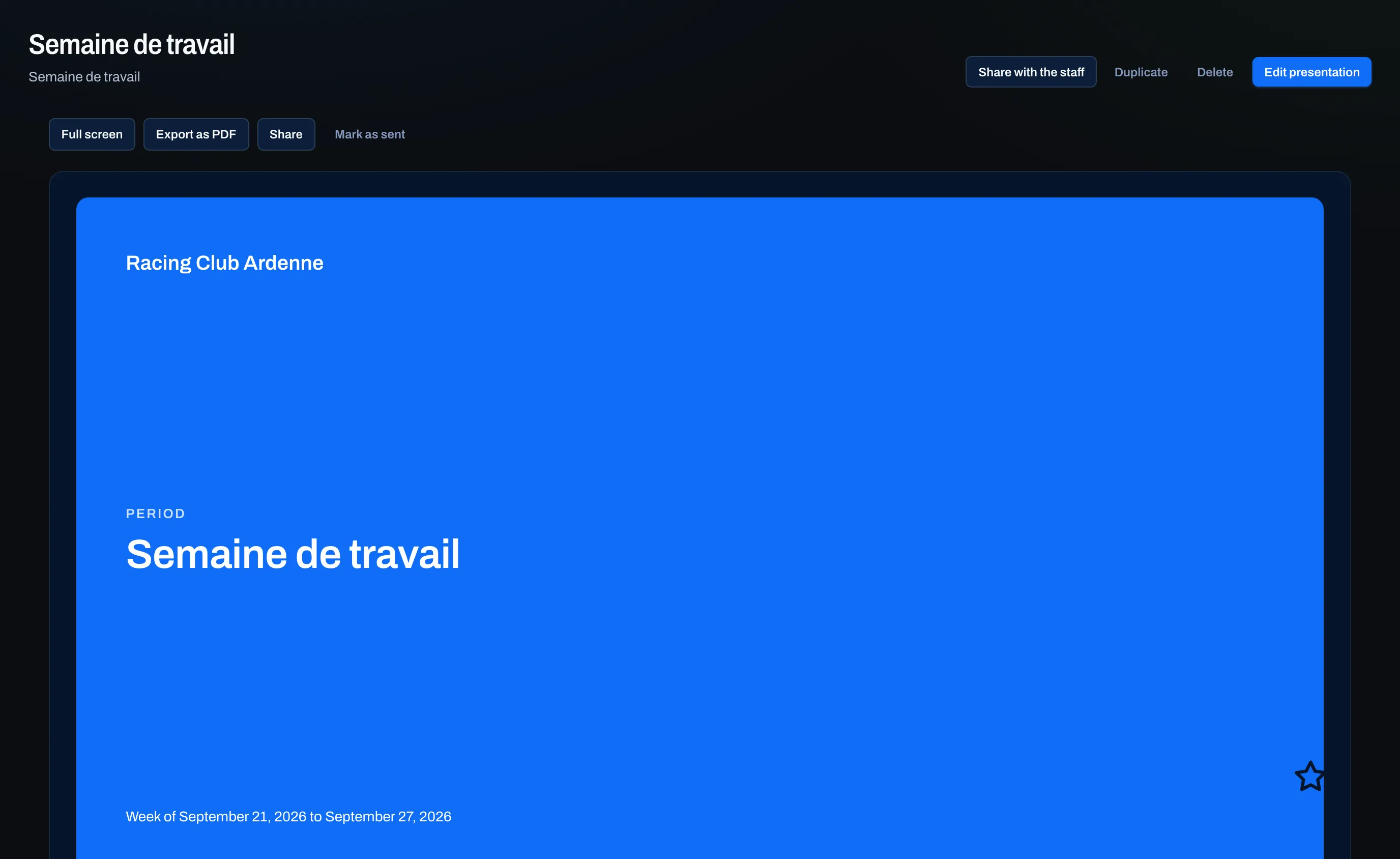
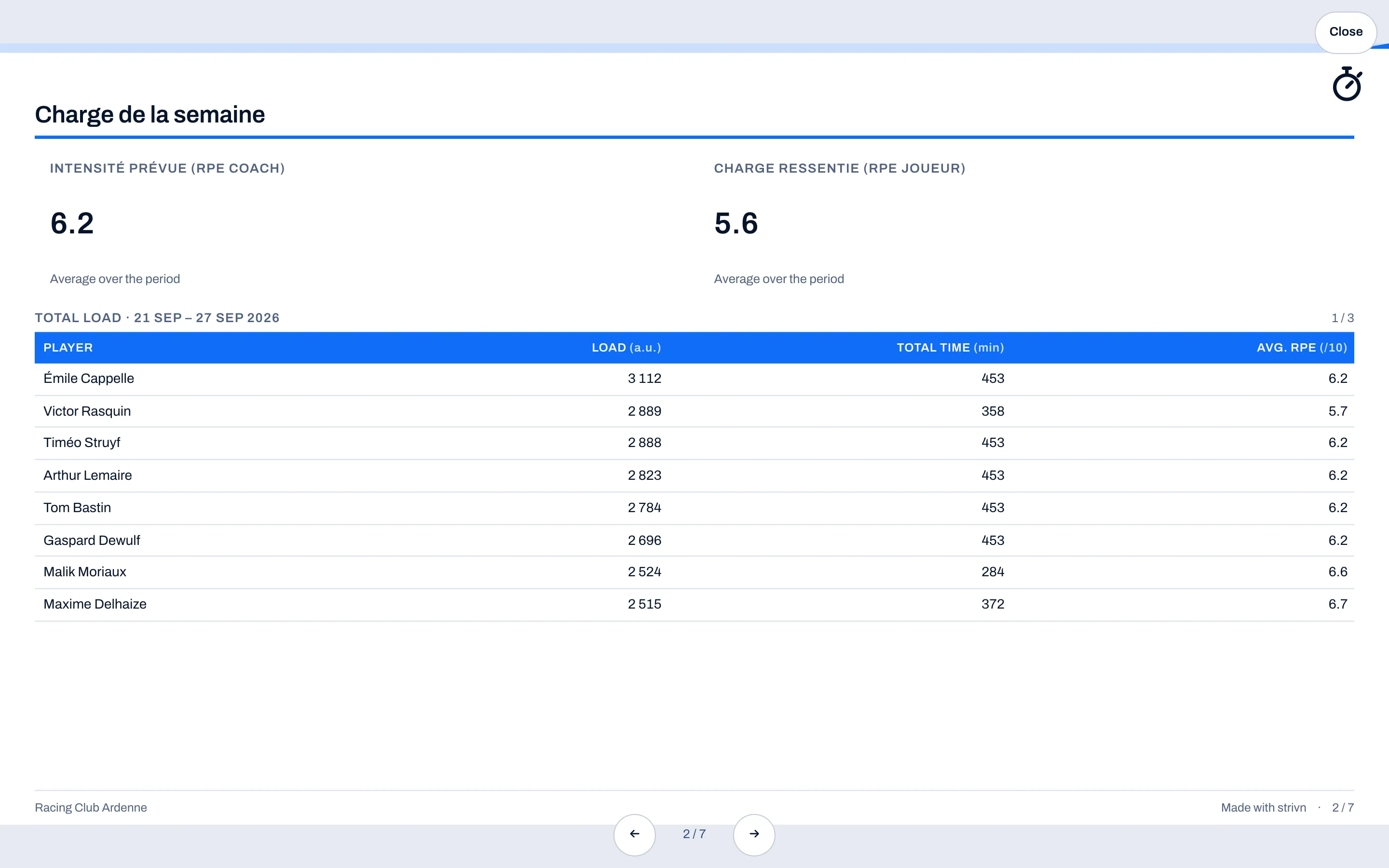
- Full screen projects the presentation for a meeting or the dressing-room screen. Change pages with the arrows, the space bar or a swipe; Esc to exit.
- Export as PDF prepares the file (“Preparing PDF…”), then offers Download PDF with its generation date. Everyone gets a PDF rendered with their own rights: a block they can’t see isn’t in it. A video becomes an image with a QR code.
- A page hidden in the editor appears neither in full screen, nor in the PDF, nor on the public link.
- A long table continues on following pages, header repeated, when read as in the PDF.
Send by public link
Section titled “Send by public link”Share (in the outputs bar) opens the Public link panel: a read-only link in the club’s colours that shows the up-to-date presentation, without a strivn account. It’s the way to send a report to a player, a parent or the management.
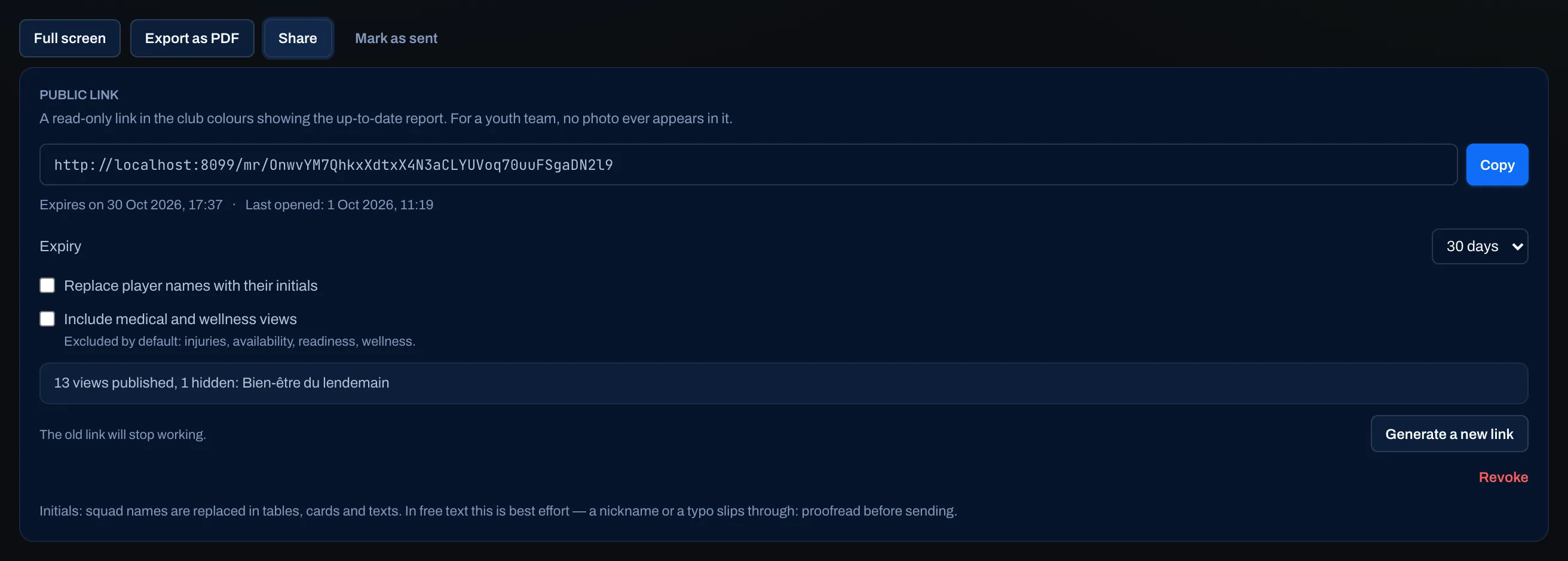
| Setting | Effect |
|---|---|
| Expiry | 7 days, 30 days (default) or Never. |
| Replace player names with their initials | Squad names are replaced in tables, cards and texts. |
| Include medical and wellness views | Unticked by default: injuries, availability, readiness and wellness are excluded from the link. |
Before creating the link, the panel sums up what will be visible (“13 views published, 1 hidden: …”). Then Copy copies the address, the panel shows the expiry and the last access, Generate a new link replaces the old one (which stops working) and Revoke cuts it off.
- For a youth team, no photo appears on the public link.
- On a phone, the link invites you to turn the screen to see the pages full size, and offers to download the PDF.
- Mark as sent only records the sending date (“Sent on …”): strivn sends nothing itself.
- Deleting a presentation cuts its public link and erases its PDFs.
The automatic match report
Section titled “The automatic match report”When you validate a match’s GPS import, strivn creates the match report draft on its own, from the template designated for automatic generation (see Presentation templates). It carries the Automatic badge, it is shared with the staff straight away, and the AI writes a first draft of the texts from the match figures.
On the match page, the Match report box tracks its state: “Generating the report…”, then Draft ready and Open the report. Without a GPS import, Create the match report generates it on demand. For a second report with another template, choose the Template, then Create another report.

That report keeps its match and stays shared. For a private report, or one on another match, create a presentation from the Match report example template, or duplicate it.
Duplicate, delete
Section titled “Duplicate, delete”- Duplicate creates a private copy, yours, with its pages, its texts and its context: “Copy created: it is private and yours.” It’s called ”… (copy)”, then “(copy 2)”, “(copy 3)”… Neither the public link, nor the PDFs, nor the sending date carry over.
- Delete is permanent. If the presentation has a public link, the confirmation warns that it will stop working.
Who can do what
Section titled “Who can do what”| Action | Who |
|---|---|
| Create a presentation | All staff, except the delegate |
| Read | The author; all staff once shared |
| Edit, delete, create the public link | The author; once shared, also members with Manage match reports |
| Share with the staff, make private | The author |
| Match report from the match page, team templates | Members with Manage match reports |
| Project, export as PDF | Anyone who can read the presentation |
With the AI assistant
Section titled “With the AI assistant”The assistant can build a complete presentation from one sentence, as a private draft with no confirmation card, then refine it in the conversation: see Build a presentation with the assistant. Once the presentation is shared, it composes it with a card to confirm before writing:
- create a presentation — “Jean’s review over the last 6 weeks”, “the training week”, “the report on Saturday’s match” — from a team template, a strivn example template or a blank page, with its context;
- write a block’s text (it only quotes figures present in the presentation) or regenerate its first draft;
- compose the pages: add, move, hide or rename pages; place, resize or remove blocks; insert a view from a dashboard or a saved question, a tactical board, a video; add decor; change the context;
- duplicate, save as template and share with the staff.
Deliberately left to the screen: deleting, creating or revoking a public link, exporting the PDF, marking as sent, making private, choosing a photo, drawing a tactical board, ticking I’ve reviewed it and managing the team’s templates (rename, designate, delete).
See also
Section titled “See also”- The presentation editor — compose the pages, the grid, the decor.
- Presentation templates — the team’s templates and automatic generation.
- Opponent presentation — the pre-match talk or staff analysis, built from the scouting file.
- Build a presentation with the assistant — a complete presentation from one sentence.
- Dashboards — the views you insert into a presentation.
- GPS — the import that triggers the match report.