
Connect your AI (Claude, ChatGPT)
External AI access lets a coach plug their own AI — Claude, ChatGPT, Claude Code or any MCP-compatible client — into strivn. Once connected, your AI can look at your teams (roster, sessions, load, wellness, GPS, injuries…) and make changes, just like the built-in assistant, but from the tool you already use.
Your AI always acts with your own permissions, and only on teams where access has been enabled.
1. Enable access for the team
Section titled “1. Enable access for the team”Access is off by default on every team. Someone who manages the team’s settings enables it once:
- Open the team Settings, AI coach tab.
- In the External AI access card, read the Data-sharing notice.
- Tick Enable external AI access for this team, then I have read and accept the data-sharing notice.
- Click Save.
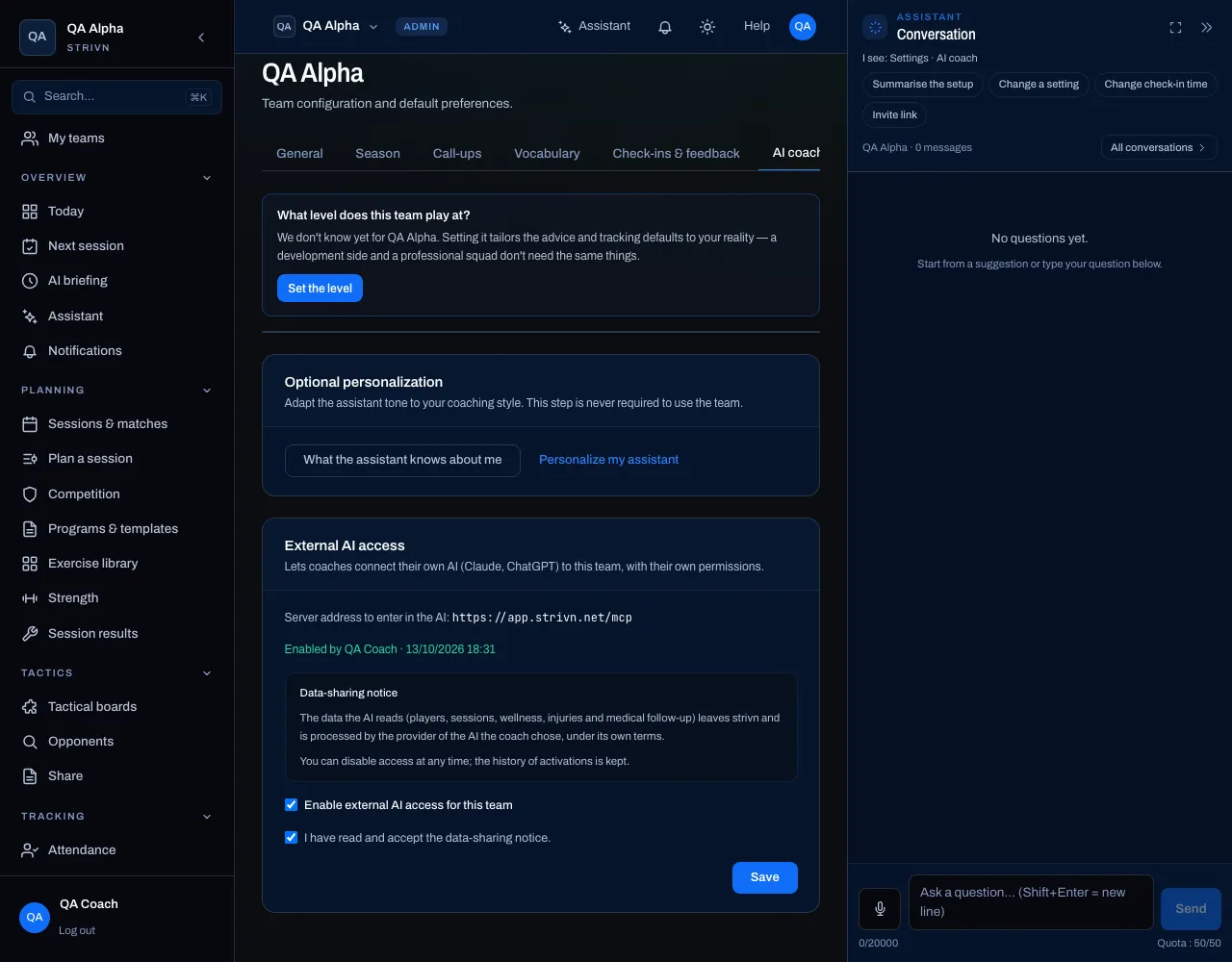
The card then shows who enabled access and when. Every switch on and off is kept in a history.
2. Connect your AI
Section titled “2. Connect your AI”The server address is shown in the External AI access card and on the Connected AI assistants page of your profile: https://app.strivn.net/mcp.
| Tool | Where to add it |
|---|---|
| Claude (claude.ai, desktop app) | Customize › Connectors › + Add › Add custom connector — step by step: Connect Claude |
| ChatGPT | Plugins page › + › Add custom MCP server — step by step: Connect ChatGPT |
| Claude Code | claude mcp add --transport http strivn https://app.strivn.net/mcp, then restart Claude Code and type /mcp › strivn › Authenticate — see Connect Claude |
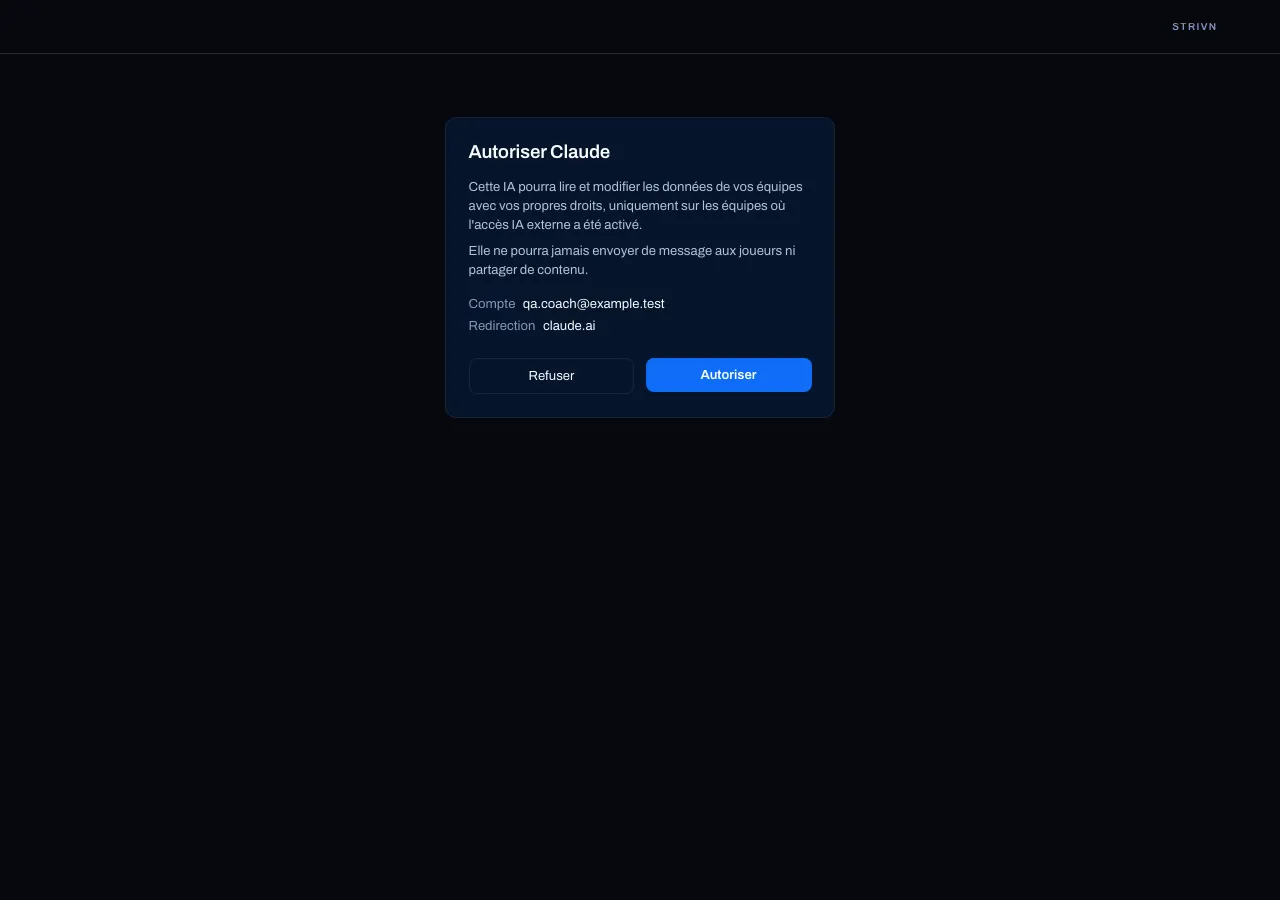
Your AI then sends you to strivn:
- Sign in to strivn if you aren’t already.
- The Authorize screen shows the application’s name, your account and the redirect address.
- Click Authorize.
3. Use your AI with strivn
Section titled “3. Use your AI with strivn”Just ask in plain language: “Which U19 players are at risk this week?”, “Create a 4v2 rondo exercise in my library”. Your AI first lists your teams, then names the team in every request.
- Reading: everything you can see in strivn, according to your role in each team.
- Changes: they apply immediately, with no confirmation card in strivn. Claude and ChatGPT usually ask you to confirm before a change — keep that confirmation on.
- History: every action your AI takes is recorded as an AI action of the team; ask the strivn assistant “what are the recent AI actions?” to find them.
What your AI never does
Section titled “What your AI never does”So that nothing reaches your players unless you decide it in strivn, your AI cannot:
- send a message, call-up or reminder to players or parents;
- create, move, cancel or delete a calendar event (which calls up or notifies players);
- share a presentation, dashboard, document or video;
- declare an injury or an illness (parents are notified).
These actions remain available in strivn and in the built-in assistant. If a change would still notify a player, strivn stops it and your AI is told.
Revoke access
Section titled “Revoke access”- One specific AI: open your Profile › Connected AI assistants, then Revoke on its row. The AI loses access on its next request.
- The whole team: untick Enable external AI access for this team in the settings, then Save. No AI can read or change that team’s data any more; your other teams are not affected.
Frequently asked questions
Section titled “Frequently asked questions”Does the AI see all my teams? It sees the list of your teams, but only reads and changes those where access is enabled.
Can a staff member with fewer permissions connect their AI? Yes. Their AI has exactly their permissions: a tool they can’t use in strivn isn’t available to their AI either.
Is it included in my plan? Yes, on every plan. Questions you ask your AI don’t count against the strivn assistant’s quota: your AI provider handles them.