

Presentation templates
A presentation template is a layout the team reuses: its pages, its blocks, their settings and their decor. A presentation created from a template starts from that structure, then is computed on its own context.
Managing the team’s templates requires the Manage match reports permission.
Team templates and strivn example templates
Section titled “Team templates and strivn example templates”When you create a presentation, two kinds of templates are offered:
| Team template | strivn example template | |
|---|---|---|
| Where it comes from | Saved by your staff | Provided by strivn: Individual review, Training week, Match report |
| Editable | Yes: rename, replace, delete | No: it’s a fixed starting point |
| Managed in | Presentation templates | — |
To adapt an example template to the way you work: create a presentation from it, touch it up in the editor, then Save as template. It becomes a team template.
The Presentation templates page
Section titled “The Presentation templates page”Open it with Team templates, at the top of Analytics › Presentations, or from the editor’s … menu (Presentation templates).
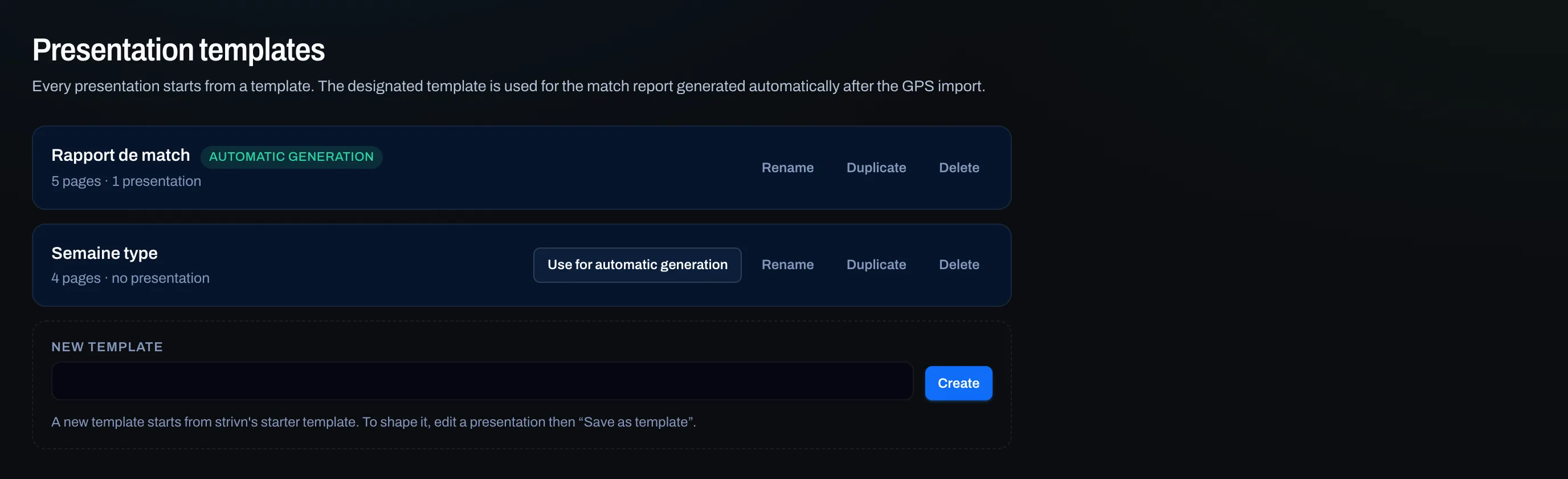
Each template shows its number of pages and the number of presentations created from it. Its actions:
- Rename — a new Template name, then Save.
- Duplicate — a ”… (copy)” copy, to rework without touching the original.
- Use for automatic generation — see below.
- Delete — “Delete this template? Presentations already created remain.”
New template creates a template from strivn’s starter template; give it a name, then Create. To shape it, the easiest way is still to edit a presentation, then Save as template.
Save a presentation as a template
Section titled “Save a presentation as a template”Two paths:
- From the editor: … menu › Save as template. Choose the target:
- Update the original template — the template the presentation started from;
- Replace another team template — choose which: it is overwritten;
- Create a new template — with the New template name.
- From the list: a presentation’s … menu › Save as template, a Template name, then Save (a new template).
What the template keeps, and what it leaves out:
| Keeps | Doesn’t keep |
|---|---|
| The pages, their names and their order | The texts you wrote |
| The blocks, their place and their settings | The player chosen for the presentation |
| The decor | The period’s dates |
| The type of context expected | Presentations already created from this template (they don’t change) |
A template that expects a context
Section titled “A template that expects a context”A template remembers what it expects, never a value: “a player and a period”, “a period”, “a match”, or nothing. If you save a player’s 28-day review, the template expects a player and a period — not that player, not those 28 days.
When you create from this template, the window says so (“This template expects a player and a period.”) and marks the fields required: the presentation isn’t created without them.
The automatic generation template
Section titled “The automatic generation template”One team template carries the Automatic generation badge: it’s the one used for the match report created on its own after the GPS import is validated. To change it, click Use for automatic generation on another template: “This template is now used for automatic generation.”
A team that doesn’t have any template yet receives, the first time it opens the page, a Match report starter template, already designated.
See also
Section titled “See also”- Presentations — create, the context, share, the outputs.
- The presentation editor — compose the pages.