

The presentation editor
The editor (the “workspace”) composes the pages of a presentation. Open it with Edit in the list, or Edit presentation from read mode. Everything saves as you go.
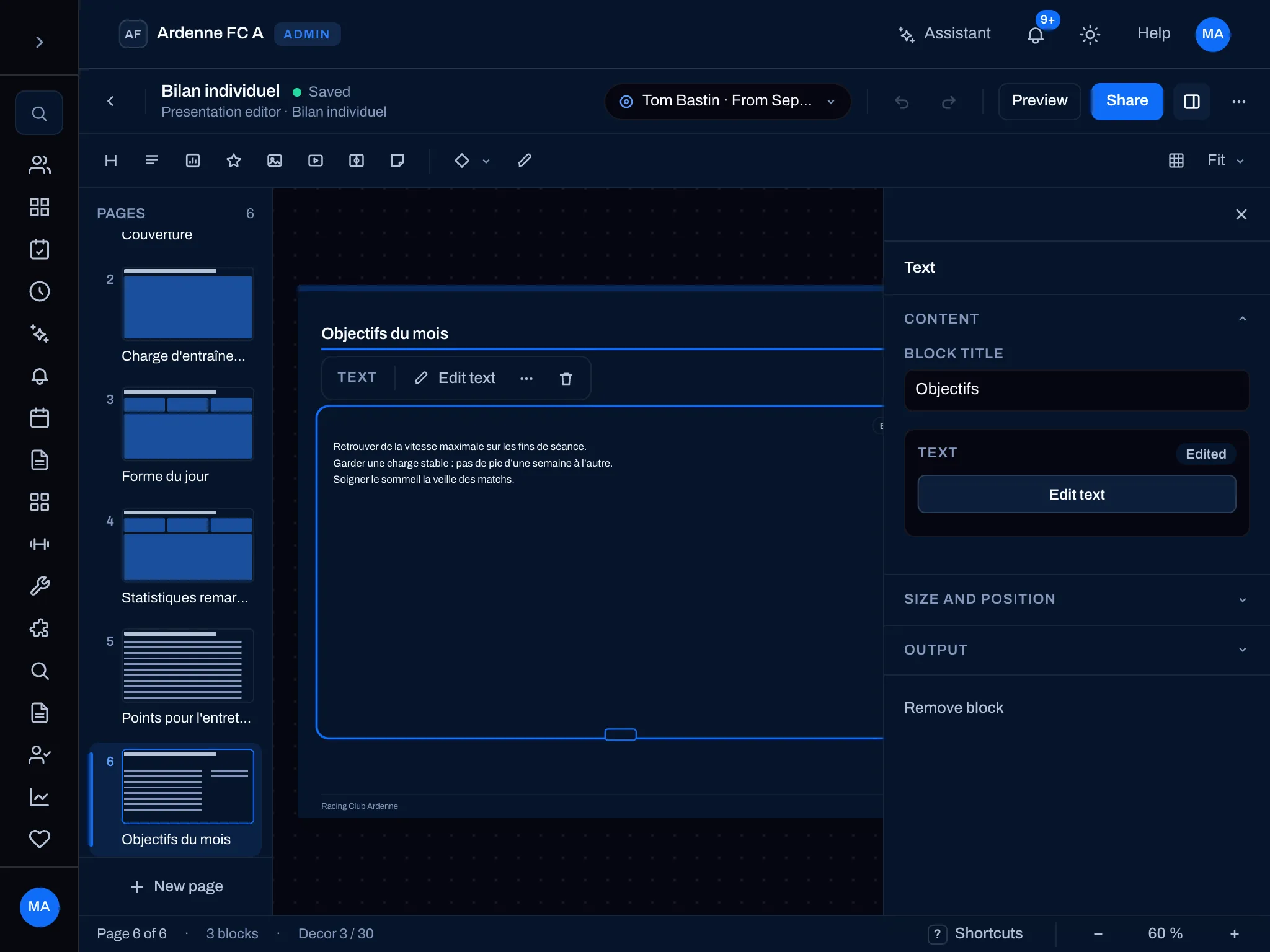
The workspace at a glance
Section titled “The workspace at a glance”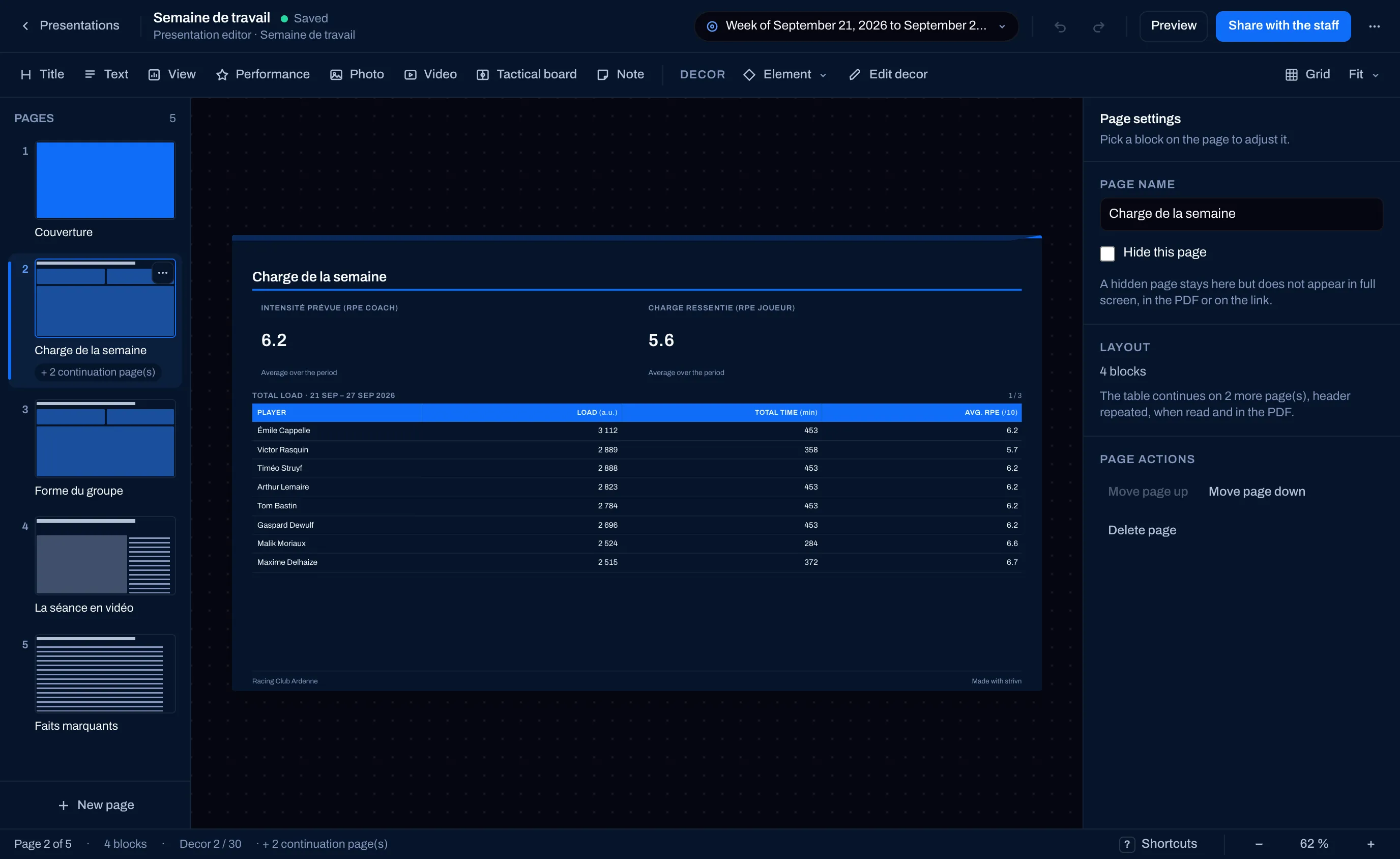
| Area | What it holds |
|---|---|
| Document bar (top) | Presentations to go back to the list, the name and the save state (Saved), the context chip, Undo / Redo, Preview, Share with the staff and the … menu (More actions: Save as template, Presentation templates, Duplicate, Delete…). |
| Insert bar | The blocks — Title, Text, View, Performance, Photo, Video, Tactical board, Note —, then the Decor (Element, Edit decor), and on the right Grid and the zoom (Fit). |
| Filmstrip (left) | The Pages, as thumbnails. Click to go to a page, drag to move it; New page at the bottom. |
| The page (centre) | The 16:9 page, as it will come out, on real data. |
| Settings (right) | The Page settings when nothing is selected, otherwise those of the selected block. |
| Status bar (bottom) | “Page 2 of 5”, the number of blocks, Decor 2 / 30, Shortcuts and the zoom. |
- New page offers a layout: Blank, Title, Title and text or Two texts.
- In the Page settings: the Page name, Hide this page (it stays in the editor but appears neither in full screen, nor in the PDF, nor on the link), Move page up / Move page down and Delete page. A thumbnail’s … menu offers the same actions.
- The cover stays the first page and can’t be deleted. It composes itself from the context: the player and their position, the period, or the match with the opponent and the score.
- Keep at least one page visible.
Add a block
Section titled “Add a block”Click a type in the insert bar: the block lands on the current page, in the first free spot.
| Block | What it shows |
|---|---|
| Title | The page title, underlined in the club’s colours. |
| Text | Formatted text (headings, bold, lists…), written by you or drafted by the AI. |
| View | A view from one of your dashboards or a saved question: key figure, chart or table. |
| Performance | A Standout performance: the team’s best on a statistic, the gap to number 2, and a sentence. |
| Photo | A photo from the club photo library (JPEG, PNG or WebP), as Fill the block or Whole photo, with a caption. |
| Video | A video or web link (see below). |
| Tactical board | One of the team’s tactical boards, shown as it is when the presentation is read: if it changes, the presentation follows. |
| Note | A short plain-text box. |
Templates also bring ready-configured Key figure, Chart and Table blocks.
Add a view
Section titled “Add a view”View opens Add a view, with two tabs: Dashboards (the views of your dashboards, grouped by dashboard) and Saved questions. Click a view to place it. It follows the presentation’s context: a “last 4 weeks” view placed in a player’s review reads on the review’s period and player.
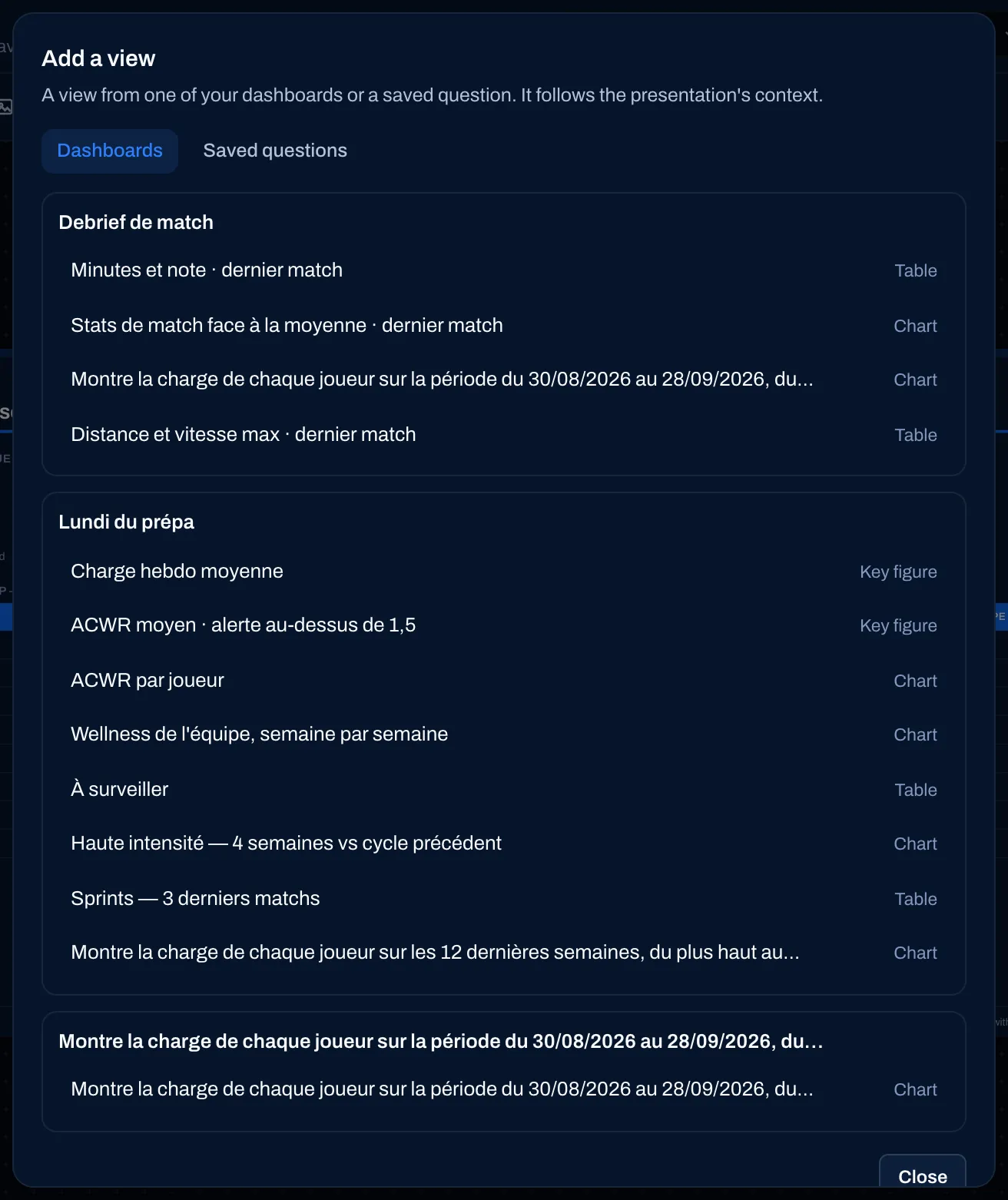
On a match report, some views can’t adapt to a single match — a trend over time, a comparison with the previous period, a question about the opponent. They are refused, with the reason.
Add a video
Section titled “Add a video”Video opens the Video or link address field. Paste a public https link, then Check link and Insert.
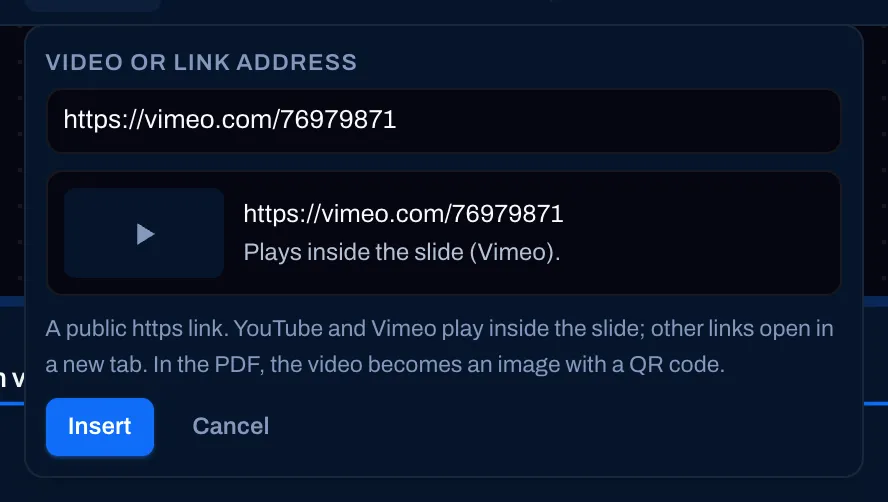
- YouTube and Vimeo play in the page.
- Other links (Veo, Hudl, TikTok, Instagram…) open in a new tab.
- In the PDF, the video becomes an image with a QR code “Scan to open the video”.
- A local or private link, a non-https link, or one over 512 characters is refused with the reason — use the video’s short share link.
Select a block
Section titled “Select a block”Click a block: it gets an outline, its handles appear, and an action bar floats above it — its type, Follows the context for a data block, Edit text for a text, … (Replace, Move to a page…) and the bin. The Settings on the right switch to this block.
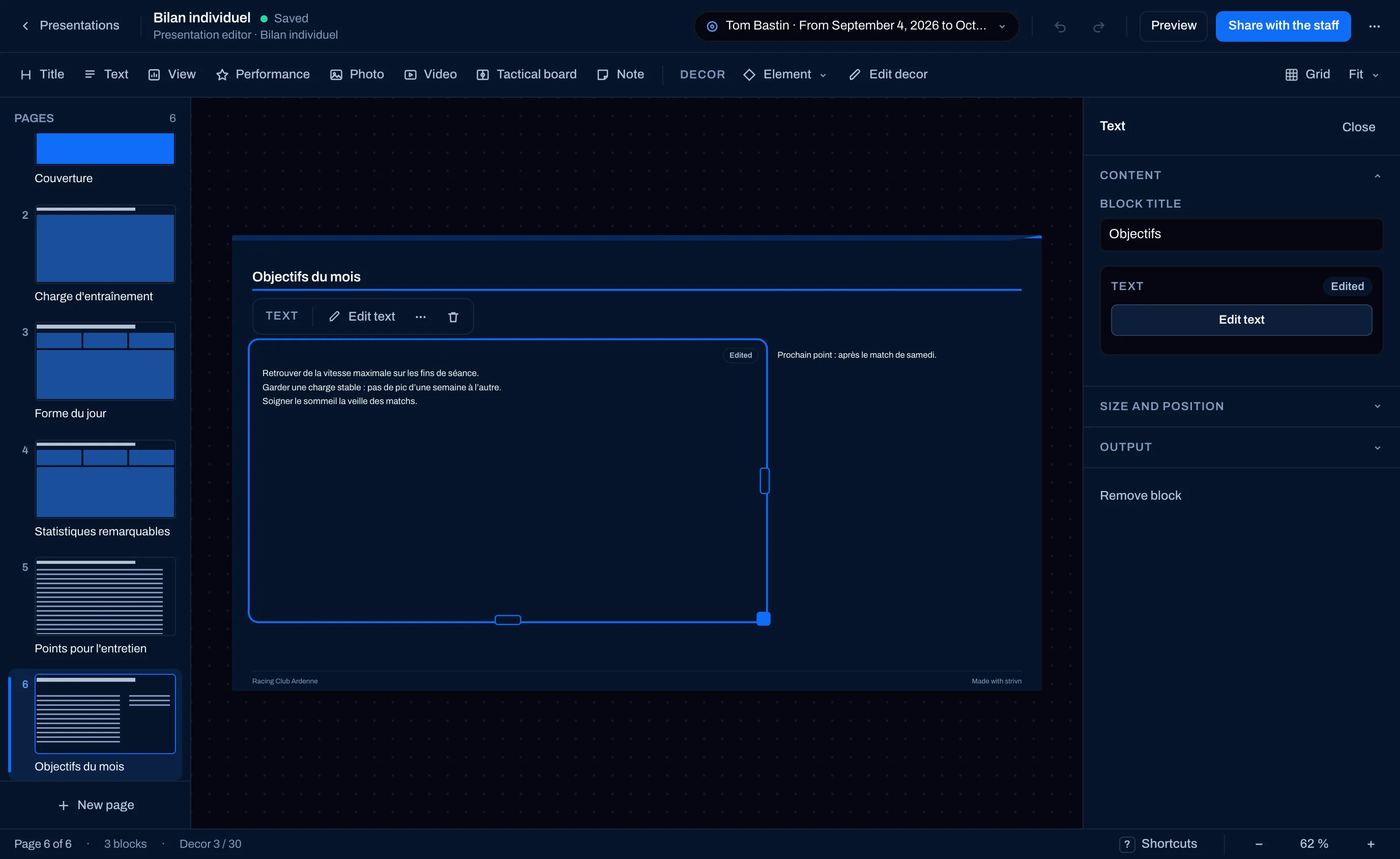
A block’s settings are grouped in sections: Content, Data and context, Size and position, Output — then Remove block. Output says whether the block will appear in the presentation: a block with no data for the period (“No data for this period: this block will not appear in the presentation.”) or an empty one is flagged here, and as Not in the presentation on the page.
A block’s data and context
Section titled “A block’s data and context”A data block follows the context by default. Untick Follows the context to give it its own Block’s period and Block’s players: it will no longer move when the presentation’s context changes. Useful, in a player’s review, to compare with the Whole team or with the whole season. A chip on the block reminds you of its state: Own settings, Follows the whole team, Today’s state…
Place blocks on the grid
Section titled “Place blocks on the grid”Each page is a grid of 12 columns by 9 rows. A block takes up a rectangle of cells.
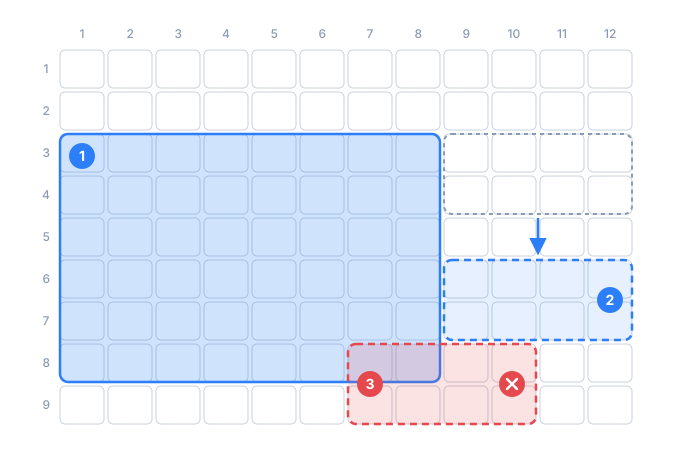
- A placed block takes up its cells.
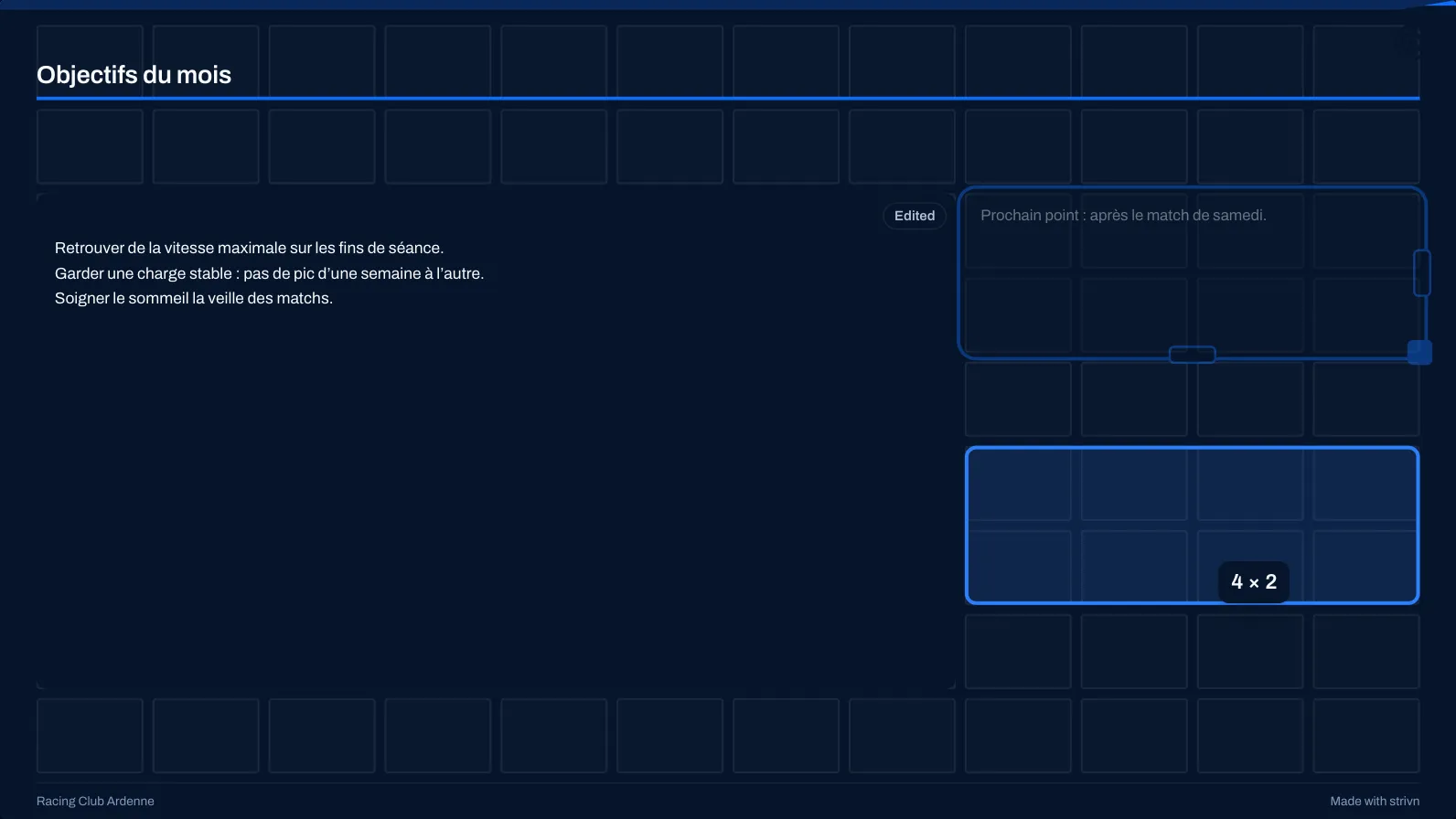
- While you move a block, the grid appears and a ghost shows where it will land, in whole cells.
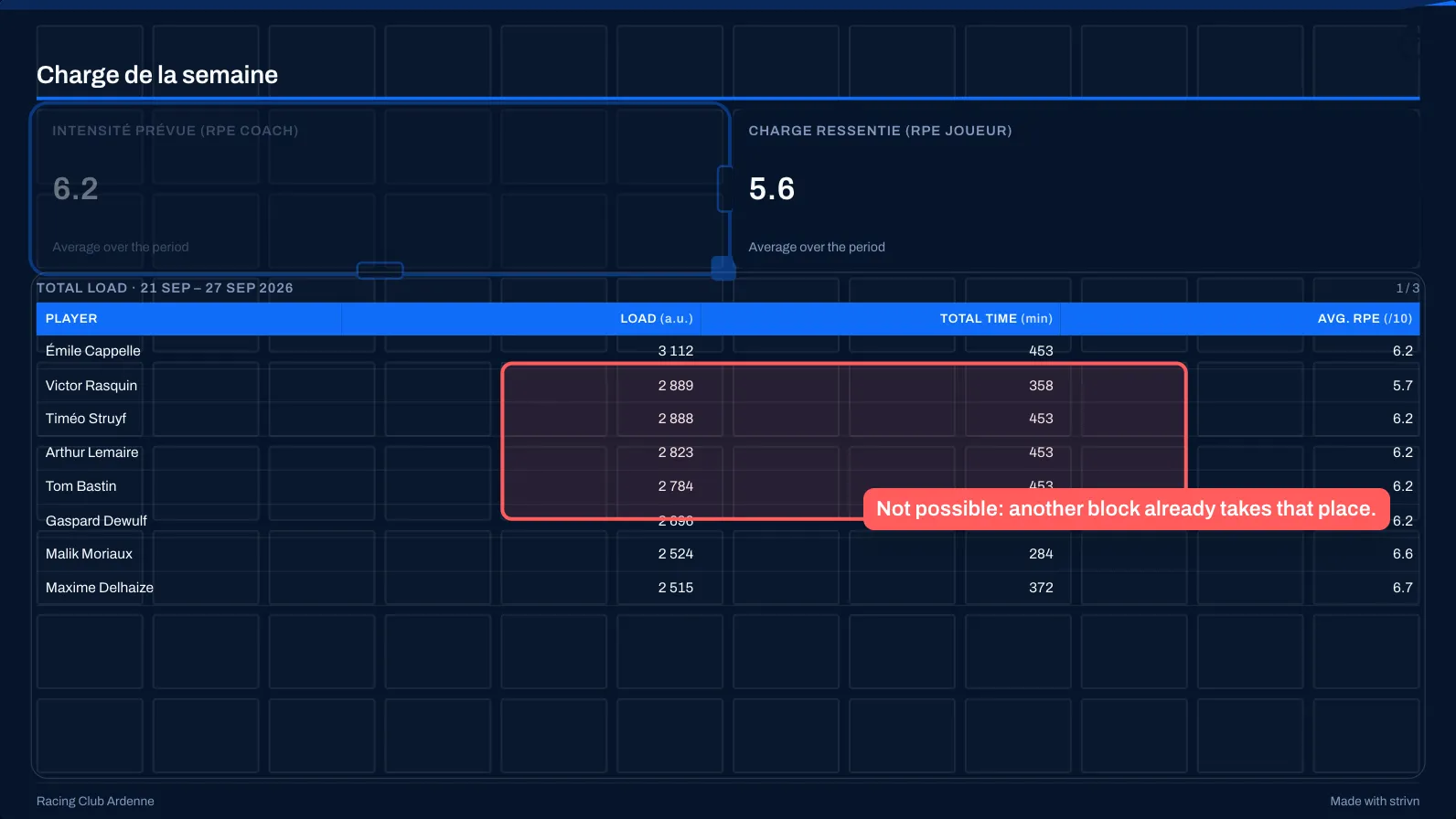
- If the spot is taken, the area turns red and the drop is refused: two blocks never overlap.
Move: drag the block anywhere on the page. It snaps to the cells; the grid shows for the duration of the gesture, with the block’s size (“4 × 2”).
On a spot that’s already taken, the area turns red: “Not possible: another block already takes that place.” Drop it elsewhere, or press Esc to cancel the gesture.
Resize: drag the block’s handles (right edge, bottom edge, corner). Some blocks only accept certain widths — a video, for example, 4, 6, 8 or 12 columns.
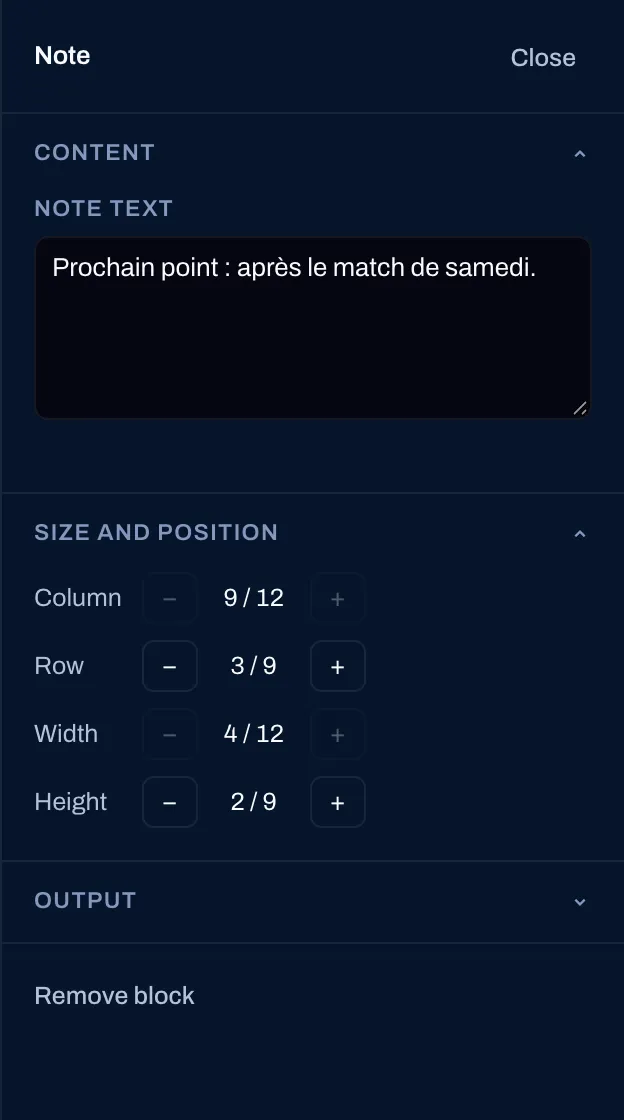
To the exact cell: in Size and position, the − and + buttons set the Column, the Row, the Width and the Height. A greyed-out button signals a page edge or a taken spot.
Grid, in the insert bar, keeps the grid shown at all times.
Write the texts
Section titled “Write the texts”Double-click a Text block (or select it and press Enter, or Edit text): you write directly on the page, with a formatting bar. Save text confirms, Cancel discards. The text uses the club’s font.
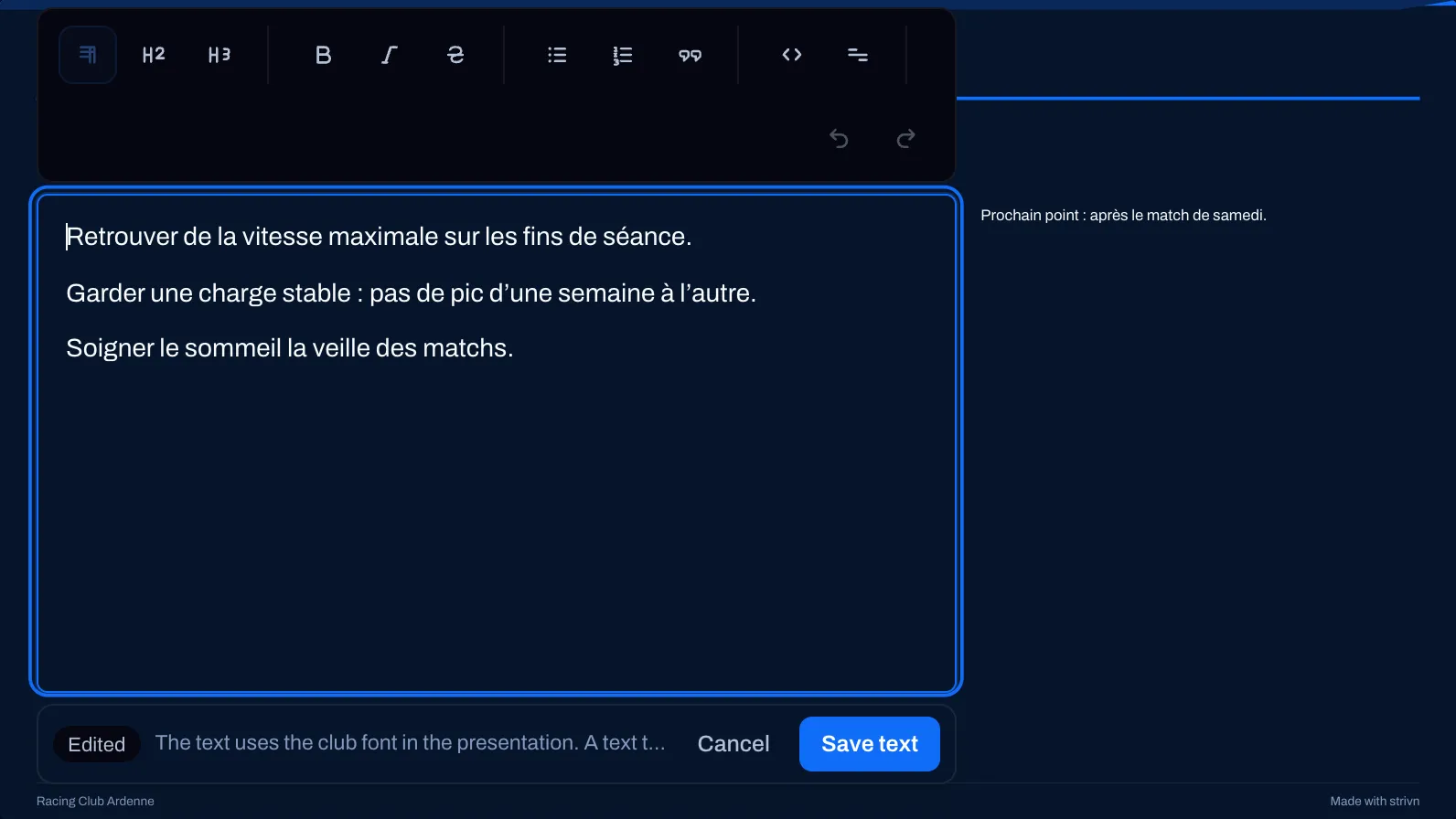
A text too long for its block is cut with ”…” and flagged Text cut: enlarge the block or shorten the text.
AI first draft and badges
Section titled “AI first draft and badges”On a presentation that contains data blocks, Write with AI drafts a first version from the presentation’s figures alone; Regenerate with AI redoes it (it replaces the text, even if you touched it up by hand). The AI only quotes figures present in the presentation.
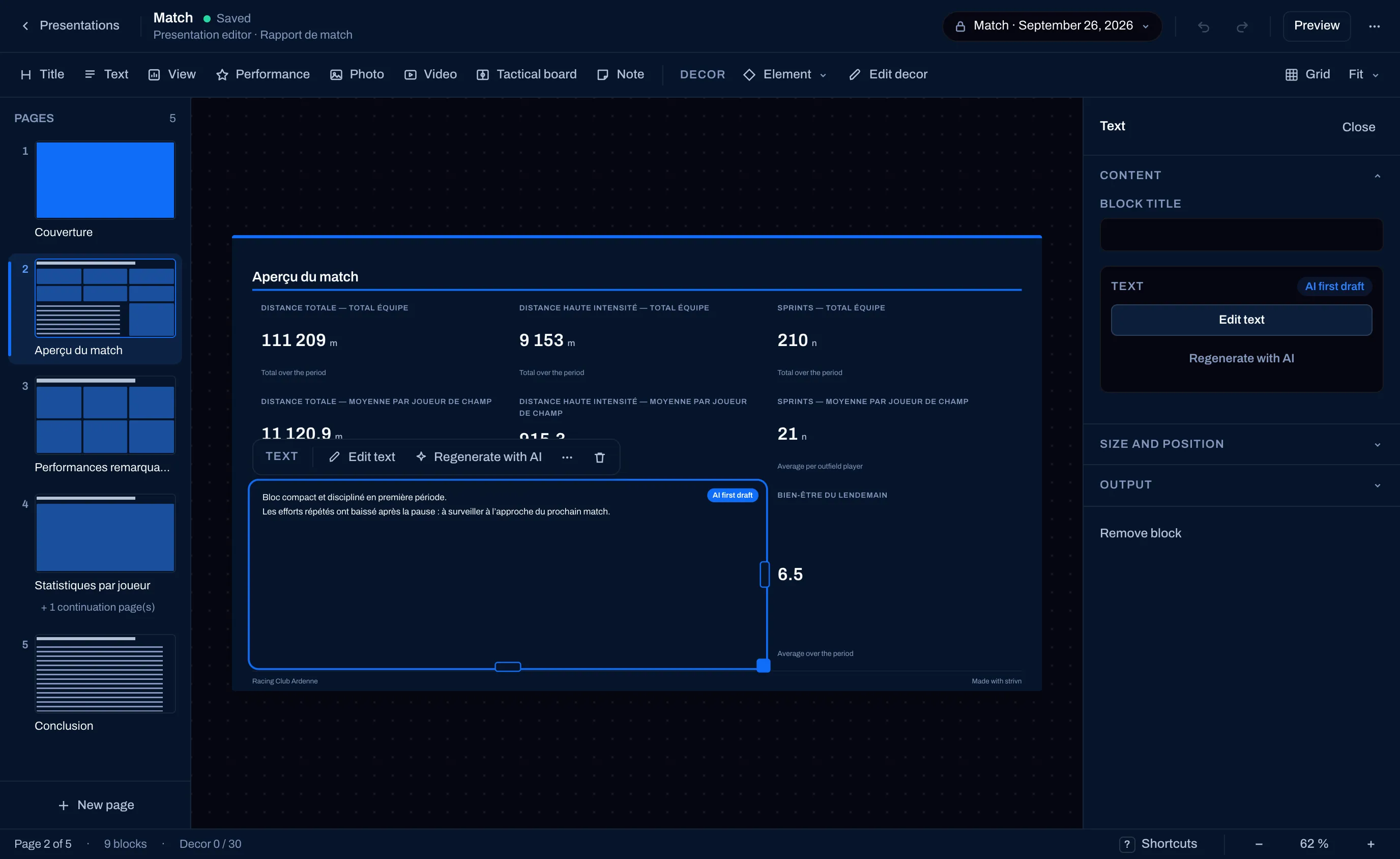
A badge says where each text comes from:
| Badge | Meaning |
|---|---|
| AI first draft | Written by the AI, not yet touched up. |
| Edited | Written or touched up by you. A refresh no longer overwrites it. |
| Figures changed since | The figures have changed since this text was written: review it, then I’ve reviewed it. |
| To review | The context has changed, or the AI’s text quotes figures not all the staff can read. It stays hidden from the others until you review, correct or regenerate it. |
The decor is a layer of shapes in the club’s colours, placed behind or in front of the content: a banner at the top of the page, a coloured rectangle behind a figure, an arrow, a pictogram.
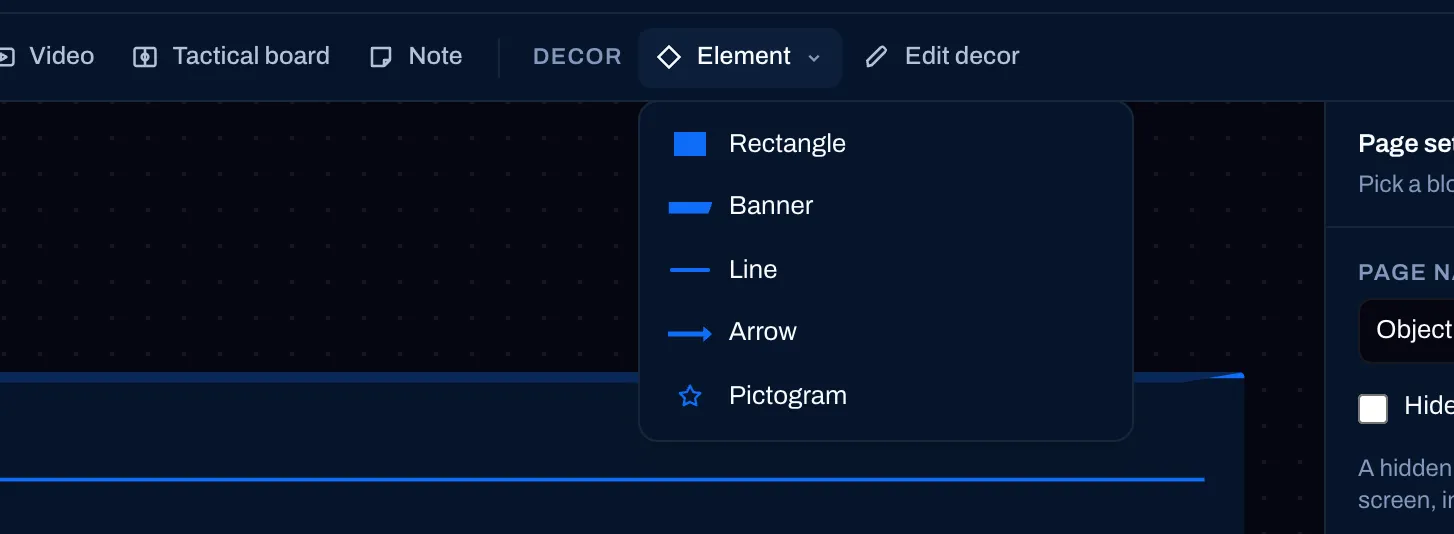
Element opens the menu: Rectangle, Banner, Line, Arrow or Pictogram (ball, whistle, trophy, stopwatch, heart rate, energy, target, flag, star, crest, cone, done).
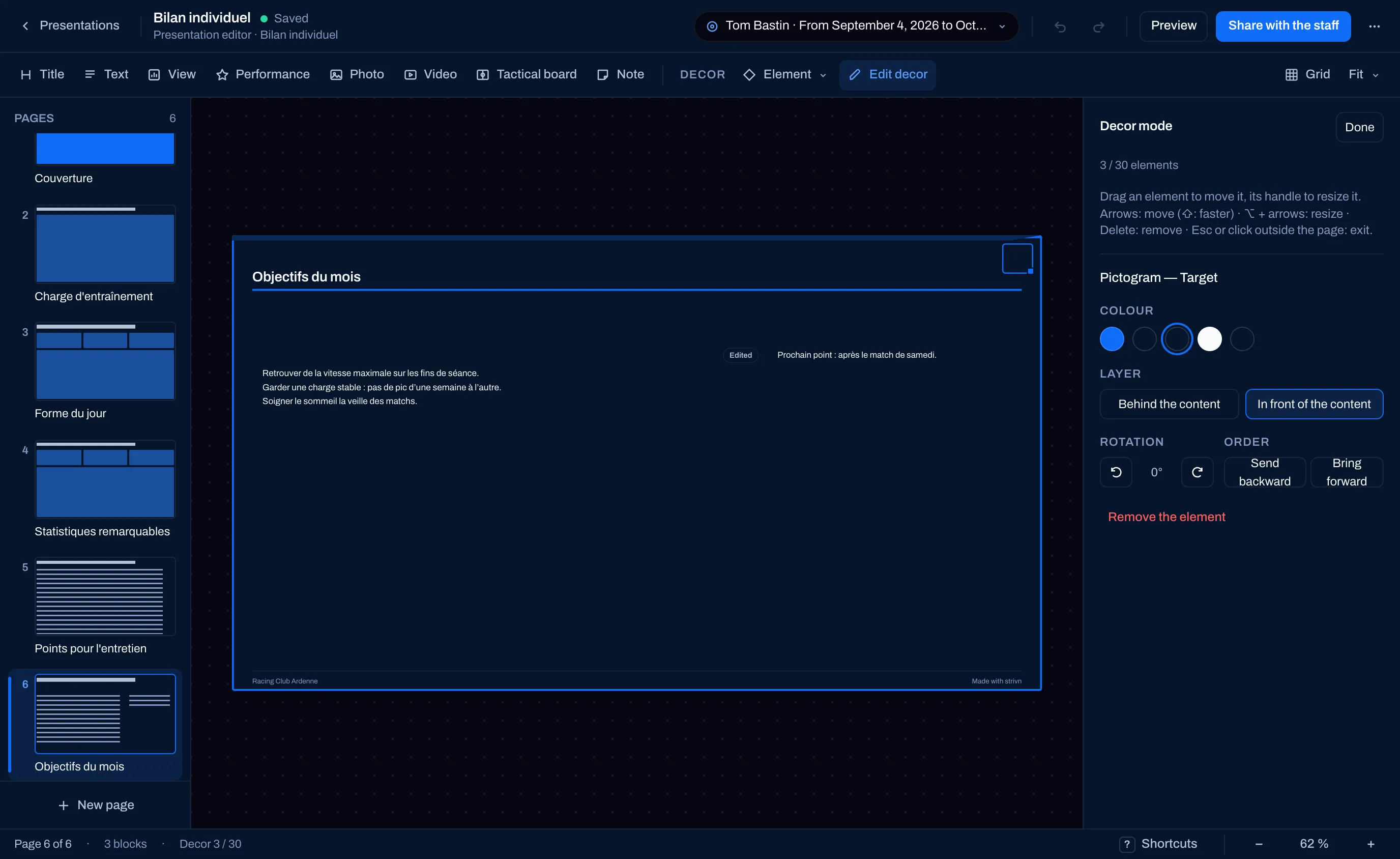
Edit decor switches to Decor mode: blocks freeze, decor elements become selectable. Drag an element to move it, its handle to resize it. The element’s settings:
- Colour — only the club’s colours: Primary colour, Secondary colour, Accent, Text or Background. The decor follows the club’s identity if it changes.
- Layer — Behind the content or In front of the content.
- Rotation and Order (Bring forward, Send backward).
- Remove the element.
Done (or Esc, or a click outside the page) exits decor mode. A page holds thirty decor elements at most; the status bar counts them (“Decor 3 / 30”).
Undo, zoom, preview
Section titled “Undo, zoom, preview”- Undo and Redo (document bar) undo and redo your gestures: move, resize, add, remove.
- Fit frames the page in the window; the zoom menu and the − / + buttons in the status bar zoom.
- Preview opens the presentation as your readers will see it.
Keyboard shortcuts
Section titled “Keyboard shortcuts”Shortcuts (status bar) or the ? key shows the full sheet.
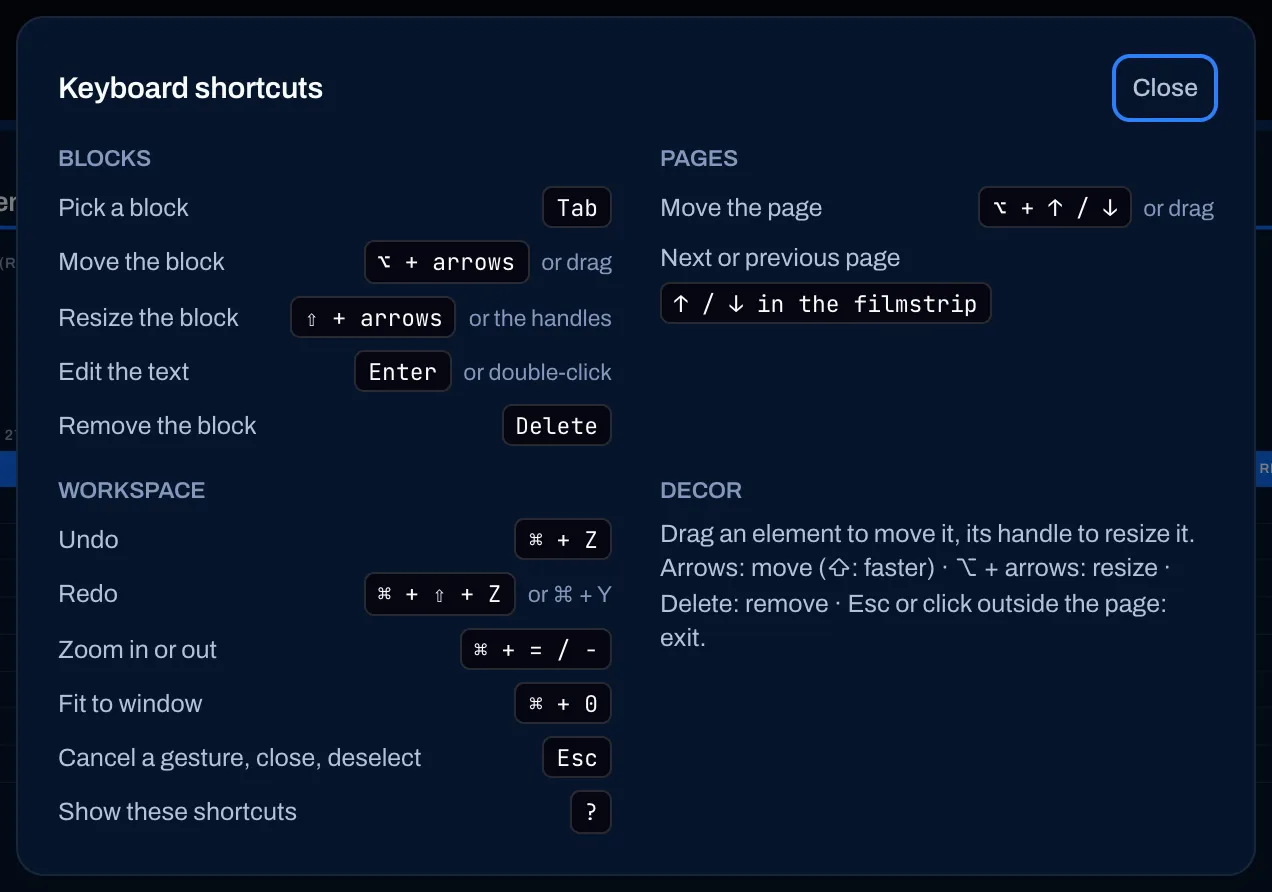
| Action | Windows / Linux | Mac |
|---|---|---|
| Pick a block | Tab | Tab |
| Move the block | Alt + arrows | ⌥ + arrows |
| Resize the block | Shift + arrows | ⇧ + arrows |
| Edit the text | Enter (or double-click) | Enter (or double-click) |
| Remove the block | Delete | Delete |
| Move the page | Alt + ↑ / ↓ | ⌥ + ↑ / ↓ |
| Next or previous page | ↑ / ↓ in the filmstrip | ↑ / ↓ in the filmstrip |
| Undo | Ctrl + Z | ⌘ + Z |
| Redo | Ctrl + Shift + Z (or Ctrl + Y) | ⌘ + ⇧ + Z (or ⌘ + Y) |
| Zoom in or out | Ctrl + = / − | ⌘ + = / − |
| Fit to window | Ctrl + 0 | ⌘ + 0 |
| Cancel a gesture, close, deselect | Esc | Esc |
| Show these shortcuts | ? | ? |
In decor mode: the arrows move the element (with Shift / ⇧: faster), Alt / ⌥ + arrows resize it, Delete removes it.
On tablet and phone
Section titled “On tablet and phone”- Tablet: the editor works in landscape. The settings open as a drawer over the page when you select a block (or through the settings button in the document bar); close it with the cross.
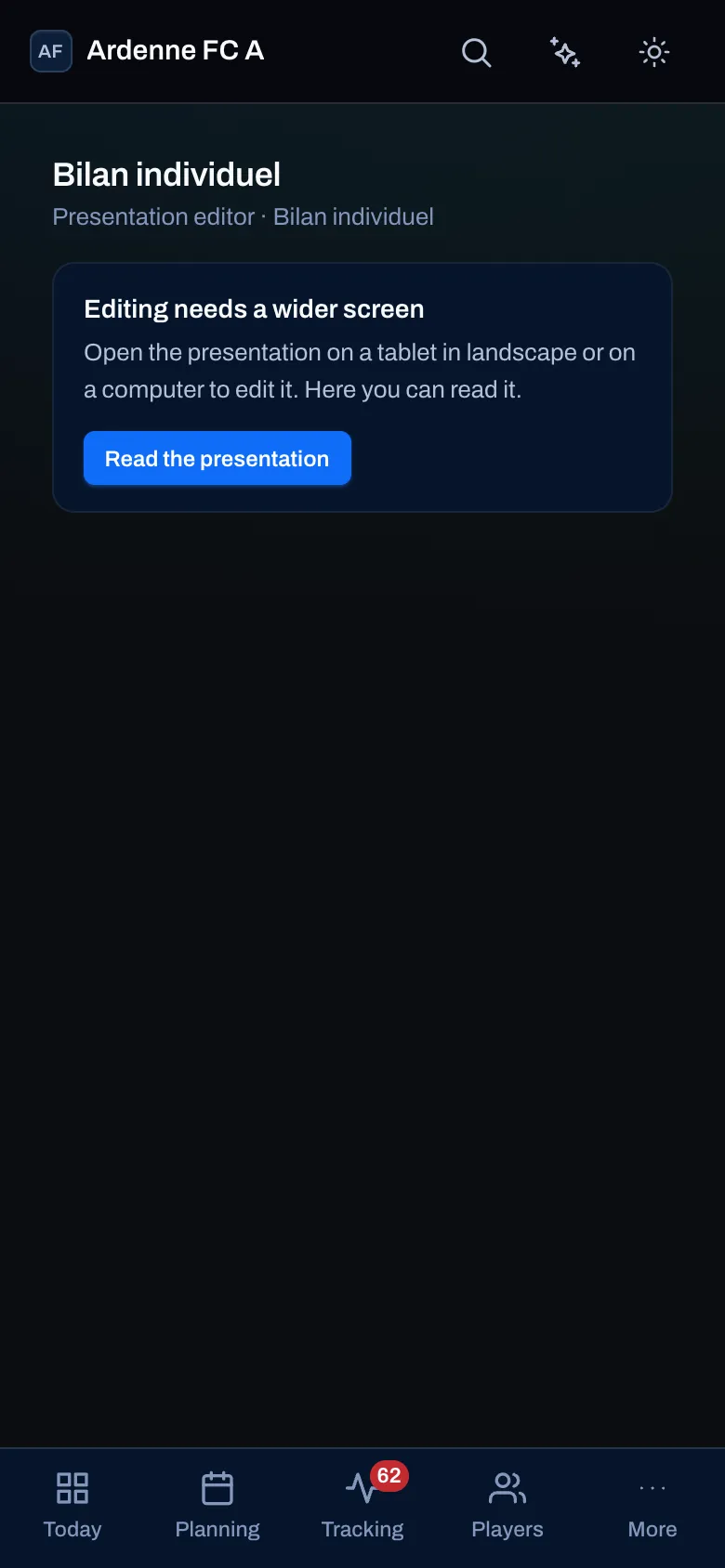
- Phone: editing isn’t possible there. The editor shows “Editing needs a wider screen” and offers Read the presentation. Open it on a tablet in landscape or a computer to edit it.
Saving and conflicts
Section titled “Saving and conflicts”The editor saves on its own; the document bar shows Saved, Changes pending… or Saving….
If a colleague (or you, in another tab) has changed the presentation in the meantime, the state becomes Conflict: not saved and the message names who changed it. Your input is kept: Reload takes their version, Save my version imposes yours.
A block that prevents saving — an empty title, a photo removed from the photo library, two blocks in the same spot — is named and selected on its page so you can fix it.
See also
Section titled “See also”- Presentations — create, the context, share, the outputs.
- Presentation templates — reuse a layout.
- Dashboards — compose the views to insert.