

Scouting opponents
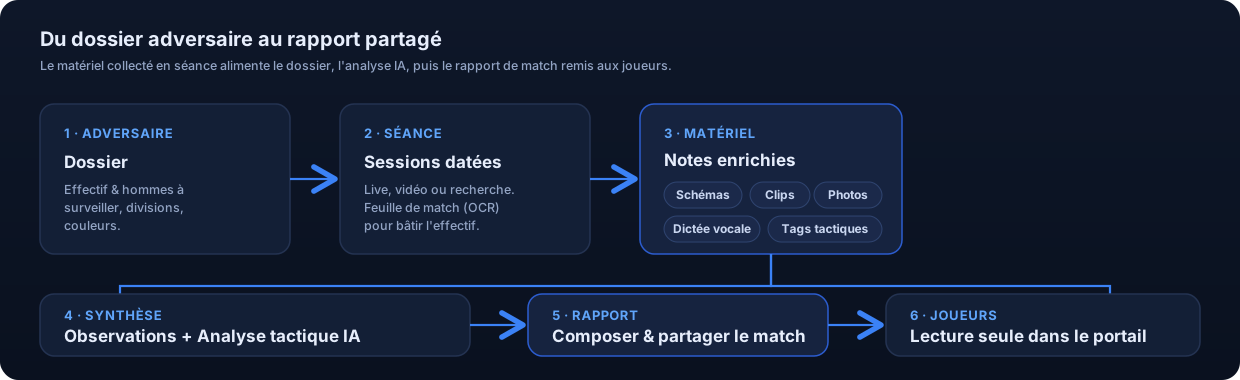
Scouting gathers everything your staff observes about an opposing team: its roster, its players to watch, your observation notes (with tactical boards, video clips and photos), and an AI-assisted tactical analysis. You collect all of this across scouting sessions, it consolidates into an opponent dossier, and it then feeds a game report shared with your players.
You reach it from the Opponents menu (the Tactics section of the sidebar).
Create an opponent
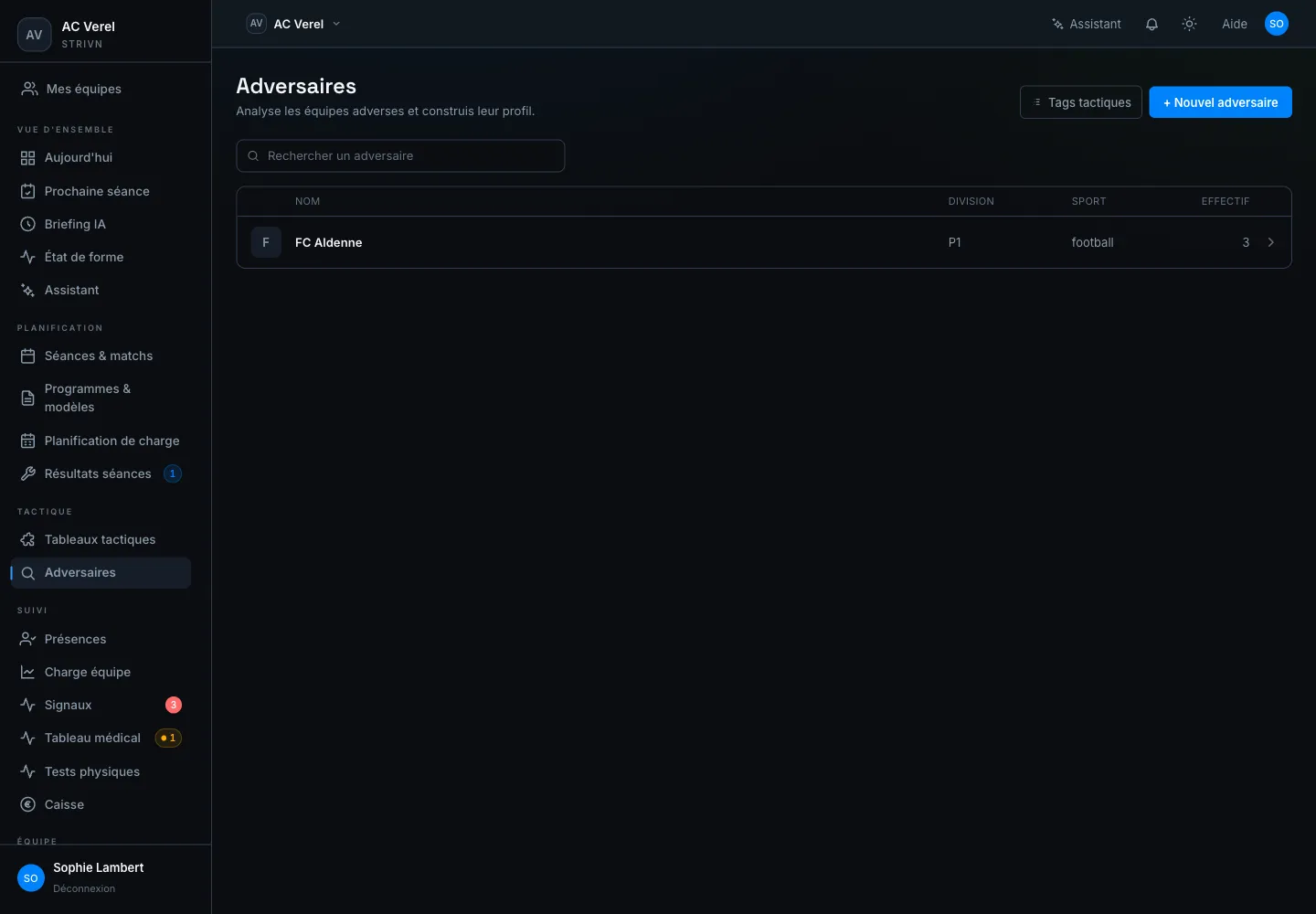
Section titled “Create an opponent”- Open Opponents, then click + New opponent.
- Fill in the Name (e.g. FC Rivals). The Sport, Division, Colors and Notes fields are optional.
- Click Create opponent.
The list shows each opponent with its division, sport and roster size. A search filters the list live.
The opponent dossier
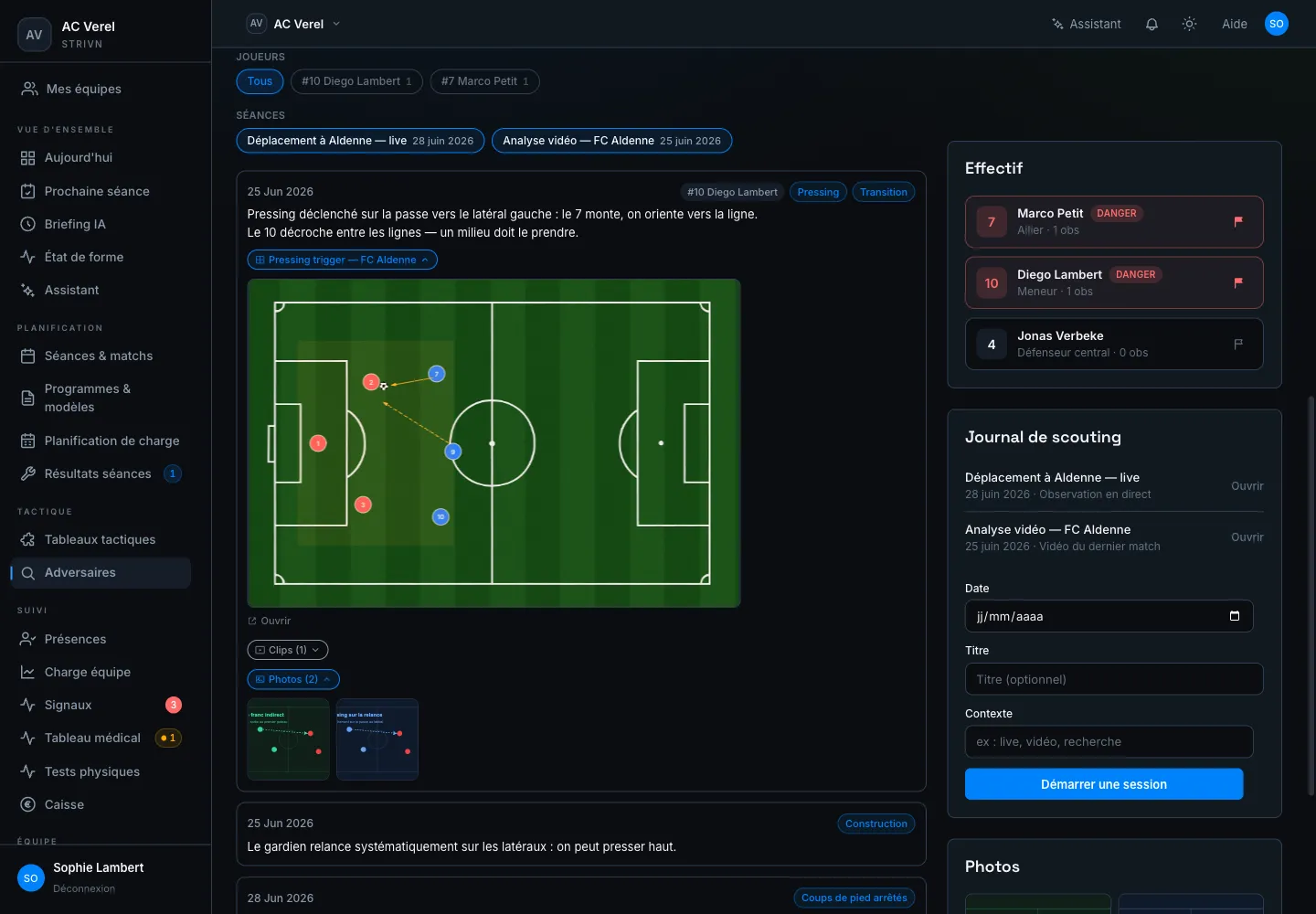
Section titled “The opponent dossier”Opening an opponent shows its dossier: the overview that aggregates all your scouting work. It reads in two columns.
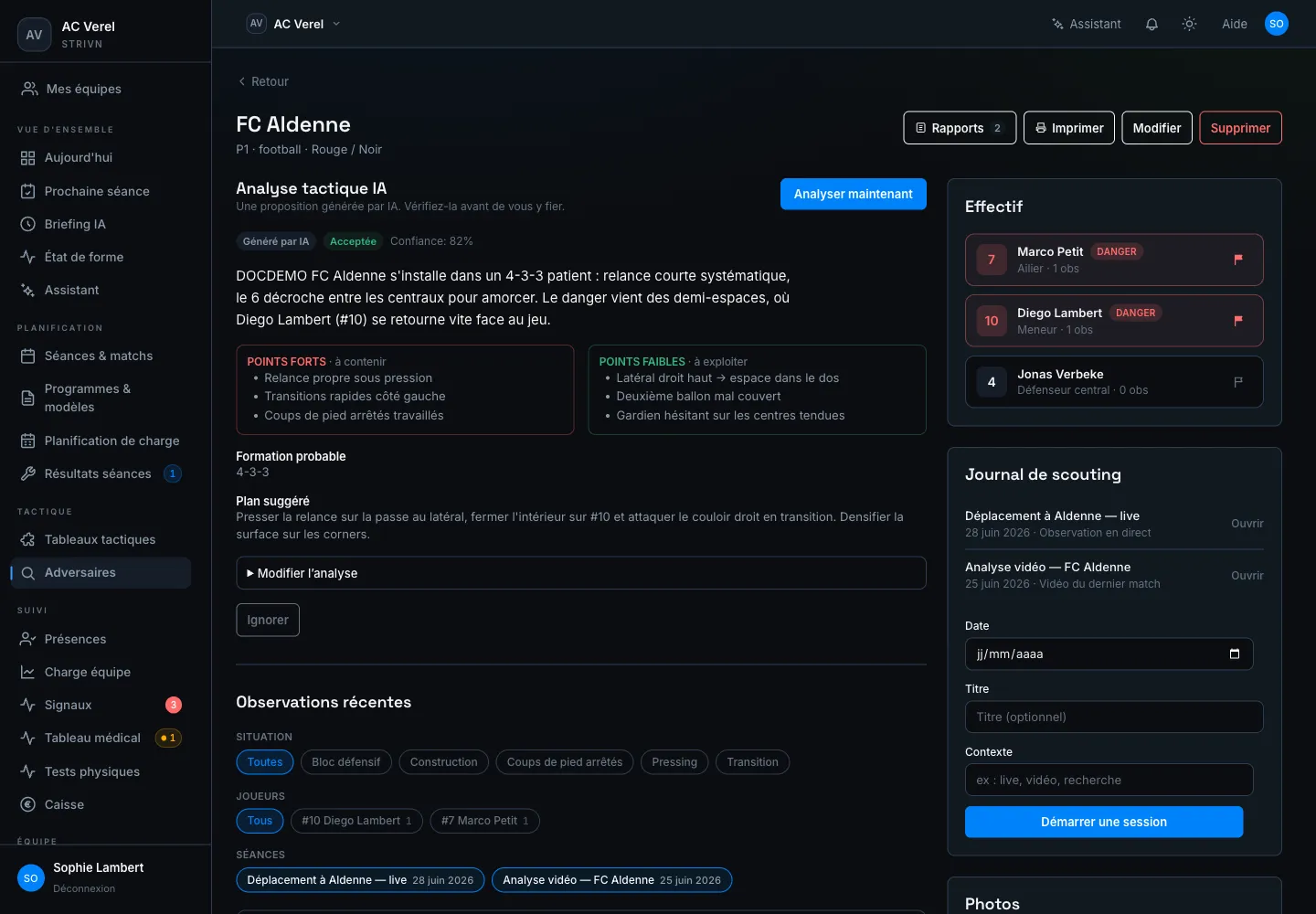
- AI tactical analysis — a synthesis generated from your observations (see below).
- Recent observations — the feed of your notes, filterable by Situation (tactical tag), by Players or by Sessions.
- Roster (right column) — the opposing players you’ve scouted, with the players to watch on top.
- Scouting log — the list of sessions; it’s also where you start a session.
- Photos — the screenshots and photos collected on the opponent.
At the top of the dossier: Reports (compose a game report), Print, Edit and Delete.
Roster & players to watch
Section titled “Roster & players to watch”The roster builds up from your notes and imported match papers. In the Roster column:
- Players are sorted with the players to watch first, then the most-observed.
- Flag as danger man / Remove danger flag toggles a player’s Danger badge. Players to watch also surface at the top of the dossier.
- Each player shows its position and observation count.
Import a match paper (OCR)
Section titled “Import a match paper (OCR)”Rather than typing the roster by hand, you can import a match paper. From a session, click Import team sheet and upload a PDF or a photo (max 20 MB). The AI reads the document and proposes a list of players (number, name, position) with a Confidence score.
- Review each proposed row — low confidence is flagged.
- Remove any wrong rows.
- Click Add confirmed players to add them to the roster.
Run a scouting session
Section titled “Run a scouting session”A scouting session is a dated moment of observation (a live game, a video, some research). All material — notes, boards, clips, photos — attaches to a session.
- From the dossier, under Scouting log, set a Date, a Title (optional) and a Context (e.g. live, video, research), then click Start session.
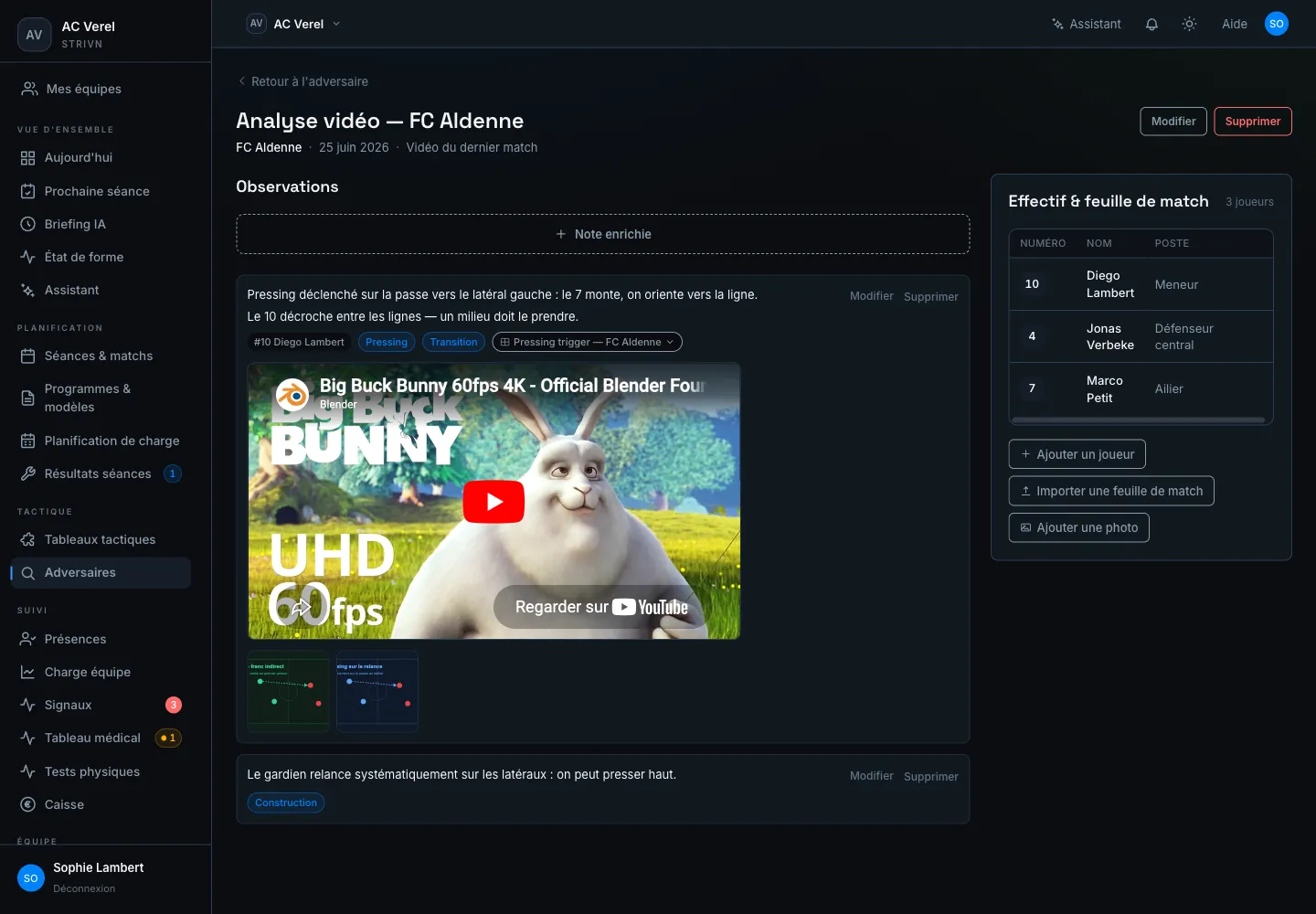
- The session opens on two areas: Observations on the left (capture and the note feed), Squad & team sheet on the right.
Capture a rich note
Section titled “Capture a rich note”A rich note is the basic unit of scouting: a piece of analysis text to which you can attach a tactical board, video clips, photos, link it to an opposing player and label it with tactical tags.
In a session, click Rich note to open the full-screen composer: a tactical board on the left (drag players in from the squad, draw arrows and zones) and the note pane on the right.
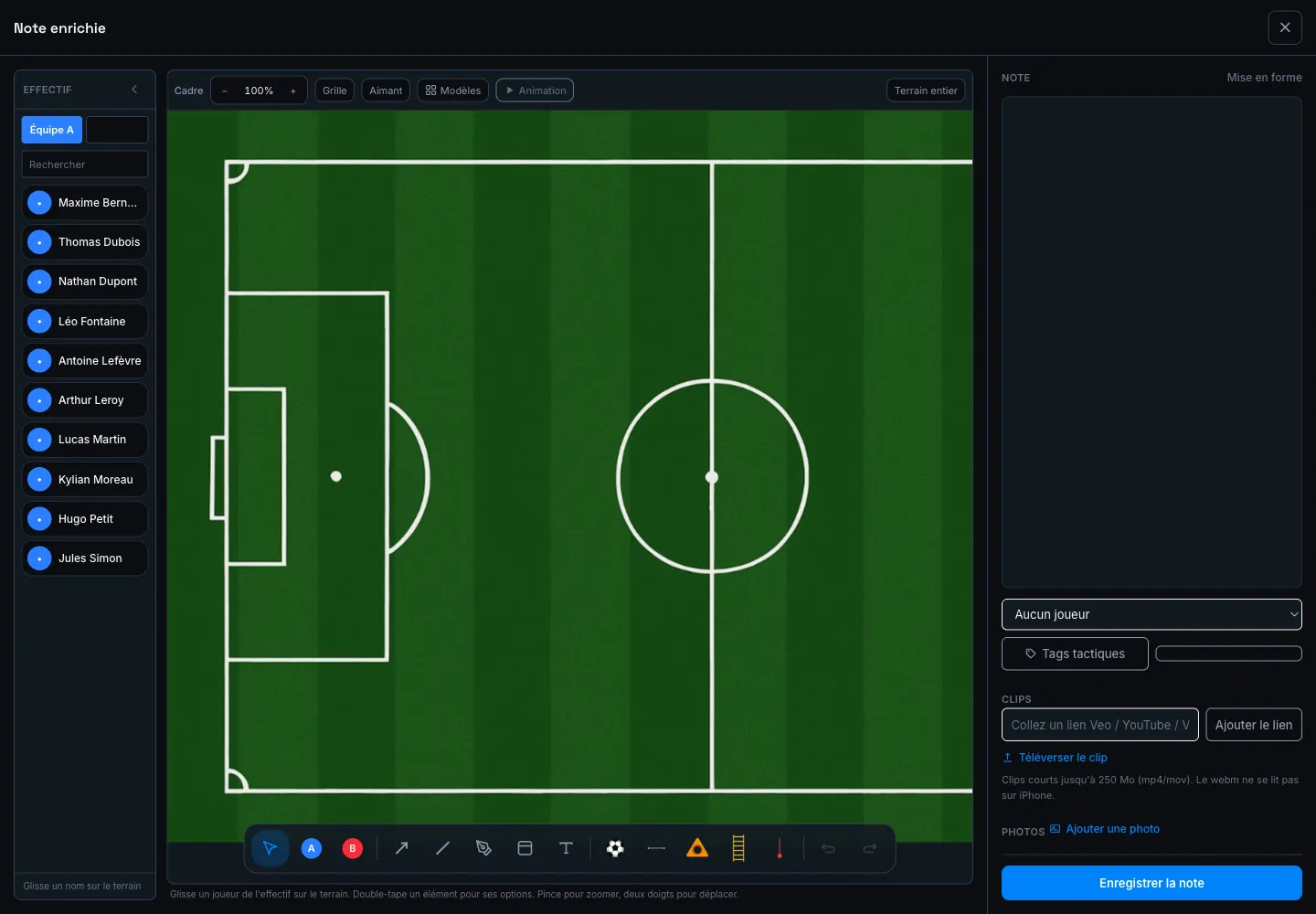
In the right pane:
- Type a note in the rich-text area.
- Tag a player links the note to an opposing-roster player.
- Tactical tags file the note by phase of play (Pressing, Build-up, Set pieces…).
- The board is created by drawing on it: it’s attached to the note on save.
- Save note stores everything (text, board, clips and photos) at once.
Dictate a note
Section titled “Dictate a note”Instead of typing, click Dictate: speak, and the transcript is inserted straight into the text area, where you can then edit it. The button shows “Transcribing…” while it processes.
Add a video clip
Section titled “Add a video clip”You can attach video clips to a note. Two ways:
- Paste a link — paste a URL (the “Paste a Veo / YouTube / Vimeo link…” field), then Add link. YouTube and Vimeo videos play right in the page; Veo, Hudl and other links open in a new tab (an Open on Veo button).
- Upload a file — choose a file, then Upload clip. Short clips up to 250 MB (mp4/mov). webm won’t play on iPhone.
An optional caption goes with each clip.
Add a photo
Section titled “Add a photo”Add a photo attaches a screenshot or photo to the note (freeze frames, set pieces, a match paper). Photos show as thumbnails under the note.
Find a note’s material
Section titled “Find a note’s material”In both the dossier and the session, a note shows its attachments as collapsible pills: a board, Clips (n) and Photos (n). Click to expand them without leaving the feed.
AI tactical analysis
Section titled “AI tactical analysis”From the dossier, Analyze now generates a tactical analysis from your observations. It produces:
| Field | Content |
|---|---|
| Summary | The opponent’s playing profile in a few lines. |
| Strengths · to contain | Where the opponent is dangerous. |
| Weaknesses · to exploit | The gaps to attack. |
| Likely formation | The expected shape (e.g. 4-3-3). |
| Suggested plan | A proposed game plan. |
The analysis carries an AI-generated badge and a Confidence score. You can Edit analysis (summary, formation, plan), Accept it (it moves from a Proposal to Accepted) or Dismiss it.
Tactical tags
Section titled “Tactical tags”Tactical tags are your vocabulary of phases of play (Pressing, Transition, Defensive block, Set pieces…). You attach them to notes and you filter the dossier by tag.
Manage them from Opponents → Tactical tags: Add a tag, rename it, or Archive it. An archived tag stays on existing notes but no longer shows when capturing.
What’s next?
Section titled “What’s next?”Once the dossier is full, compose a game report: a shareable document assembled from this opponent’s notes, boards, clips and photos, and delivered to called-up players. See Scouting reports.
To show this opponent to the squad or the staff (an always up-to-date deck, PDF, link), build an opponent presentation.