
Live session
The live mode (Live Session Runner) is with you for the whole session: you build your plan ahead of time, run it full-screen on the touchline — bell, timer, groups, teams, score, notes — then look at the review. It all happens on the Next session page, the runner is designed for thumb use and works even offline.
Build the session plan
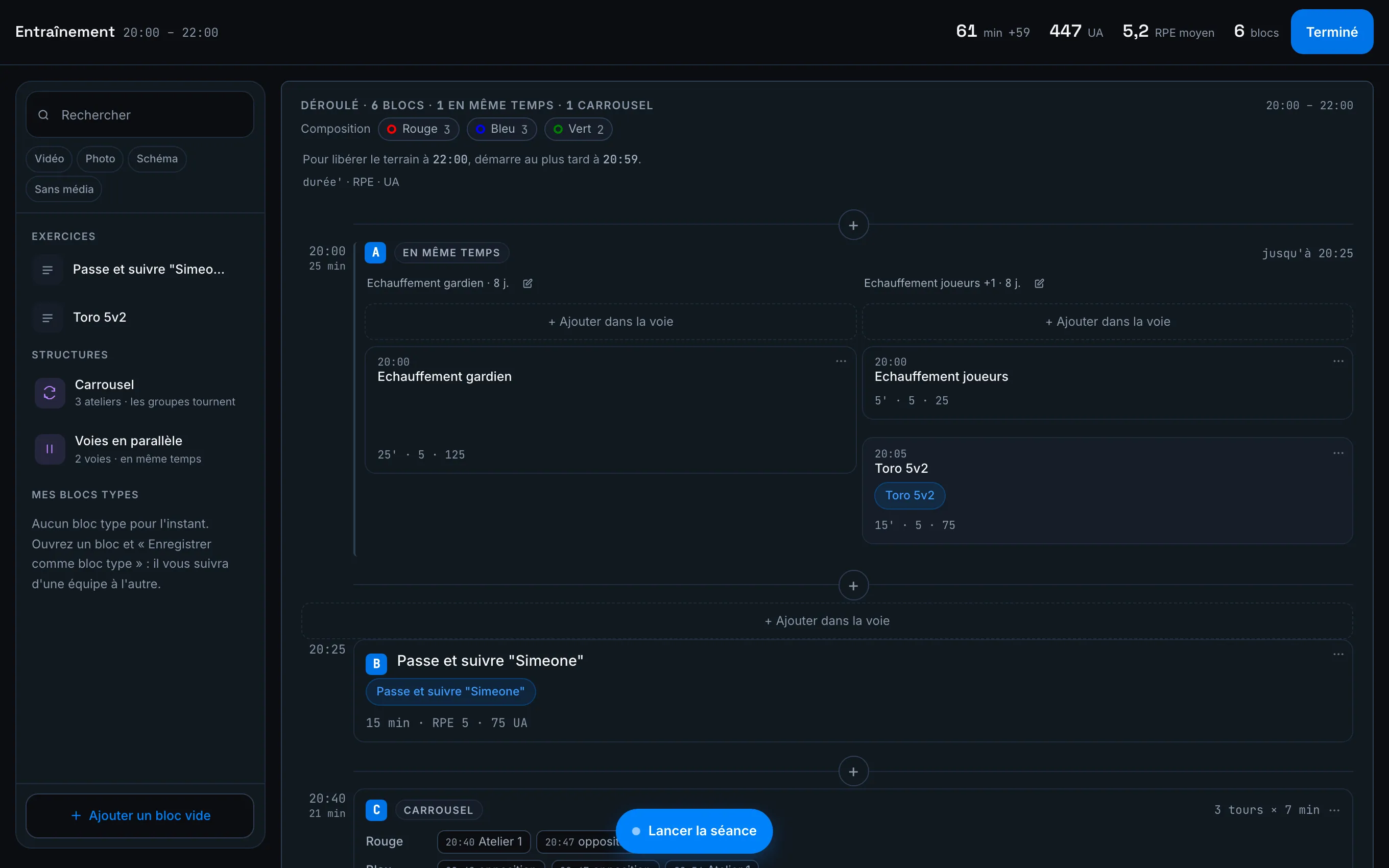
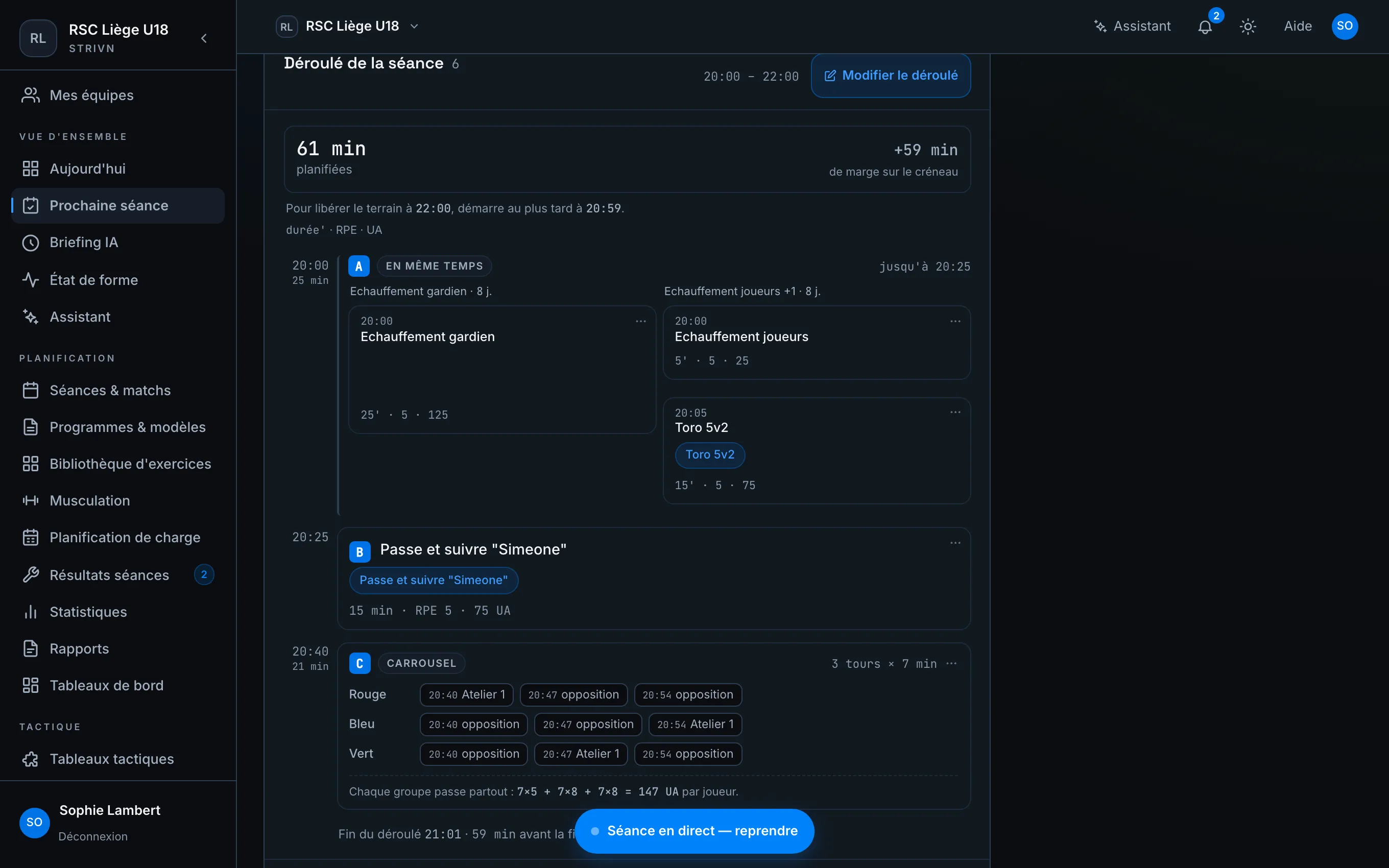
Section titled “Build the session plan”Open Next session, Run-through tab, then Edit the running order. The editing page puts the flow of the session and the library side by side.
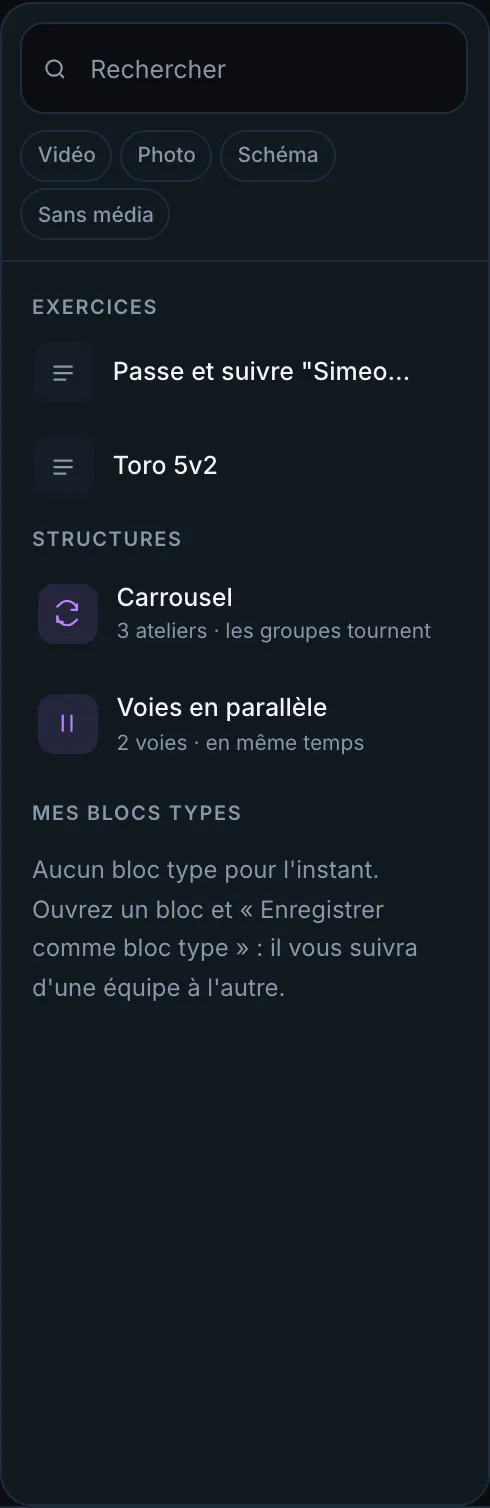
- The library is a single grouped list — Exercises, Structures, My block templates — under one Search field and per-media facets (Video, Photo, Diagram, No media). Drag an item into the plan where you want it; your exercises come with their diagrams and instructions.
- Add an empty block creates a block from scratch: label, duration, target intensity (RPE) and format (warm-up, small-sided game, opposition…).
- Structures lay down several blocks in one gesture: the Carousel (stations the groups rotate through) and Parallel lanes (several lanes at the same time, each with its own blocks — including a different number of exercises per lane).
The carousel is set as you drop it, in three decisions: the number of stations, the number of turns (a preset, or any number you like up to 60) and the turn length, set in minutes and seconds — a 2:30 turn is a setting like any other. The carousel’s total length shows while you set it.
- My block templates: open a block and choose Save as block template — it follows you from one team to another, ready to drop again.
To rework the plan:
- Drag a block (or an exercise from the library) directly onto a lane; every populated lane also carries its + Add to the lane button.
- A block’s ⋯ menu offers Edit, Duplicate, Move and Delete; while moving, Move up, Move down and Place first.
- Outside editing, clicking a block reopens its editor directly.
Run the session live
Section titled “Run the session live”On the day, tap the Start the session pill. Mark who is present, then start: the runner goes full-screen.
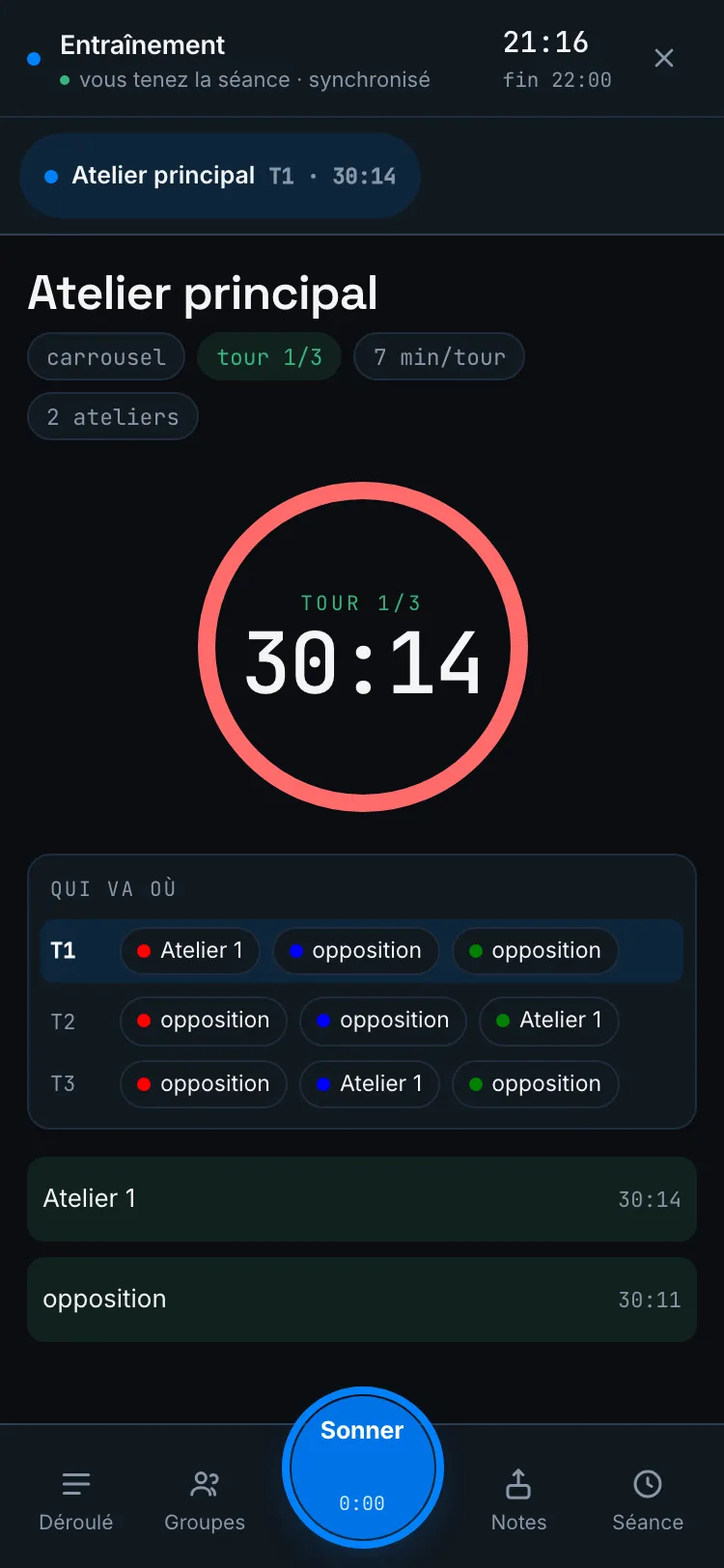
- The bell — one large button, bottom centre. Its label always names the next gesture: start the block, end it, ring a carousel rotation, Close the lane. One press arms it, a second confirms (“Press again to confirm.”).
- Carousels — the top ribbon spreads onto two lines to show the stations; the dial shows the current turn, each station has its own timer, and the Who goes where table tracks the group rotations. Extend by one turn when the content deserves it.
- Pause — while a turn is running, this button freezes the carousel’s master clock. The turn stays open: it simply stops advancing, and the station timers stop with it. The lane reads paused. Resume the carousel picks up exactly where you left off.
- Score and teams — offered only where they make sense: opposition blocks (small-sided game, match) and carousel stations. A “simple” block stays score-free.
- Diagram — on the current block, the Diagram & instructions button opens the exercise’s tactical diagram and instructions without leaving the scene.
- Leave without stopping — the ✕ at the top collapses the live view: the session keeps going, and the pill becomes Session live — resume.
The dock’s four sheets
Section titled “The dock’s four sheets”At the bottom of the screen, four tabs each open a sheet:
| Sheet | What you do there |
|---|---|
| Run-through | The full flow; “At the same time” blocks display as columns, one per lane. |
| Groups | Attendance in one tap, and Rebuild the teams of the current block. |
| Notes | Write a note (timestamped and added to the session notes) or Voice note: Record a debrief — strivn transcribes and structures your debrief. |
| Session | Who holds the session, End the session, Cancel the session. |
The team builder
Section titled “The team builder”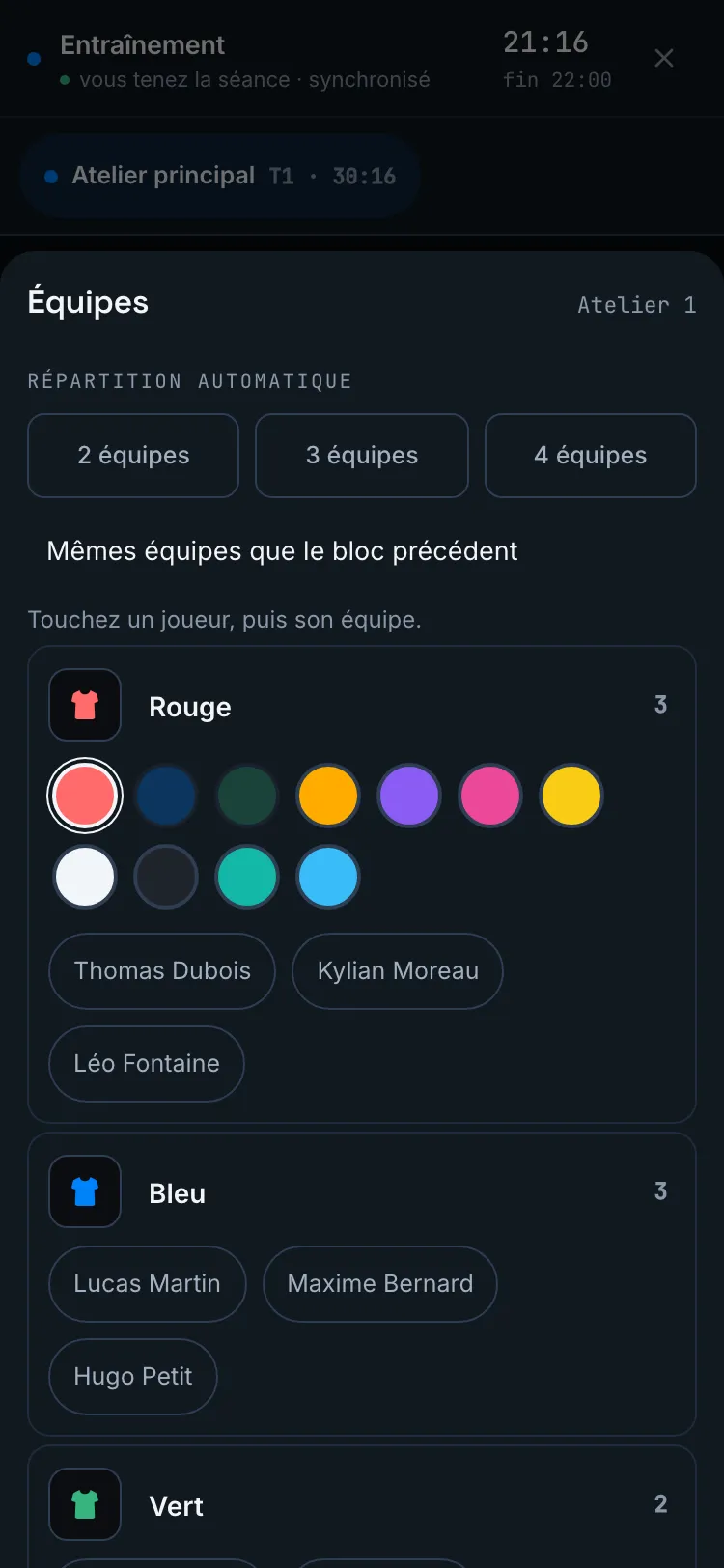
- Auto split into 2 / 3 / 4 teams among those present, or Same teams as the previous block.
- To adjust: tap a player, then their team — they switch sides.
- The bib opens an 11-colour swatch row; a colour already worn by another team is dimmed. The team name follows the colour until you rename it.
- Confirm teams saves everything at once.
The block menu also offers Edit participants: restrict the block to a few players (“Only the selected players do this block.”) or go back to Open to everyone.
The hand, across devices
Section titled “The hand, across devices”Only one person holds the session at a time — they ring the bell. Other devices follow read-only (“The session is held elsewhere”) and can Take over from the Session sheet.
End — and replay if needed
Section titled “End — and replay if needed”When everything is done, the Session ended screen closes it out: Back to the session page returns you to the session, where the planned vs actual recap awaits. The discreet Reset the session link permanently deletes recorded scores and results — the session becomes planned again, ready to relaunch.
Close with the review
Section titled “Close with the review”You then refine in the Review tab: perceived RPE, overall rating, actual duration and a per-player evaluation.
➡️ See the details in Session review.