

Exercise metrics
Key metrics describe what an exercise produces: distance covered, number of sprints, target RPE, playing area. You set them on the exercise itself. strivn then uses them to state a session’s estimated external load, before the session happens.
The chain has three steps:
- You describe the exercise once, in the library.
- The session timeline sums up the exercises you place in it.
- After the session, GPS confirms or corrects the estimate.
Choose what an exercise measures
Section titled “Choose what an exercise measures”Open an exercise from the library, then Edit. The Key metrics block sits under the content.
- Pick a metric from the Add a metric… list.
- Leave the value empty if the exercise has already run with GPS — its sessions will fill it.
- Or type a seed value, and then give the Reference duration.
- Save.
The reference duration
Section titled “The reference duration”As soon as you type a value, the Reference duration becomes required. This is what makes that value usable. A metric you merely picked, with no number, needs none: the measurement carries its own duration.
“1,200 m” means nothing on its own. “1,200 m over 15 min” can be scaled to any duration. Play the same exercise for 20 minutes in a session, and strivn states 1,600 m.
Metrics do not all behave the same way:
| Behaviour | Metrics | Scaling |
|---|---|---|
| Cumulative | Distance, sprints, accelerations | Proportional to the block’s duration |
| Intensive | Target RPE, Players, Area | Unchanged — these are properties of the block |
A game with 8 players on 400 m² stays 8 players on 400 m², whether it runs 10 or 30 minutes. Only cumulative metrics add up.
The exercise calibrates on its sessions
Section titled “The exercise calibrates on its sessions”Every confirmed GPS import adds that session’s value to the exercise’s history. The value shown is the average of that history, weighted by each session’s duration — and it sharpens every time the exercise goes back on the pitch.
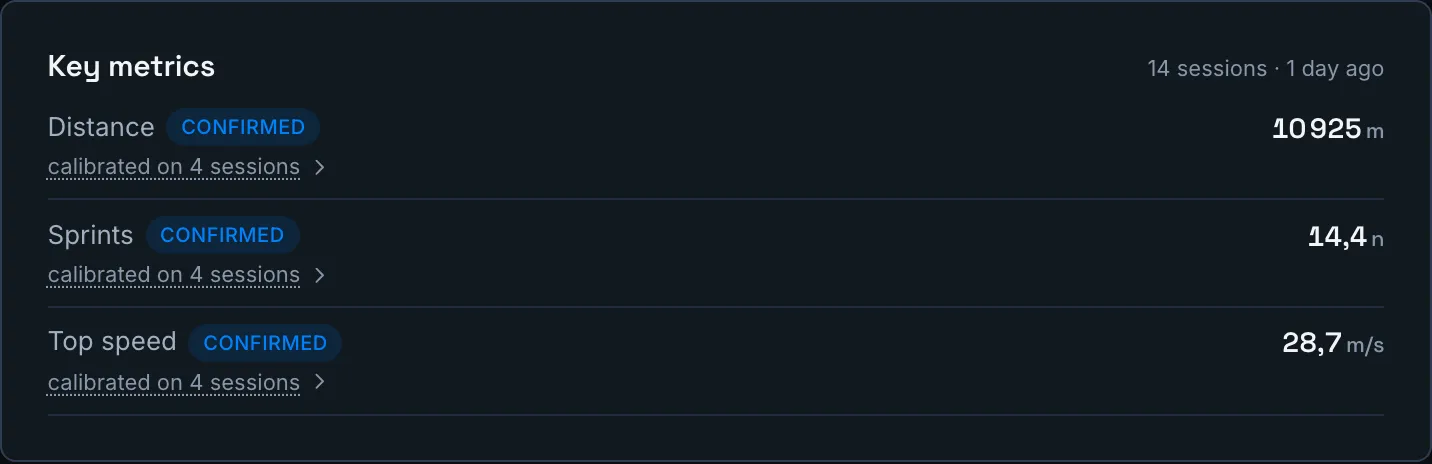
On the exercise page, the line says so under the metric’s name: calibrated on 4 sessions.
What you typed is not erased. It stays under the measurement, and would become the displayed value again if the history were purged.
Calibrating, then confirmed
Section titled “Calibrating, then confirmed”An average over two sessions does not read like an average over ten. Every calibrated value therefore carries a state, the same one as the felt RPE:
| State | What it means |
|---|---|
| Calibrating | The number exists, it stays an estimate. It shows with a leading ~, in amber. |
| Confirmed | The exercise has enough history for the number to stand. |
It turns Confirmed once the exercise has run 3 times.
Open the sessions behind a value
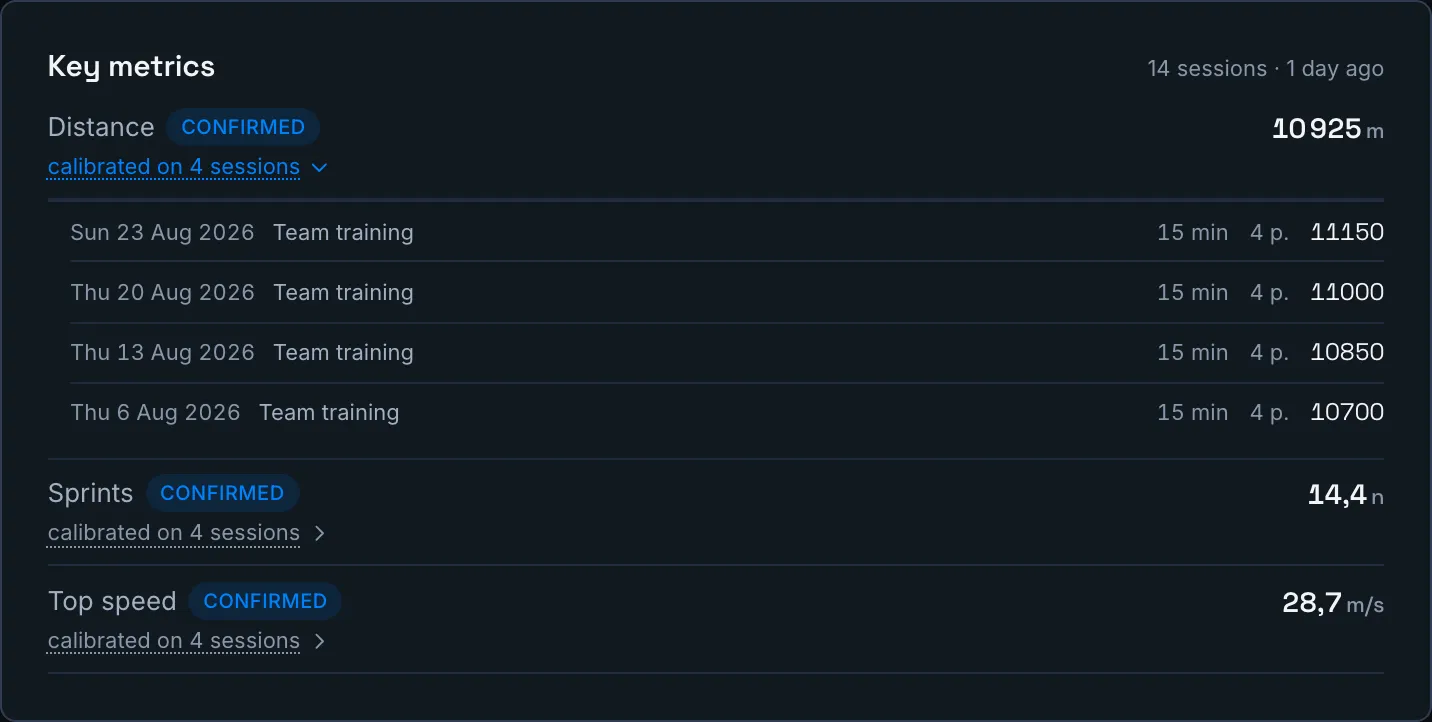
Section titled “Open the sessions behind a value”“Calibrated on 4 sessions” is clickable. The line unfolds the sessions that make the number, most recent first: the date, the session name, the retained duration, how many players were measured, and what each one contributed. Every row links to that session’s review.
Open it when a value surprises you: it will tell you which session is pulling it.
How a value is measured
Section titled “How a value is measured”Under each GPS metric, the Measured: line says how its number is computed. By default it follows your team settings — nothing for you to decide.
Unfold it to tune this exercise in particular:
| Setting | What it decides |
|---|---|
| Aggregation across blocks | How blocks combine when the exercise runs more than once in one session: sum, maximum, minimum, weighted average. |
| Across players | Average of the whole squad, or a Percentile window — a slice that drops the extremes. |
The percentile window drops what isn’t representative: the keeper who doesn’t run, the player coming back from injury. The chart shows your players, one tick per player, placed at their real value — drag the bounds and you see who stays in.
Back to the team settings clears the exercise’s own tuning.
Set the metrics from a GPS import
Section titled “Set the metrics from a GPS import”You don’t have to go through the library. When you import a GPS file onto one block of a session, the reconciliation screen offers that block’s exercise metrics directly.
- Import your file — see GPS.
- On the reconciliation screen, choose the file’s scope: the block concerned, not “the whole session”.
- The Exercise metrics panel then appears, under the scope selector.
- Three columns: this file, sessions, declared. Click a number on the left to take it.
The values are saved on the exercise and show on its page — so they apply to every session using it, not only the one you’re importing.
The RPE the players felt
Section titled “The RPE the players felt”Under What the players reported, the Felt RPE is the only number on this card you do not write: the players give it themselves, block by block, after collective sessions — see Session debrief. strivn averages it across every session where the exercise ran in your team.
This is the number that tells you an exercise you announce at 6 is lived at 8.5.
Calibrating, then confirmed
Section titled “Calibrating, then confirmed”An average over two sessions does not read like an average over ten. The felt RPE therefore always carries a state:
| State | What it means |
|---|---|
| Calibrating | The number exists, it remains an estimate. It shows prefixed with a ~, in amber. |
| Confirmed | The exercise has enough history for the number to stand. |
It turns Confirmed once the exercise has run 3 times, with at least 2 answers per session on median. Until then, the card says which of the two is missing:
- “2 of 3 sessions” — sessions are missing. Run the exercise again.
- “too few answers per session” — the sessions are there, the answers are not. It is the squad’s response rate to work on, not the number of sessions.
Extreme answers are excluded
Section titled “Extreme answers are excluded”One tap at 1 instead of 7 on a block rated by fifteen players moves the average. So strivn excludes the answers falling outside the exercise’s usual range: the lowest 10% and the highest 10% of its own ratings.
Trimming only applies above 10 answers. Below that, nothing tells an aberrant answer from a merely different one — so they all count.
The number of excluded answers shows beside the sample: “3 sessions · 29 answers · 1 excluded”. Nothing is removed silently.
Where it appears
Section titled “Where it appears”- On the exercise page and in its quick view, with its full sample.
- On the exercise card, in the library and in a session’s exercise picker: “Felt RPE 8.5”. That is what lets you pick an exercise knowing what it costs the players, without opening its page.
Like the other metrics, it is indicative: no load calculation reads it.
A session’s estimated external load
Section titled “A session’s estimated external load”Open Next session, Timeline tab. Below the planned load, the Estimated external load block sums up what your exercises state, each scaled to its block’s duration.
Each block also carries its own share, under its duration line:
VMA                 6 min · RPE 9 · 54 AUPassing Simeone     15 min · RPE 8 · 120 AU                    ~15 Sprints · ~1,240 m Total distance
Planned load                                 174 AU
ESTIMATED EXTERNAL LOAD~15 Sprints   ~1,240 m Total distancecovers 15 / 21 min (71 %)1 block without metrics: VMA
The ~ sign marks an estimate. The block shares always add up to the session total.
Reading the coverage rate
Section titled “Reading the coverage rate”The total is always partial. A timeline holds blocks with no exercise — warm-up, free play, stretching — and exercises you have not filled in yet.
The covers 15 / 21 min (71 %) line states how much of the session time the total actually describes. Below 50 % it turns amber: the figure describes less than half the session.
The next line names the blocks to fill in. That is your to-do list for enriching the library.
Compare against GPS
Section titled “Compare against GPS”Import your GPS file after the session, as usual — see GPS. On each metric tile, strivn adds an estimated label with the stated value, and the gap as a percentage.
The gap shows green when it stays under 10 %, amber above. A gap that repeats on the same exercise tells you its declared value deserves an adjustment.
The gap only appears when both sides exist. strivn never compares a measurement against an absence.
Ask the assistant
Section titled “Ask the assistant”The AI assistant reads the same figures you do. You can ask it:
- “What distance is planned for Tuesday’s session?”
- “Which block weighs most in the external load?”
- “Which exercises have no metrics yet?”
- “Which exercises do the players find hardest?”
On the felt RPE it carries the page’s state over: it quotes a confirmed figure as a fact, and announces a calibrating one as an estimate, saying what it is still missing.
It can also set an exercise’s metrics for you. It shows you its proposal first, and waits for your approval.
What’s next?
Section titled “What’s next?”- Gather and sort your exercises in the exercise library.
- Build the timeline and run the session with live session.
- Configure your columns and speed zones in the GPS settings.
- Track the squad’s internal load in Load.