
Calendar & events
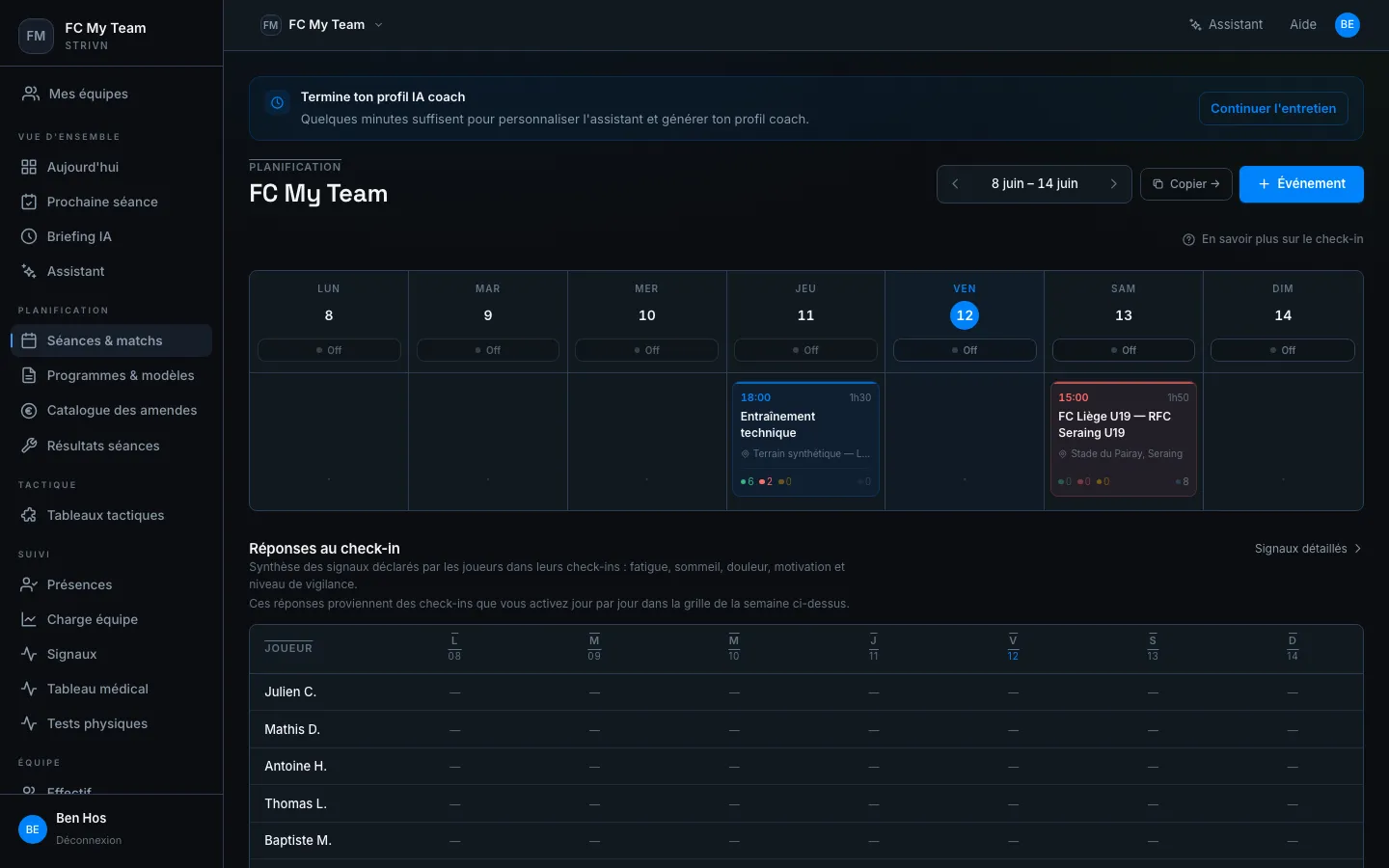
The calendar is the starting point of the week. It displays all team events in week view with RSVP counters and shortcuts to session reviews.
Create an event
Section titled “Create an event”- Click + Event in the top right.
- Enter the title and select the type: Training, Match, Recovery, Task, or Individual training.
- Set the date, time and duration.
- Enter the location — it appears in the call-up and in the player’s schedule.
- Enable the call-up (RSVP) if you want players to confirm their attendance.
- For a training session, match, or individual training, enable Ask for feedback after the session if you want present players to receive an RPE and comment request about an hour after it ends — by push, WhatsApp (depending on your plan) or email.
Tasks & individual training
Section titled “Tasks & individual training”Beyond sessions and matches, two event types ask the player to act — they appear in the player’s To-do list and are confirmed from the portal.
A standalone task is a to-do to complete before a deadline (e.g. “return the form”, “pay the dues”).
- Deadline — the due date shown to the player.
- Reminder frequency — no reminder, daily, or weekly before the deadline.
- Fine if not completed (optional) — a fine (snapshot) is attached to the event if the task is not done in time.
The player marks the task as done; no proof is required.
Individual training
Section titled “Individual training”A solo session with proof of completion — the player trains alone and provides proof.
- Completion deadline — the session’s due date.
- Can be completed before the session — the player can tick it off beforehand.
- Coach validation required — proof must be validated by the staff before closing.
- Accepted proof — choose the allowed formats: screenshot, link (e.g. Strava) or photo.
The player sends the proof to the coach; you validate or reject it (with a reason) from the completions tracking.
Reading the week view
Section titled “Reading the week view”Each event card shows:
- The type with its colour badge (blue = training, orange = match)
- The time, duration and abbreviated location
- RSVP chips when call-ups are enabled:
● 6 present ● 2 absent
Open an event panel
Section titled “Open an event panel”Click on any card to open the side panel.
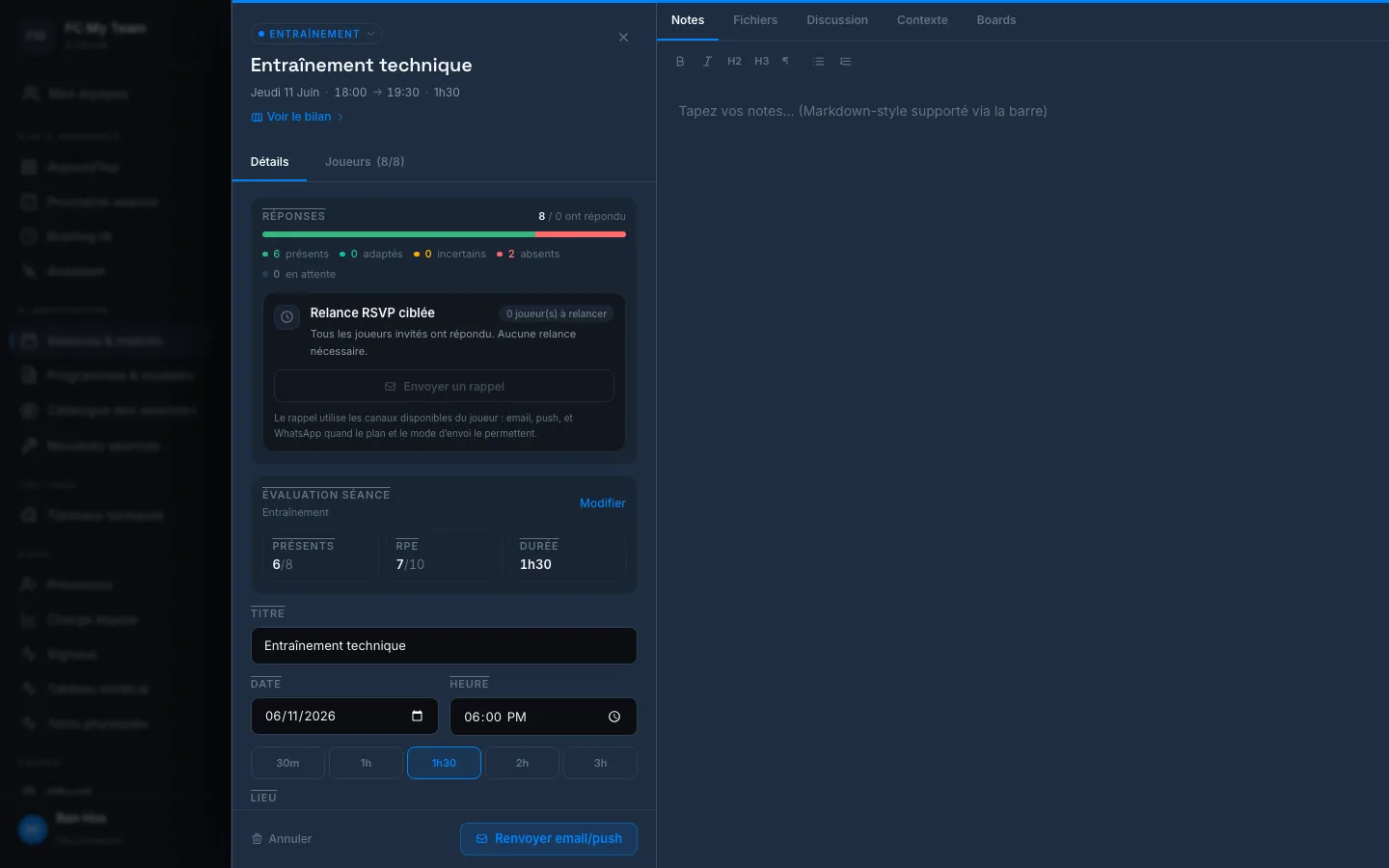
The panel contains two tabs:
| Tab | Content |
|---|---|
| Details | Aggregated RSVP responses, session rating (PRESENT / RPE / DURATION), edit form |
| Players (n/n) | Named list with position and individual response status |
The SESSION REVIEW section displays data from an already-saved session review (PRESENT, RPE, DURATION) with a Modify link. It only appears for events with a session review enabled (training, match).
For past events, click See session review → to access the session review.
Managing called-up players
Section titled “Managing called-up players”The Players tab lists all called-up players with their position and response status.
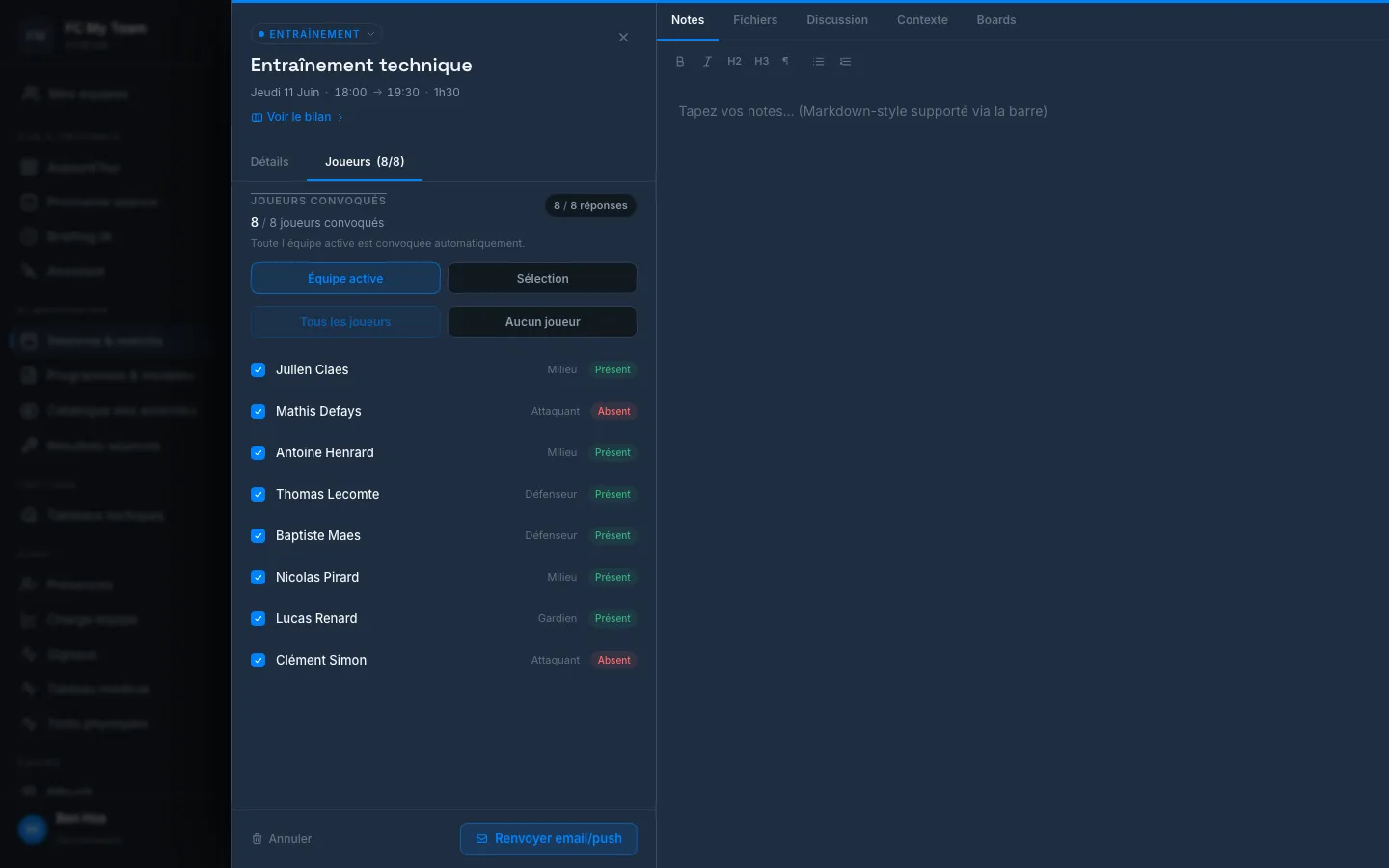
| Status | Colour |
|---|---|
| present | Green |
| absent | Red |
| limited | Orange (present with restriction) |
| uncertain | Yellow |
| pending | Grey (not yet responded) |
See Call-ups (RSVP) to send reminders to players who have not yet responded.
Check-in responses
Section titled “Check-in responses”At the bottom of the week view, the Check-in responses block shows a player × day grid with the week’s well-being indicators. Click Detailed signals → for the full view.
See Well-being check-in to interpret these signals.