

Scouting reports
A scouting report turns the material in an opponent’s dossier into a shareable, game-specific document your players can read. You compose it from the notes, tactical boards, photos and video clips already collected on the opponent, attach it to one or more games, then share it with the players and staff of your choice.
Reports live under Scouting → [opponent] → Reports. A report stays a private draft until you share it for the first time.
A report creates no material: it reuses what you’ve already collected on the opponent — rich notes, tactical boards, video clips and photos. To build that material (sessions, notes, dictation, clips, match paper, AI analysis), see Scouting opponents.
Create a report
Section titled “Create a report”- Open the opponent in Scouting, then click Reports.
- Click New report. A draft is created and the editor opens full-screen.
- Give it a Report title (e.g. Game plan vs FC Rivals).
The reports list shows, for each report, a Draft or Shared badge, the number of attached games, the number of recipients and the last-updated date.
Compose the report
Section titled “Compose the report”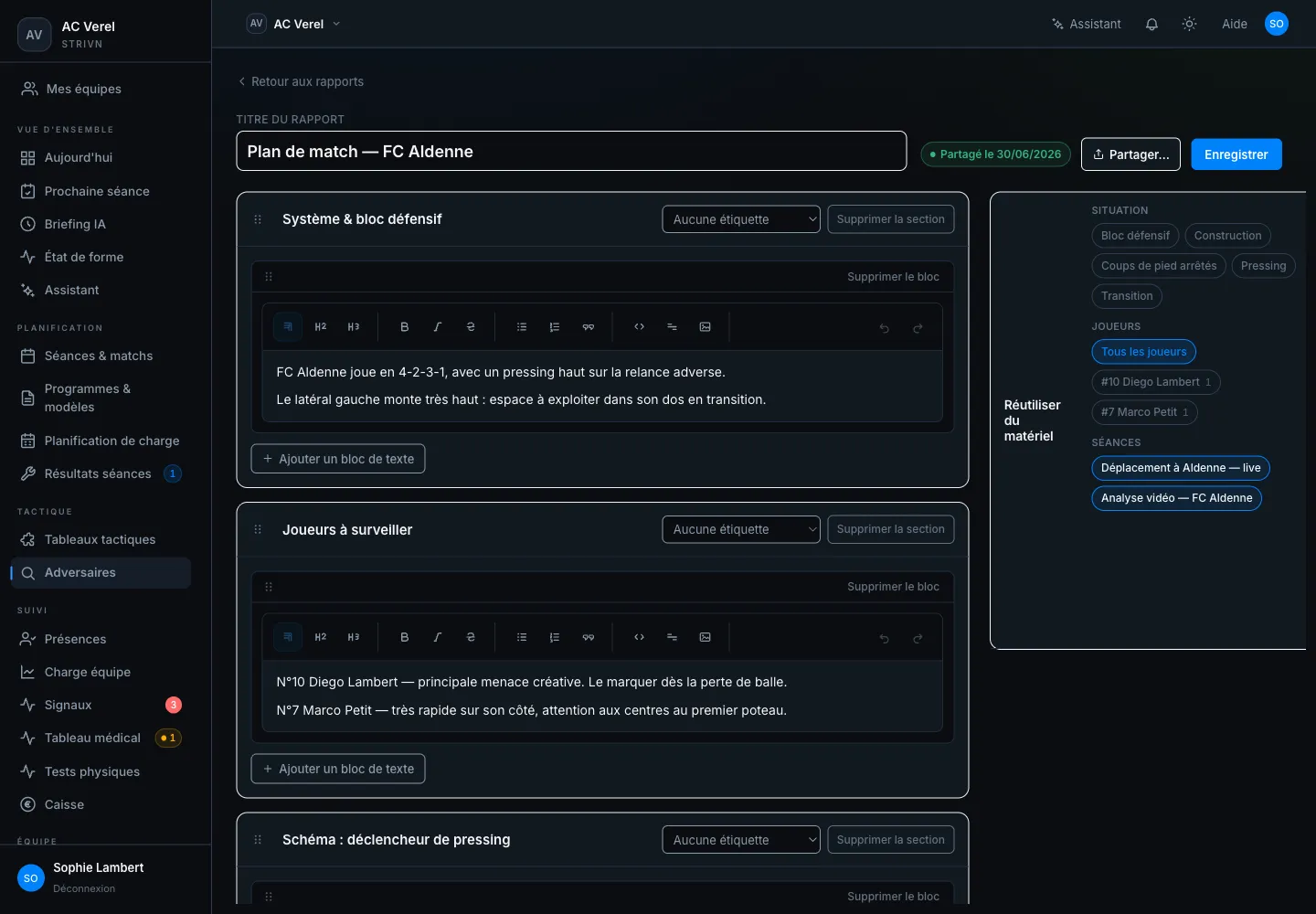
The editor is organised into sections. Each section has a title and can be tagged (by phase of play).
- Add section creates a new section; Drag to reorder section lets you reorder them.
- Pick a Tag per section (or No tag) to link it to a phase of play.
- Inside a section, Add text block inserts rich text — write your analysis freely.
An empty section shows the reminder: “Add rich text, or drag in notes, boards and photos.”
Reuse existing material
Section titled “Reuse existing material”The Reuse material side-panel lists everything you have already collected on this opponent, split into four tabs: Notes, Boards, Photos and Clips. Filter by Situation (tag), by Players or by Sessions to find the right item; Clear filters resets the view.
Drag an item into a section to reuse it. The item becomes a frozen snapshot: a copy that won’t change, even if the source is edited later. An origin pill (Reused — From note, From board, From photo or From clip) keeps the link back to the source.
The editor saves your work: the button cycles through Save, Saving… then Saved.
Share the report
Section titled “Share the report”When the report is ready, click Share… to open the share panel.
- Attached games — attach the game(s) the report covers. Players can read the report if they’re called up to one of these games.
- Recipients — pick the Players and Staff who’ll receive the report (search helps filter the list).
- Click Share report.
On share, STRIVN sends an email and a push notification to each recipient, once. The report’s status moves from Draft to Shared.
Update after sharing
Section titled “Update after sharing”A shared report stays editable: your changes are live for recipients. To let them know about an update, reopen Share… and click Notify of update — a fresh email and push go out to the recipients already served.
Who sees the report
Section titled “Who sees the report”A player sees a shared report on the game page, in the player portal, only if they meet both conditions:
- they’re one of the chosen recipients;
- they’re called up to that game.
On the player side, the report is read-only (rich text, tactical boards, photos and video clips). Uploaded clips and YouTube/Vimeo videos play right in the report; Veo/Hudl links open in the source platform. See View a scouting report.
What’s next?
Section titled “What’s next?”A report stays linked to its games: from the calendar, an event’s panel lists the reports that cover it. For attendance and response tracking, see Call-ups (RSVP).