

Live match
Live mode switches to its match layout as soon as the event is a match. You record the score, playing time and cards. You also record the facts your team counts, the chain of players behind each goal, the qualification of the goal, and observations you can draw on a real pitch. Everything works offline and syncs when you reconnect.
Starting the match
Section titled “Starting the match”Open Next session on a match event, then Prepare the match.
- Pick the Match format (number of periods and their length).
- Touch your Starters in the bench list — the console refuses to start without at least one.
- Press Kick-off twice to confirm. The double confirmation prevents mistaken taps pitch-side.
The top bar always shows the sync state: Synced, To sync or Offline.
Recording the score and the events
Section titled “Recording the score and the events”The Enter pad opens your sport’s targets: goal, card, substitution, and the quick counters.
- Us / Opponent — every target is tapped on the side concerned.
- Correction — a long press on an event in the Latest events list offers Correct the event or Delete.
Attributed facts
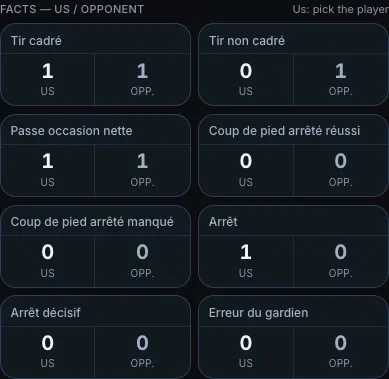
Section titled “Attributed facts”Your facts form a Facts — us / opponent strip, above the quick stats.
| Gesture | Effect |
|---|---|
| One tap on Opp. | counts the fact for the opponent, with no player |
| One tap on Us | opens the player grid — a second tap attributes the fact |
| No player | records the fact for the collective |
The counter shown adds attributed and unattributed facts. The number you read during the match is the real total.
Placing an action on the pitch
Section titled “Placing an action on the pitch”A fact or a quick stat can ask where the action happened. The sheet that opens on the tap then shows a mini-pitch above the player grid.
| Side | Gesture |
|---|---|
| Us | tap the pitch to drop the point, then tap the player. Placing stays optional: tap the player straight away to record the action without a position. |
| Opp. | there is no player to pick, so the sheet shows only the pitch. Tapping the pitch records the action at that spot. Record without a position records it without placing it. |
The We attack arrow reminds you of the direction of play: on the mini-pitch, your team always attacks to the right, in every period. On a half-court, it shows The net. The name of the zone you tapped appears under the pitch, and you can tap elsewhere to move the point before you confirm.
You choose which actions ask for a position in Team settings → Match vocabulary:
- for a fact, the Pitch position box;
- for the quick stats of your sport’s catalogue (foul, corner…), the Quick stats — pitch position section.
The football and futsal templates already tick shots, chance-creating passes, and balls lost or won.
Placing a goal or a shot in the goal
Section titled “Placing a goal or a shot in the goal”After every goal, yours and the opponent’s alike, a placement sheet opens by itself. It asks two questions, one after the other:
- From where? — tap the pitch where the action started.
- Where in the goal? — tap the goal where the ball went in.
The 1 / 2 counter shows the step. Skip jumps a step without placing anything, Close leaves the sheet. The score is saved before the sheet opens: it never waits for the position. The assist or the attribution chain come next.
Skipped the sheet? The Place button on the undo bar reopens it on the goal you just recorded. You can also place the goal after the match, in the goal review.
Some shots also ask where they ended. After you pick the player, the sheet then asks only one question: Where in the goal?, on target or wide.
| Sport | Quick stats | Template facts |
|---|---|---|
| Football | Shot on target, Shot off target | Shot off target, Penalty missed, Decisive save |
| Handball | Save | Missed shot, 7-metre missed |
| Futsal | Shot on target, Shot off target | Shot on target, Shot off target, Save |
A save is placed where the shot your goalkeeper stopped was heading. In handball, a 7-metre scored counts as a goal: the sheet then asks only for the goal.
The goal reads seen by the shooter: their left is on the left. It has nine zones inside the frame (top, middle, bottom, each left, centre or right) and three outside: Wide left, Over the bar and Wide right.
The attribution chain
Section titled “The attribution chain”As soon as your vocabulary declares at least three credit roles, the chain opens by itself after a goal you score, right after the placement sheet. You ask for nothing.
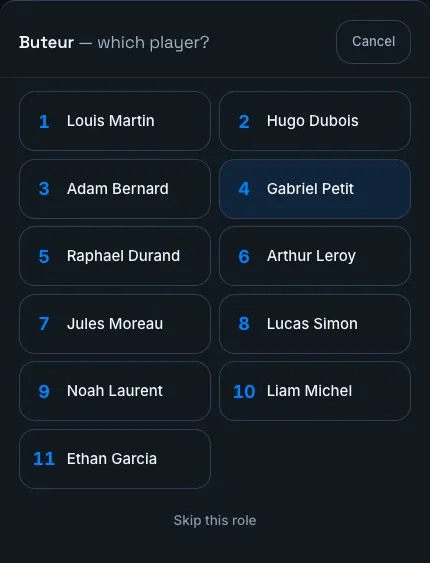
The chain walks your roles one by one, in your order. Two details save you time:
- The scorer is already known: you just tapped them. The chain therefore starts on the first genuinely open question.
- Skip this role leaves a role empty and moves on. A chain with a hole is a legal chain.
The Chain button on the undo bar stays available. It is how you reopen the chain of an older goal, or after closing the sheet.
Qualifying the goal
Section titled “Qualifying the goal”When the chain is done, the Qualify the goal screen opens next. It shows all your axes at once, each with the value already given.
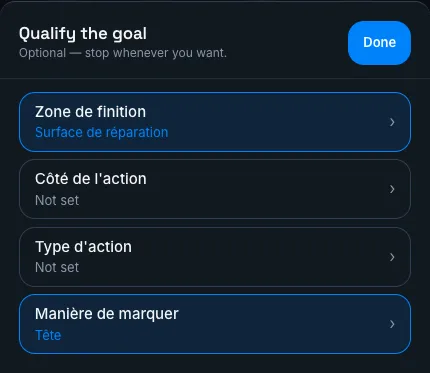
You pick an axis, you answer, you land back on the list. You pick another one, or you stop. This is not a queue: most goals deserve one or two axes.
- Done closes the screen. Every answer is already saved.
- Clear the value removes an answer given by mistake.
Axes scoped to conceded goals do not show either: the live chain is about a goal you score. You fill them in after the match.
Recording opponent players
Section titled “Recording opponent players”The Match sheet tab carries an Opponent players card. Enter at least the number, plus the name when you have it. The list serves two purposes: naming the opponent in your observations, and feeding the opponent rail of the sketch.
If the match is attached to an opponent from your scouting, the list is pre-filled from their squad. You only correct it.
Observations and sketches
Section titled “Observations and sketches”The Observation button records whatever you want to keep: text, a Photo, a Voice note, or a Sketch.
Sketch opens the same drawing surface as the tactical board, on a real pitch for your sport:
- Drag a player from the left rail (your squad) or the right rail (the opponent players) onto the pitch.
- Draw arrows, zones and text from the bottom bar.
- A double click or a long press on an element opens its menu: colour, size, duplicate, delete.
- Confirm attaches the sketch to the observation, stamped at the minute of play.
All observations can be re-read during the match through All observations, and after the match in the session review.
Closing the match
Section titled “Closing the match”Full time closes the live run and pushes everything you recorded into the statistics:
- playing time feeds each player’s Minutes;
- attributed facts become player statistics, unattributed facts become team statistics;
- recorded goals prepare the goal review, which picks up the chain and the qualifications entered pitch-side;
- positions on the pitch and in the goal feed the match map in the session review, then the Pitch tab of the Statistics;
- cards join the Cards tab of the Statistics page, each with its minute of play — the only place where cards carry a time.