

Medical & injuries
The Medical board centralises the squad’s health: active injuries, players in rehab and each player’s availability for the next session.
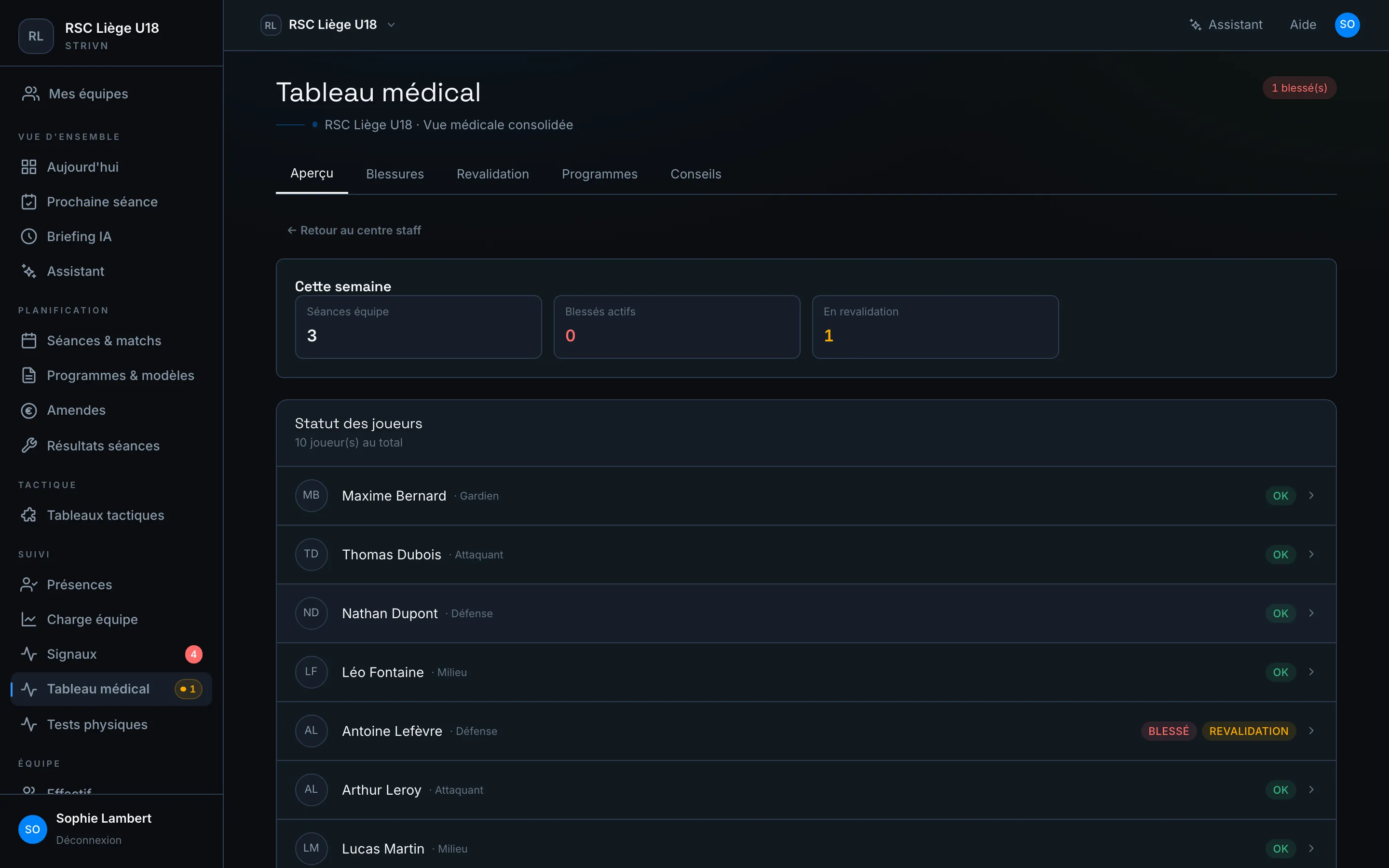
The Overview tab shows the week’s summary (sessions, active injuries, players in rehab) then each player’s status: OK, Injured or Rehab.
Declare an injury
Section titled “Declare an injury”In the Injuries tab, click + Declare. Enter the player, the zone (knee, hamstring…), the type (acute / chronic), the severity and the date of onset.
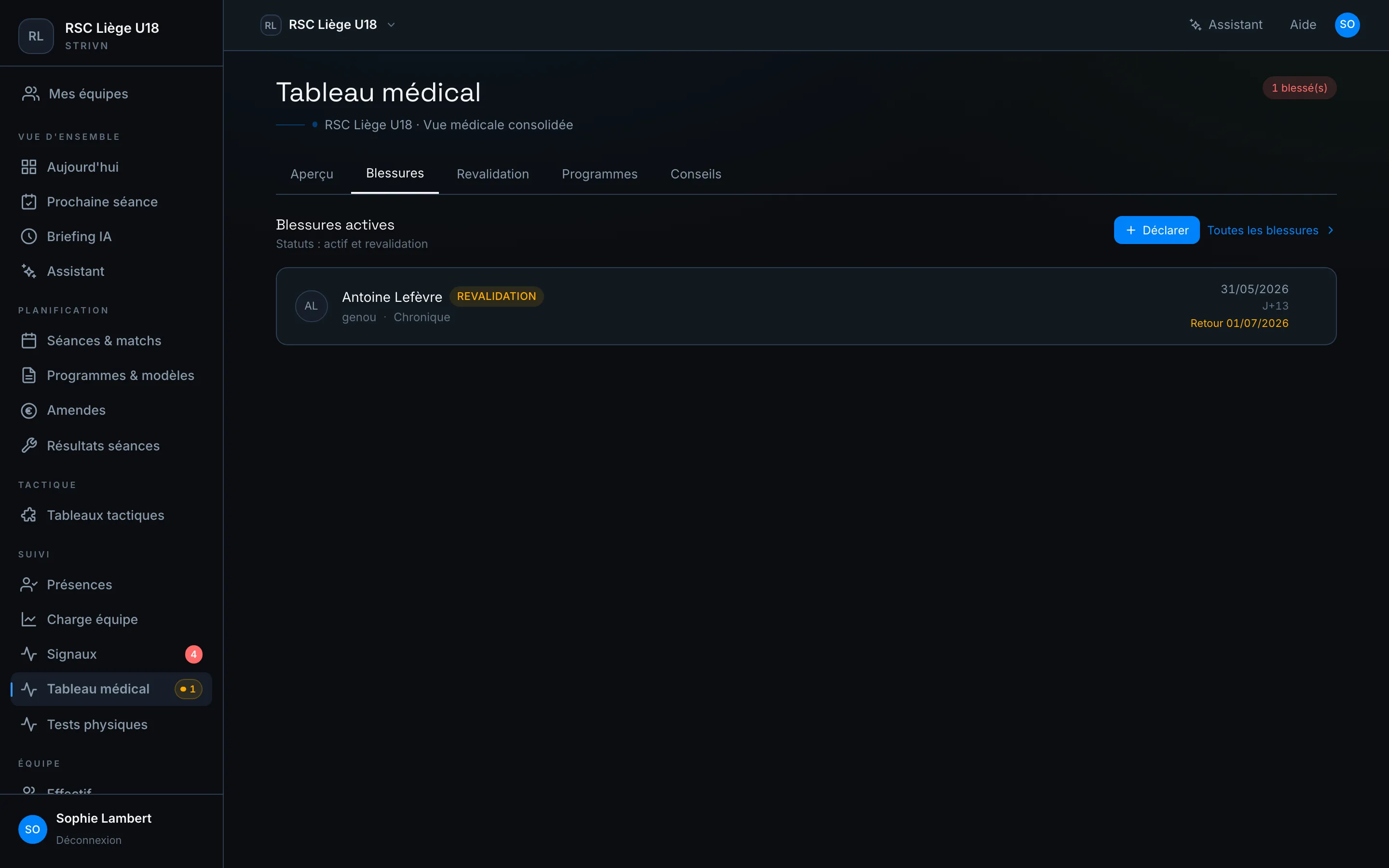
Each injury card shows the zone, the type, the status (Rehab), the number of days elapsed (D+13) and the estimated return date.
Track rehabilitation
Section titled “Track rehabilitation”Click an injury to open its detailed sheet.
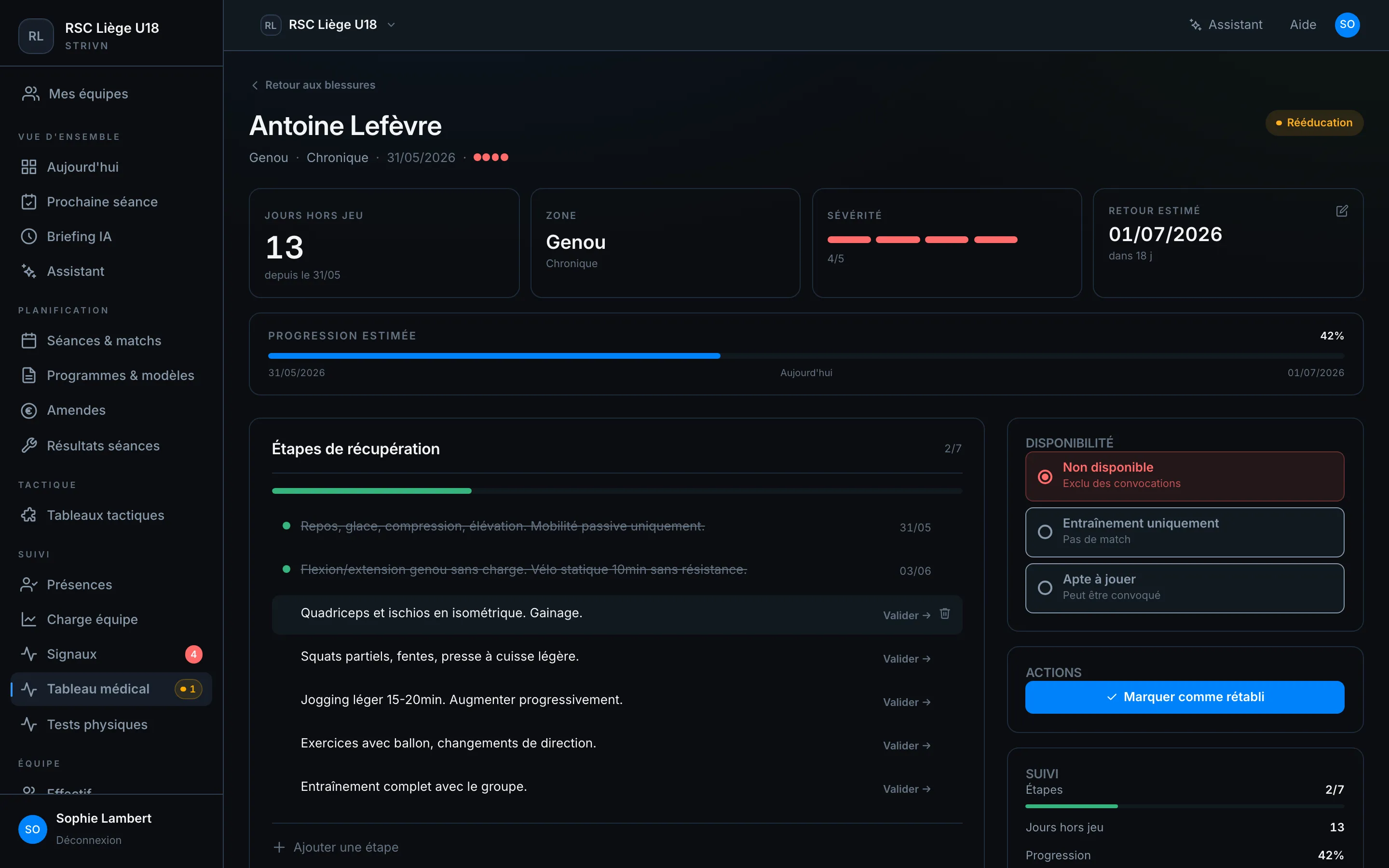
The sheet brings together the whole follow-up:
| Indicator | Description |
|---|---|
| Days out | Time elapsed since declaration |
| Zone & Severity | Location and seriousness (out of 5) |
| Estimated return | Target date, with the countdown of remaining days |
| Estimated progress | Rehab completion as a percentage |
Recovery steps
Section titled “Recovery steps”The return-to-play (RTP) plan breaks down into successive steps — from the anti-inflammatory phase to the return to team training. Tick Validate as you go: the progress bar and step counter update automatically. Use + Add a step to tailor the protocol.
Availability
Section titled “Availability”The Availability panel drives what the player can do:
| Status | Effect |
|---|---|
| Not available | Excluded from call-ups |
| Training only | Called up for sessions, not for matches |
| Fit to play | Available as normal |
When the player has recovered, click Mark as recovered to close the injury.
Physio advice
Section titled “Physio advice”The Advice tab lets you send an exercise or protocol straight to the player, in their STRIVN Player app.
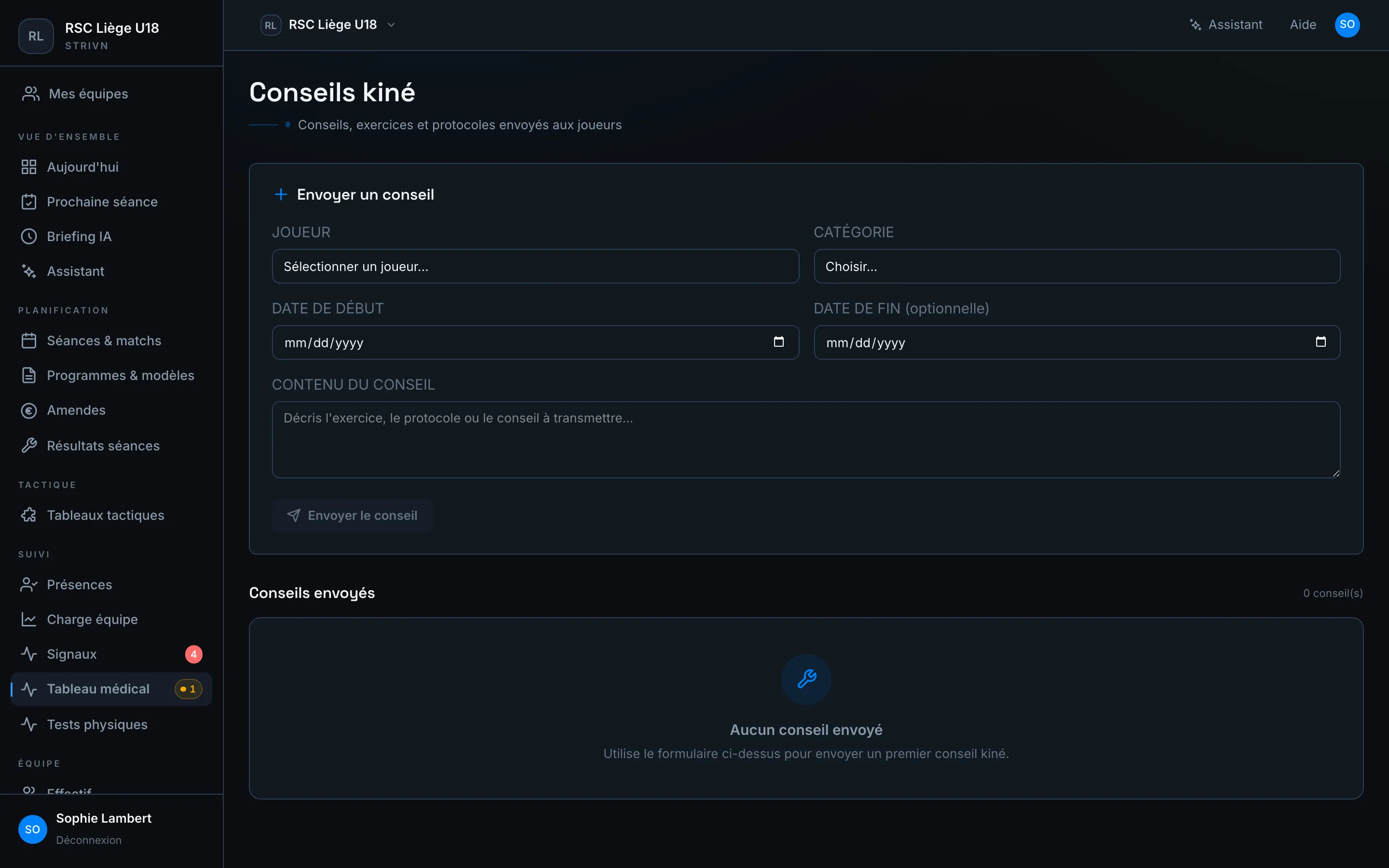
- Choose the player and a category.
- Set a start date (and an optional end date).
- Write the content, then Send advice.