
My strength session
When your coach assigns you a strength session, you find it in your portal with your own weights — computed from your personal 1RM. You can also declare a personal session from the Fitness tab.
Run an assigned session
Section titled “Run an assigned session”- Open the strength session from your agenda or a notification, then tap Start the session.
- Tap Start session.
- For each set, the screen shows the exercise, your weight and the target reps — plus the tempo in plain words when your coach prescribed one (e.g. “3 s lowering · 1 s lifting”):
- do your set, then enter the weight and reps you actually did (prefilled with the target) — add the RPE if you like;
- tap Log set.
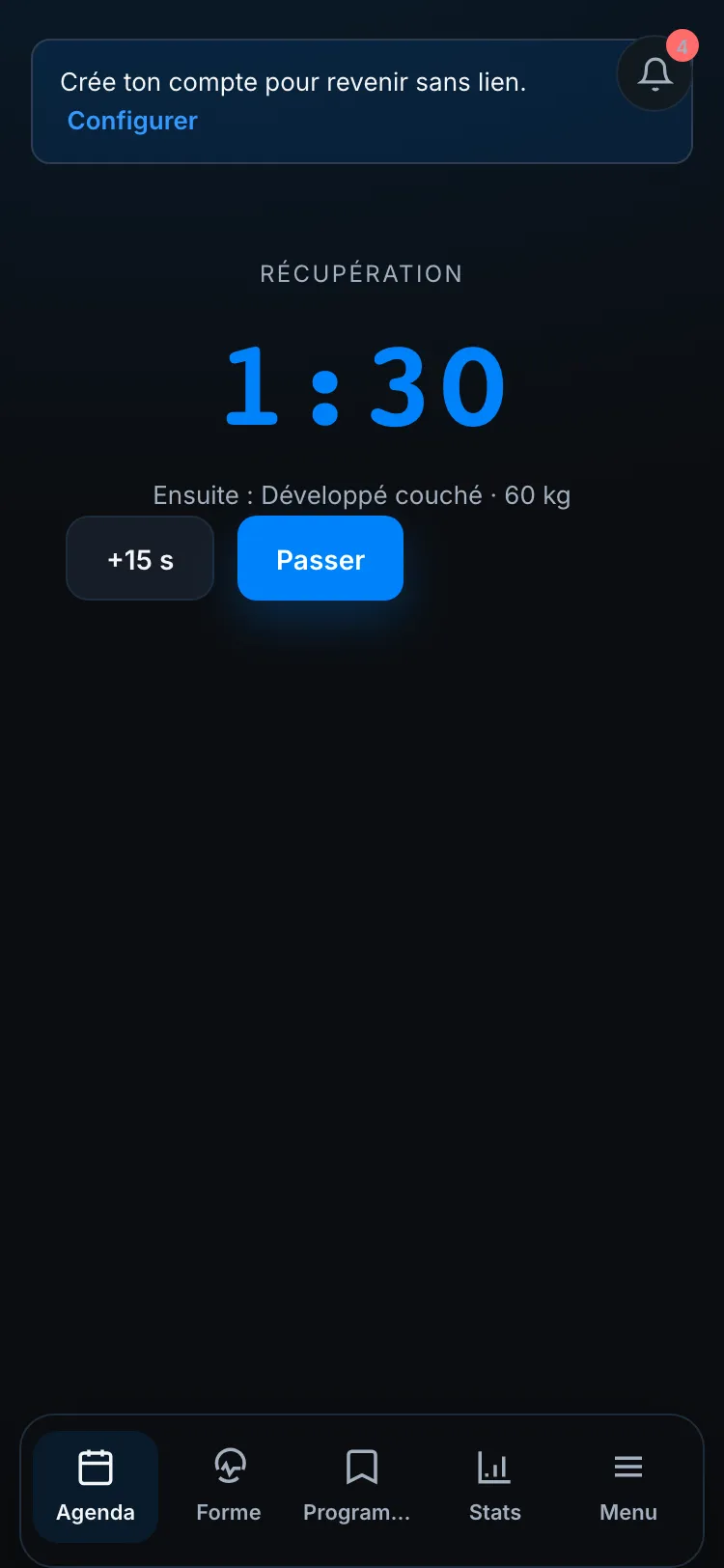
- Between sets, a Rest countdown appears. You can +15 s or Skip.
- At the end, tap Finish session to send everything you lifted.
Supersets and circuits
Section titled “Supersets and circuits”When your coach planned a superset or a circuit, you don’t do all of one exercise’s sets in a row: you alternate, round by round. The screen guides you:
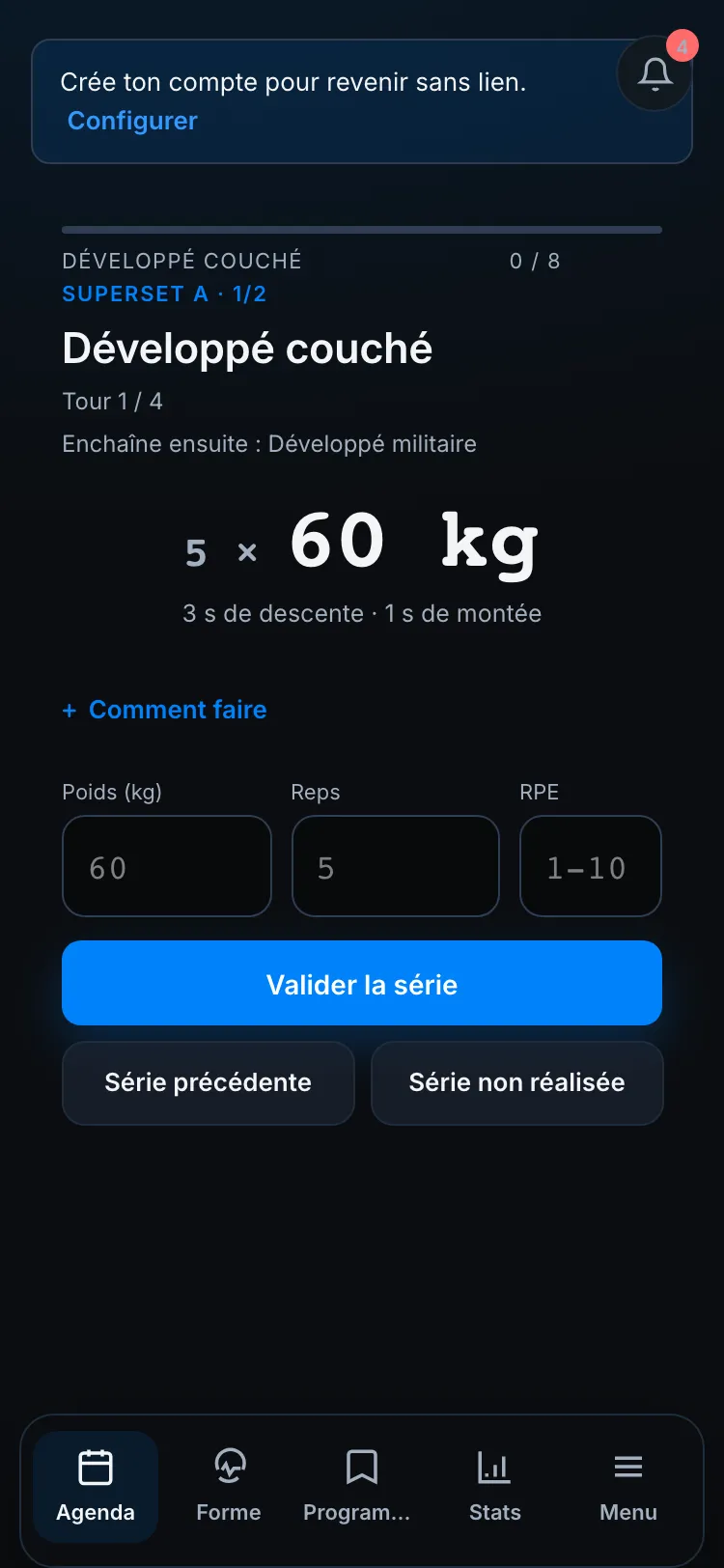
- Superset A · 1/2 — you are in an alternated group, first exercise of two;
- Round 1 / 4 — the current round;
- Straight into: … — the next exercise of the round, to do without rest;
- the Rest countdown comes at the end of the round, not between exercises.
The “How to do it” sheet
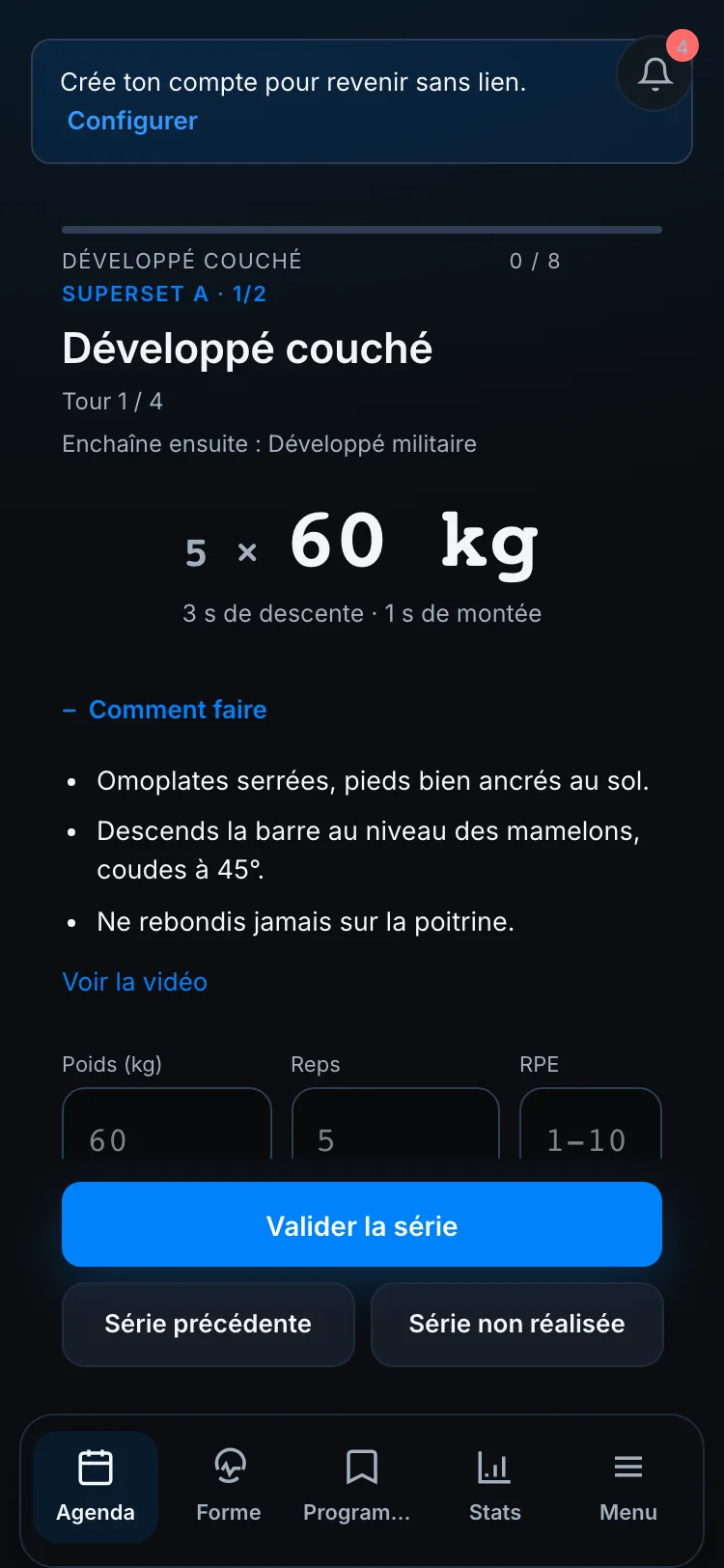
Section titled “The “How to do it” sheet”If your coach added cues, a photo or a video to an exercise, a How to do it button appears under the load. Open it whenever you doubt the movement:
If you beat your record on an exercise, strivn flags it to your coach, who can update your 1RM — your future weights will climb automatically.
Declare a personal session
Section titled “Declare a personal session”From the Fitness tab:
- Open Log a workout.
- Pick a session from the list.
- Run it the same way as above.
Your load is recorded as a personal session and shows in your fitness tracking.
For coaches
Section titled “For coaches”See the guide: Strength & 1RM.